Quantcast
Channel: Planet Python
Viewing all 24370 articles
Browse latest View live

Galvanize: Computer Science Education Week Returns to Colorado

$
0
0
Computer Science Education Week Returns to Colorado

Computer Science Education Week (CSED Week), founded in 2014, is an annual program dedicated to showing K-12 students the importance of computer science education. This year, in partnership with companies including Galvanize, Google, Twitter and Sphero, CSED Week will host more than 40 events for learners of all ages in Boulder, Colorado from Dec. 1-8, 2018.

Events aim to connect the local community, regardless of age, tech background or experience with the best resources to explore and deepen their understanding of computer science. Courses will range in topics from robots to crafting circuits to Python.

This year, Galvanize will host the course Learn to Code: JavaScript during CSED Week. This course will focus on building responsive and fun functions in JavaScript. By the end of the night, attendees will be able to code creative and responsive lines of code. Learn to Code: JavaScript will take place on Dec. 4 from 5:30 – 7:30 p.m. in the Boulder Creek Room at the Boulder Public Library – Main Library.

Can’t make it to a CSED Week event in Colorado? No worries. Be sure to check out the numerous opportunities to help increase access to technology for youth and learners in your own community here.

The post Computer Science Education Week Returns to Colorado appeared first on Galvanize Blog.


Simple is Better Than Complex: Advanced Form Rendering with Django Crispy Forms

$
0
0

[Django 2.1.3 / Python 3.6.5 / Bootstrap 4.1.3]

In this tutorial we are going to explore some of the Django Crispy Forms features to handle advanced/custom forms rendering. This blog post started as a discussion in our community forum, so I decided to compile the insights and solutions in a blog post to benefit a wider audience.

Table of Contents


Introduction

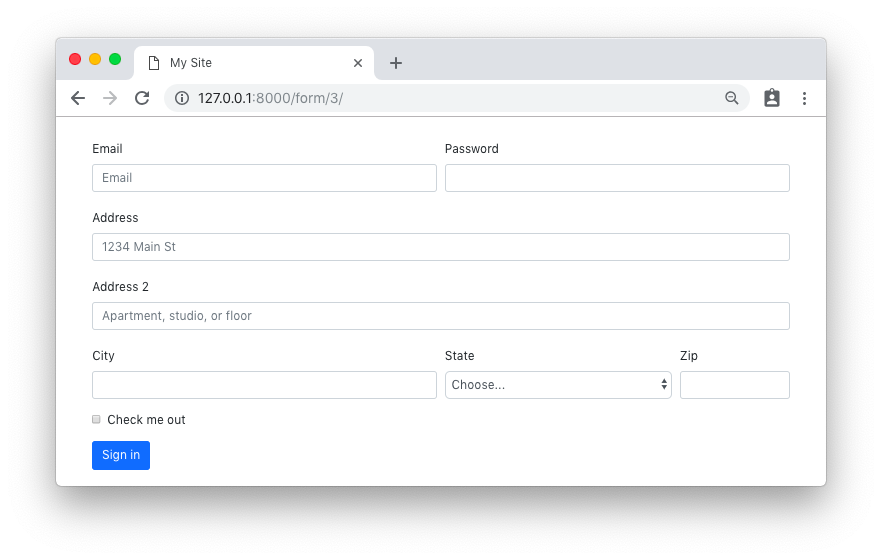
Throughout this tutorial we are going to implement the following Bootstrap 4 form using Django APIs:

Bootstrap 4 Form

This was taken from Bootstrap 4 official documentation as an example of how to use form rows.

NOTE!

The examples below refer to a base.html template. Consider the code below:

base.html

<!doctype html><htmllang="en"><head><metacharset="utf-8"><metaname="viewport"content="width=device-width, initial-scale=1, shrink-to-fit=no"><linkrel="stylesheet"href="https://stackpath.bootstrapcdn.com/bootstrap/4.1.3/css/bootstrap.min.css"integrity="sha384-MCw98/SFnGE8fJT3GXwEOngsV7Zt27NXFoaoApmYm81iuXoPkFOJwJ8ERdknLPMO"crossorigin="anonymous"></head><body><divclass="container">{%blockcontent%}{%endblock%}</div></body></html>

If you don’t know how to install django-crispy-forms, please follow the instructions here first: How to Use Bootstrap 4 Forms With Django


Basic Form Rendering

The Python code required to represent the form above is the following:

fromdjangoimportformsSTATES=(('','Choose...'),('MG','Minas Gerais'),('SP','Sao Paulo'),('RJ','Rio de Janeiro'))classAddressForm(forms.Form):email=forms.CharField(widget=forms.TextInput(attrs={'placeholder':'Email'}))password=forms.CharField(widget=forms.PasswordInput())address_1=forms.CharField(label='Address',widget=forms.TextInput(attrs={'placeholder':'1234 Main St'}))address_2=forms.CharField(widget=forms.TextInput(attrs={'placeholder':'Apartment, studio, or floor'}))city=forms.CharField()state=forms.ChoiceField(choices=STATES)zip_code=forms.CharField(label='Zip')check_me_out=forms.BooleanField(required=False)

In this case I’m using a regular Form, but it could also be a ModelForm based on a Django model with similar fields. The state field and the STATES choices could be either a foreign key or anything else. Here I’m just using a simple static example with three Brazilian states.

Template:

{%extends'base.html'%}{%blockcontent%}<formmethod="post">{%csrf_token%}<table>{{form.as_table}}</table><buttontype="submit">Sign in</button></form>{%endblock%}

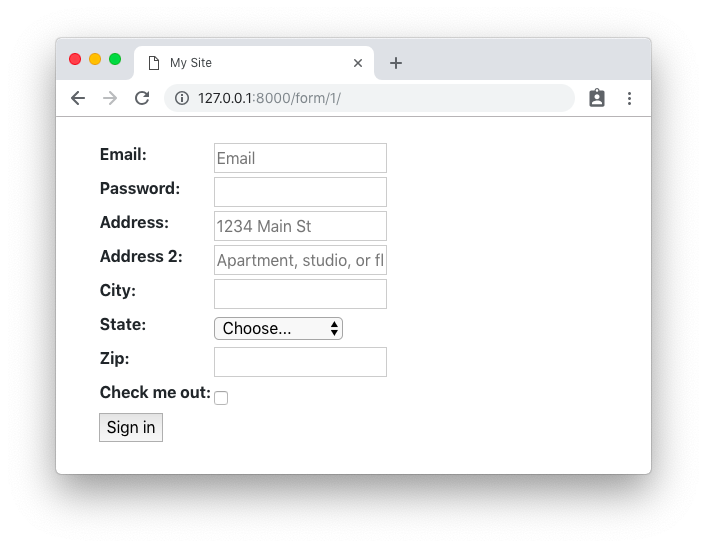
Rendered HTML:

Simple Django Form

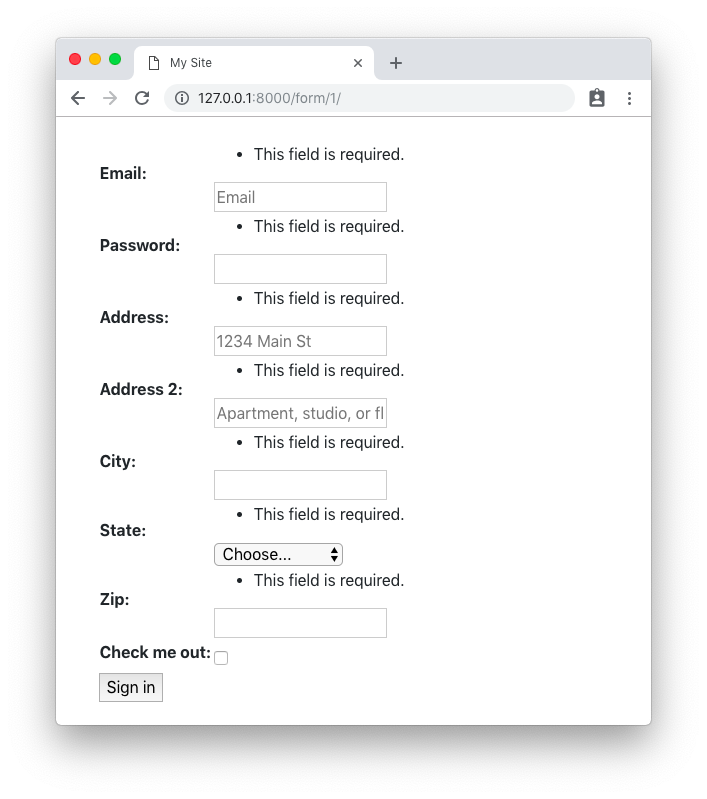
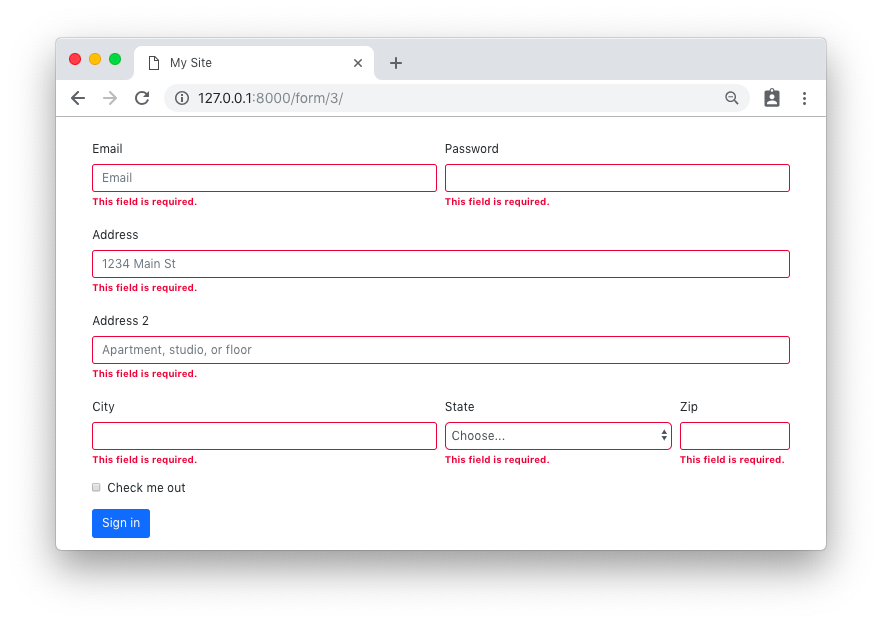
Rendered HTML with validation state:

Simple Django Form Validation State


Basic Crispy Form Rendering

Same form code as in the example before.

Template:

{%extends'base.html'%}{%loadcrispy_forms_tags%}{%blockcontent%}<formmethod="post">{%csrf_token%}{{form|crispy}}<buttontype="submit"class="btn btn-primary">Sign in</button></form>{%endblock%}

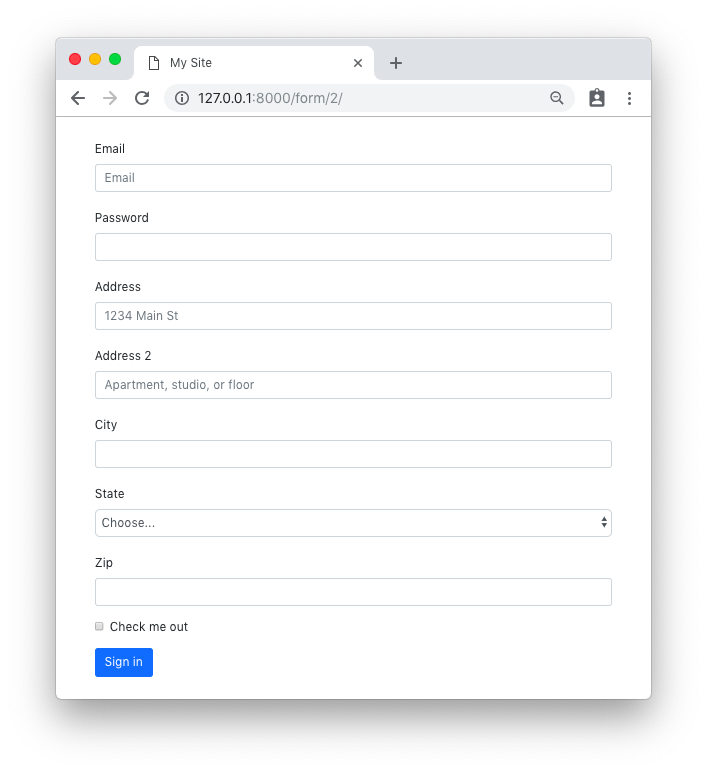
Rendered HTML:

Crispy Django Form

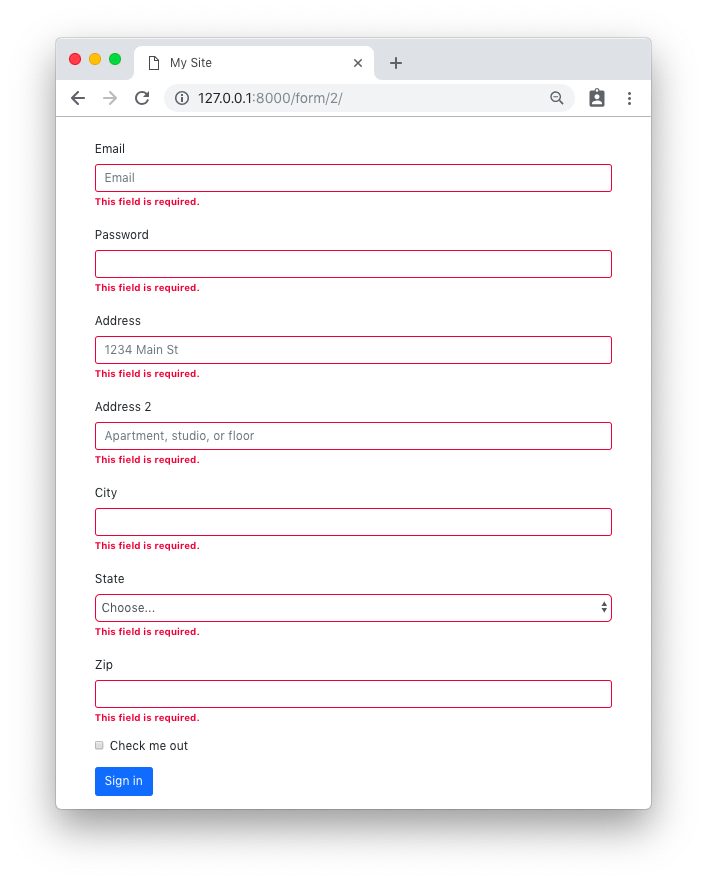
Rendered HTML with validation state:

Crispy Django Form Validation State


Custom Fields Placement with Crispy Forms

Same form code as in the first example.

Template:

{%extends'base.html'%}{%loadcrispy_forms_tags%}{%blockcontent%}<formmethod="post">{%csrf_token%}<divclass="form-row"><divclass="form-group col-md-6 mb-0">{{form.email|as_crispy_field}}</div><divclass="form-group col-md-6 mb-0">{{form.password|as_crispy_field}}</div></div>{{form.address_1|as_crispy_field}}{{form.address_2|as_crispy_field}}<divclass="form-row"><divclass="form-group col-md-6 mb-0">{{form.city|as_crispy_field}}</div><divclass="form-group col-md-4 mb-0">{{form.state|as_crispy_field}}</div><divclass="form-group col-md-2 mb-0">{{form.zip_code|as_crispy_field}}</div></div>{{form.check_me_out|as_crispy_field}}<buttontype="submit"class="btn btn-primary">Sign in</button></form>{%endblock%}

Rendered HTML:

Custom Crispy Django Form

Rendered HTML with validation state:

Custom Crispy Django Form Validation State


Crispy Forms Layout Helpers

We could use the crispy forms layout helpers to achieve the same result as above. The implementation is done inside the form __init__ method:

forms.py

fromdjangoimportformsfromcrispy_forms.helperimportFormHelperfromcrispy_forms.layoutimportLayout,Submit,Row,ColumnSTATES=(('','Choose...'),('MG','Minas Gerais'),('SP','Sao Paulo'),('RJ','Rio de Janeiro'))classAddressForm(forms.Form):email=forms.CharField(widget=forms.TextInput(attrs={'placeholder':'Email'}))password=forms.CharField(widget=forms.PasswordInput())address_1=forms.CharField(label='Address',widget=forms.TextInput(attrs={'placeholder':'1234 Main St'}))address_2=forms.CharField(widget=forms.TextInput(attrs={'placeholder':'Apartment, studio, or floor'}))city=forms.CharField()state=forms.ChoiceField(choices=STATES)zip_code=forms.CharField(label='Zip')check_me_out=forms.BooleanField(required=False)def__init__(self,*args,**kwargs):super().__init__(*args,**kwargs)self.helper=FormHelper()self.helper.layout=Layout(Row(Column('email',css_class='form-group col-md-6 mb-0'),Column('password',css_class='form-group col-md-6 mb-0'),css_class='form-row'),'address_1','address_2',Row(Column('city',css_class='form-group col-md-6 mb-0'),Column('state',css_class='form-group col-md-4 mb-0'),Column('zip_code',css_class='form-group col-md-2 mb-0'),css_class='form-row'),'check_me_out',Submit('submit','Sign in'))

The template implementation is very minimal:

{%extends'base.html'%}{%loadcrispy_forms_tags%}{%blockcontent%}{%crispyform%}{%endblock%}

The end result is the same.

Rendered HTML:

Custom Crispy Django Form

Rendered HTML with validation state:

Custom Crispy Django Form Validation State


Custom Crispy Field

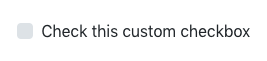
You may also customize the field template and easily reuse throughout your application. Let’s say we want to use the custom Bootstrap 4 checkbox:

Bootstrap 4 Custom Checkbox

From the official documentation, the necessary HTML to output the input above:

<divclass="custom-control custom-checkbox"><inputtype="checkbox"class="custom-control-input"id="customCheck1"><labelclass="custom-control-label"for="customCheck1">Check this custom checkbox</label></div>

Using the crispy forms API, we can create a new template for this custom field in our “templates” folder:

custom_checkbox.html

{%loadcrispy_forms_field%}<divclass="form-group"><divclass="custom-control custom-checkbox">{%crispy_fieldfield'class''custom-control-input'%}<labelclass="custom-control-label"for="{{field.id_for_label}}">{{field.label}}</label></div></div>

Now we can create a new crispy field, either in our forms.py module or in a new Python module named fields.py or something.

forms.py

fromcrispy_forms.layoutimportFieldclassCustomCheckbox(Field):template='custom_checkbox.html'

We can use it now in our form definition:

forms.py

classCustomFieldForm(AddressForm):def__init__(self,*args,**kwargs):super().__init__(*args,**kwargs)self.helper=FormHelper()self.helper.layout=Layout(Row(Column('email',css_class='form-group col-md-6 mb-0'),Column('password',css_class='form-group col-md-6 mb-0'),css_class='form-row'),'address_1','address_2',Row(Column('city',css_class='form-group col-md-6 mb-0'),Column('state',css_class='form-group col-md-4 mb-0'),Column('zip_code',css_class='form-group col-md-2 mb-0'),css_class='form-row'),CustomCheckbox('check_me_out'),# <-- HereSubmit('submit','Sign in'))

(PS: the AddressForm was defined here and is the same as in the previous example.)

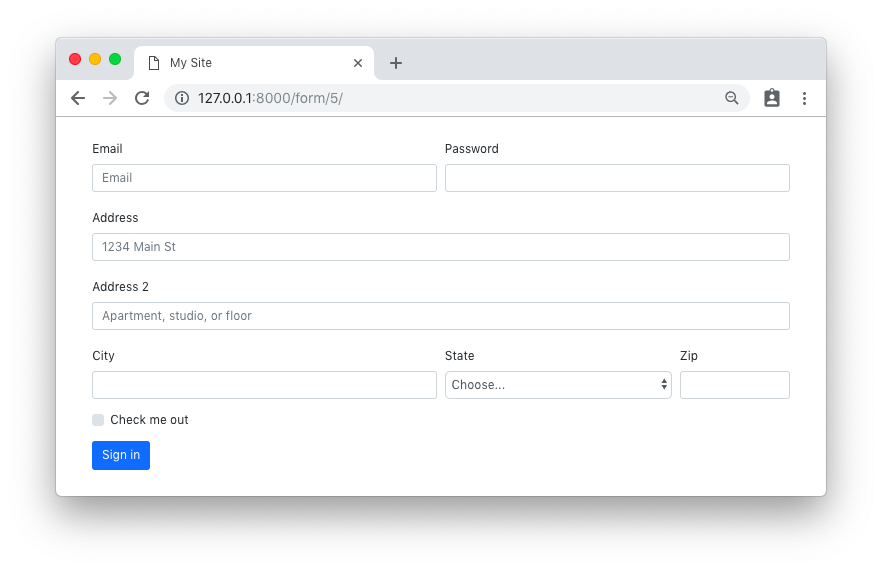
The end result:

Bootstrap 4 Custom Checkbox


Conclusions

There is much more Django Crispy Forms can do. Hopefully this tutorial gave you some extra insights on how to use the form helpers and layout classes. As always, the official documentation is the best source of information:

Django Crispy Forms layouts docs

Also, the code used in this tutorial is available on GitHub at github.com/sibtc/advanced-crispy-forms-examples.

Python Celery - Weekly Celery Tutorials and How-tos: Kubernetes for Python Developers: Part 1

$
0
0

Kubernetes is an open-source container-orchestration system for automating deployment, scaling and management of containerised apps.

Kubernetes helps you to run, track and monitor containers at scale. It has become the de facto tool for container management.

Kubernetes is the largest and fastest growing open-source container orchestration software.

This blog post is the first part of a series: Kubernetes for Python developers.

Our goal is to migrate a Celery app app we developed in a previous blog post from Docker Compose to Kubernetes.

You do not need any Kubernetes knowlegde to follow this blog post. You should have some experience with Docker.

In this first part of the series, you will learn how to set up RabbitMQ as your Celery message broker on Kubernetes.

You will learn about kubectl, the Kubernetes command line interface. And by the end of this article you will know how to deploy a self-healing RabbitMQ application with a stable IP address and DNS name into the cluster.

In order to run Kubernetes on your machine, make sure to enable it. You can find instructions here.

screenshot

kubectl

First you need to know is kubectl. kubectl is the kubernetes command line tool. It is the docker-compose equivalent and lets you interact with your kubernetes cluster.

For example, run kubectl cluster-info to get basic information about your kubernetes cluster. Or kubectl logs worker to get stdout/stderr logs. Very similar to docker-compose logs worker.

screenshot

Pods

You cannot run a container directly on Kubernetes. A container must always run inside a Pod. A Pod is the smallest and most basic building block in the Kubernetes world.

A Pod is an environment for a single container. Or a small number of tightly coupled containers (think log forwarding container).

A Pod shares some of the properties of a Docker Compose service. A Pod specifies the docker image and command to run. It allows you to define environment variables, memory and CPU resources.

Unlike a Docker Compose service, a Pod does not provide self-healing functionality. It is ephemeral. When a Pod dies, it’s gone. 

Nor does a Pod come with DNS capabilities. This is handled by a Service object which we will cover further down. Pods are much lower level compared to Docker Compose services.

Let’s create a RabbitMQ Pod. Using the RabbitMQ image from Docker Hub, tag 3.7.8. 

# rabbitmq-pod.yamlapiVersion:v1kind:Podmetadata:name:rabbitmq-podspec:containers:-name:rabbitmq-containerimage:rabbitmq:3.7.8

Create the Pod with kubectl and confirm it is up and running:

=> kubectl apply -f rabbitmq-pod.yaml
pod/rabbitmq-pod created

=> kubectl get pods
NAME                            READY   STATUS    RESTARTS   AGE
rabbitmq-pod                    1/1     Running   0          10s

Delete the Pod and confirm:

=> kubectl delete -f rabbitmq-pod.yaml
pod "rabbitmq-pod" deleted

=> kubectl get pods
No resources found.

ReplicaSets

When you create a Pod and the container running inside the Pod dies, the Pod is gone. Pods do not self-heal and they do not scale.

The lack of self-healing capabilities means that it is not a good idea to create a Pod directly. 

This is where ReplicaSets come in. A ReplicaSet ensures that a specified number of Pod replicas are running at any given time.

A ReplicaSet is a management wrapper around a Pod. If a Pod, that is managed by a ReplicaSet, dies, the ReplicaSet brings up a new Pod instance.

# rabbitmq-rs.yamlapiVersion:apps/v1kind:ReplicaSetmetadata:name:rabbitmq-rslabels:app:rabbitmq-rsspec:replicas:1selector:matchLabels:name:rabbitmq-podtemplate:metadata:labels:name:rabbitmq-podspec:restartPolicy:Alwayscontainers:-name:rabbitmq-containerimage:rabbitmq:3.7.8

Instead of having a dedicated Pod manifest file, we now define the Pod inside .spec.template. This is the RabbitMQ Pod manifest from above.

.spec.template has exactly the same schema as the Pod manifest. Except that it is nested and does not have an apiVersion or kind.

We also rearranged the Pod’s metadata slightly. We now attach the label name: rabbitmq-pod to the RabbitMQ Pod. This matches the ReplicaSet’s .spec.selector.matchLabels selector.

This means the ReplicaSet can manage the RabbitMQ Pods as the selector matches. We set the number of RabbitMQ Pods we want to run concurrently in .spec.replicas to 1.

Create the ReplicaSet with kubectl and confirm the ReplicaSet is up and running. And check the ReplicaSet created one instance of the RabbitMQ Pod.

=> kubectl apply -f rabbitmq-rs.yaml
replicaset.apps/rabbitmq-rs created

=> kubectl get rs
NAME          DESIRED   CURRENT   READY   AGE
rabbitmq-rs   1         1         1       5s

=> kubectl get pods
NAME                READY   STATUS    RESTARTS   AGE
rabbitmq-rs-fxdqp   1/1     Running   0          7s

The ReplicaSet we created, created one RabbitMQ Pod. Let’s see what happens when we delete that Pod.

=> kubectl delete pod rabbitmq-rs-fxdqp
pod "rabbitmq-rs-fxdqp" deleted

=> kubectl get pods
NAME                READY   STATUS    RESTARTS   AGE
rabbitmq-rs-5sldl   1/1     Running   0          24s

What happened here? We deleted the ephemeral Pod rabbitmq-rs-fxdqp. The ReplicaSet then noticed that the actual number of RabbitMQ Pods running was 0. And it created a new RabbitMQ Pod instance named rabbitmq-rs-5sldl. We have a self-healing RabbitMQ instance.

Delete the ReplicaSet and confirm the ReplicaSet and any RabbitMQ Pods are gone:

=> kubectl delete -f rabbitmq-rs.yaml
replicaset.apps "rabbitmq-rs" deleted

=> kubectl get rs
No resources found.

=> kubectl get pods
No resources found.

Deployments

Deploying ReplicaSet updates directly is only possible in an imperative way. It is much easier to define the desired state.

This is the use case for Deployments. A Deployment provides declarative updates for ReplicaSets and Pods.

Create a Deployment to create a ReplicaSet which, in turn, brings up one RabbitMQ Pod:

# rabbitmq-deploy.yamlapiVersion:apps/v1kind:Deploymentmetadata:name:rabbitmq-deployspec:replicas:1selector:matchLabels:name:rabbitmq-podtemplate:metadata:labels:name:rabbitmq-podspec:restartPolicy:Alwayscontainers:-name:rabbitmq-containerimage:rabbitmq:3.7.8

ReplicaSets manage Pods. Deployments manage ReplicaSets.

Now, let’s say we need RabbitMQ with the management plugin. We need to replace rabbitmq:3.7.8 with rabbitmq:3.7.8-management.

The new Deployment manifest defines the updated desired state for rabbitmq-deploy.

# rabbitmq-management-deploy.yamlapiVersion:apps/v1kind:Deploymentmetadata:name:rabbitmq-deployspec:replicas:1selector:matchLabels:name:rabbitmq-podtemplate:metadata:labels:name:rabbitmq-podspec:restartPolicy:Alwayscontainers:-name:rabbitmq-containerimage:rabbitmq:3.7.8-management

Deploy the new Deployment version and see how it updates the ReplicaSet and Pod.

=> kubectl apply -f rabbitmq-deploy.3.6.16.yaml
deployment.apps/rabbitmq-deploy configured

=> kubectl get pods
NAME                               READY   STATUS              RESTARTS   AGE
rabbitmq-deploy-7f86fcd959-fgtxr   1/1     Running             0          8m
rabbitmq-deploy-f98989967-qmxzn    0/1     ContainerCreating   0          2s

=> kubectl get pods
NAME                               READY   STATUS        RESTARTS   AGE
rabbitmq-deploy-7f86fcd959-fgtxr   0/1     Terminating   0          8m
rabbitmq-deploy-f98989967-qmxzn    1/1     Running       0          19s

=> kubectl get rs
NAME                         DESIRED   CURRENT   READY   AGE
rabbitmq-deploy-7f86fcd959   0         0         0       13m
rabbitmq-deploy-f98989967    1         1         1       1m

Get more details about the new Pod:

=> kubectl get pod rabbitmq-deploy-f98989967-qmxzn -o yaml

apiVersion: v1
kind: Pod
metadata:
  creationTimestamp: 2018-11-23T16:33:38Z
  generateName: rabbitmq-deploy-f98989967-
  labels:
    name: rabbitmq-pod
    pod-template-hash: "954545523"
  name: rabbitmq-deploy-f98989967-qmxzn
  namespace: default
  ownerReferences:
  - apiVersion: extensions/v1beta1
    blockOwnerDeletion: true
    controller: true
    kind: ReplicaSet
    name: rabbitmq-deploy-f98989967
    uid: 87be145f-ef3d-11e8-886a-025000000001
  resourceVersion: "594134"
  selfLink: /api/v1/namespaces/default/pods/rabbitmq-deploy-f98989967-qmxzn
  uid: 87c0e8ca-ef3d-11e8-886a-025000000001
spec:
  containers:
  - image: rabbitmq:3.7.8-management
    imagePullPolicy: IfNotPresent
    name: rabbitmq-container
    resources: {}
    terminationMessagePath: /dev/termination-log
    terminationMessagePolicy: File
    volumeMounts:
    - mountPath: /var/run/secrets/kubernetes.io/serviceaccount
      name: default-token-r7js4
      readOnly: true

RabbitMQ 3.7.8-management is successfully deployed, replacing RabbitMQ 3.7.8 and giving you access to the RabbitMQ management plugin. You now know how to create and deploy a self-healing RabbitMQ Kubernetes instance!

Services

We still lack a stable Pod IP address or DNS name.

Remember that Pods are not durable. When a Pod dies, the ReplicaSet creates a new Pod instance. The new Pod’s IP address differs from the old Pod’s IP address.

In order to run a Celery worker Pod, we need a stable connection to the RabbitMQ Pod.

Enter Services. A Kubernetes Service is another Kubernetes object. A service gets its own stable IP address, a stable DNS name and a stable port.

Services provide service discovery, load-balancing, and features to support zero-downtime deployments.

Kubernetes provides two types of Services.

A ClusterIP service gives you a service inside your cluster. Your apps inside your cluster can access that service via a stable IP address, DNS name and port. A ClusterIP service does not provide access from outside the cluster.

A NodePort service provides access to a Pod from outside the cluster. And everything a ClusterIP service provides.

Make the RabbitMQ Pod available inside the cluster under the service name rabbitmq and expose 5672.

Expose the RabbitMQ management UI externally on port 30672.

# rabbitmq-service.yamlapiVersion:v1kind:Servicemetadata:name:rabbitmqspec:type:NodePortselector:name:rabbitmq-podports:-protocol:TCPport:15672nodePort:30672targetPort:15672name:http-protocol:TCPport:5672targetPort:5672name:amqp

Deploy with kubectl and check the service’s status:

=> kubectl apply -f rabbitmq-service.yaml
service/rabbitmq created

=> kubectl get service rabbitmq
NAME       TYPE       CLUSTER-IP      EXTERNAL-IP   PORT(S)                          AGE
rabbitmq   NodePort   10.105.37.247   <none>        15672:30672/TCP,5672:32610/TCP   1m

The RabbitMQ management UI should be available on http://localhost:30672:

screenshot

And RabbitMQ is now accessible internally under amqp://guest:guest@rabbitmq/5672.

Now that we have a stable RabbitMQ URL, we can set up our Celery worker on Kubernetes.

Conclusion

In this blog post, we built the foundations for migrating our Docker Compose Celery app to Kubernetes.

We set up a self-healing RabbitMQ Deployment and a RabbitMQ service that gives us a stable URL.

In the next part of this blog post, you will learn about persistent storage (volumes) and configuration via ConfigMaps. And we will migrate the remainder of our Celery app’s stack to Kubernetes.

Guido van Rossum: What to do with your computer science career

$
0
0
I regularly receive questions from students in the field of computer science looking for career advice.

Here's an answer I wrote to one of them. It's not comprehensive or anything, but I thought people might find it interesting.

[A question about whether to choose a 9-5 job or be an entrepreneur]

The question about "9-5" vs. "entrepreneur" is a complex one -- not everybody can be a successful entrepreneur (who would do the work? :-) and not everybody has the temperament for it. For me personally it was never an option -- there are vast parts of management and entrepreneurship that I wouldn't enjoy doing, such as hiring (I hate interviewing and am bad at it) and firing (too emotionally draining -- even just giving negative feedback is hard for me). Pitching ideas to investors is another thing that I'd rather do without.

If any of that resonates with you, you may be better off not opting for entrepreneurship -- the kind of 9-5 software development jobs I have had are actually (mostly) very rewarding: I get to write software that gets used by hundreds or thousands of other developers (or millions in the case of Python), and those other developers in turn use my software to produce product that get uses by hundreds of thousands or, indeed hundreds of millions of users. Not every 9-5 job is the same! For me personally, I don't like the product stuff (since usually that means it's products I have no interest in using myself), but "your mileage may vary" (as they say in the US). Just try to do better than an entry-level web development job;  that particular field (editing HTML and CSS) is likely to be automated away, and would feel repetitive to me.

[A question about whether AI would make human software developers redundant (not about what I think of the field of AI as a career choice)]

Regarding AI, I'm not worried at all. The field is focused on automating boring, repetitive tasks like driving a car or recognizing faces, which humans can learn to do easily but find boring if they have to do it all the time. The field of software engineering (which includes the field of AI) is never boring, since as soon as a task is repetitive, you automate it, and you start solving new problems.

Codementor: Learning Python: From Zero to Hero

$
0
0
First of all, what is Python? According to its creator, Guido van Rossum, Python is a: “high-level programming language, and its core design philosophy is all about code readability and a syntax...

Moshe Zadka: Common Mistakes about Generational Garbage Collection

$
0
0

(Thanks to Nelson Elhage and Saivickna Raveendran for their feedback on earlier drafts. All mistakes that remain are mine.)

When talking about garbage collection, the notion of "generational collection" comes up. The usual motivation given for generational garbage collection is that "most objects die young". Therefore, we put the objects that survive a collection cycle (and therefore have proven some resistance) in a separate generation that we scan less often.

This is an optimization if the probability of an object that has survived a cycle to be garbage by the time the next collection cycle has come around is lower than the probability of a newly allocated object to be garbage.

In a foundational paper Infant mortality and generational garbage collection, Dr. Baker laid out an argument deceptive in its simplicity.

Dr. Baker asks the question: "Can we model a process where most objects become garbage fast, but generational garbage collection would not improve things?". His answer is: of course. This is exactly the probability distribution of radioactive decay.

If we have a "fast decaying element", say with a half-life of one second, than 50% of the element's atoms decay in one second. However, keeping the atoms that "survived a generation" apart from newly created atoms is unhelpful: all remaining atoms decay with probability of 50%.

We can bring the probability for "young garbage" as high up as we want: a half-life of half a second, a quarter second, or a microsecond. However, that is not going to make generational garbage collection any better than a straightforward mark-and-sweep.

The Poisson distribution, which models radioactive decay, has the property that P(will die in one second) might be high, but P(will die in one second|survived an hour) is exactly the same: the past does not give us information about the future. This is called the "no memory property" of Poisson distribution.

When talking about generational garbage collection, and especially if we are making theoretical arguments about its helpfulness, we need to make arguments about the distribution, not about the averages. In other words, we need to make an argument that some kinds of objects hang around for a long time, while others tend to die quickly.

One way to model it is "objects are bimodal": if we model objects as belonging to a mix of two Gaussian distributions, one with a small average and one with a big average, then the motivation for generational collection is clear: if we tune it right, most objects that survive the first cycle belong to the other distribution, and will survive for a few more cycles.

To summarize: please choose your words carefully. "Young objects are more likely to die" is an accurate motivation, "Most objects die young" is not. This goes doubly if you do understand the subtlety: do not assume the people you are talking with have an accurate model of how garbage works.

As an aside, some languages decided that generational collection is more trouble than it is worth because the objects that "die young" go through a different allocation style. For example, Go has garbage collection, but it tries to allocate objects on the stack if it can guarantee at compile-time they do not "escape". Because of that, the "first generation" is collected at stack popping time.

CPython has generational garbage collection, but it also has a "zeroth generation" of sorts: when functions return, all local variables get a "decref": a decrease in reference count. Those for whom that results in a 0 reference counts, which is often quite a few, get collected immediately.

gamingdirectional: Create a game’s start scene for pygame project

$
0
0

In this article we are going to create a start scene for our pygame project. The start scene itself looks really simple but the process to render the start scene will involve the modification of a few files. First of all, lets create the start scene class which will render a background and a play button on the game scene. When we click on that play button the game will start.

Source

Erik Marsja: Explorative Data Analysis with Pandas, SciPy, and Seaborn

$
0
0

In this post we are going to learn to explore data using Python, Pandas, and Seaborn. The data we are going to explore is data from a Wikipedia article. In this post we are actually going to learn how to parse data from a URL, exploring this data by grouping it and data visualization. More specifically, we will learn how to count missing values, group data to calculate the mean, and then visualize relationships between two variables, among other things.

In previous posts we have used Pandas to import data from Excel and CSV files. Here we are going to use Pandas read_html because it has support for reading data from HTML from URLs (https or http). To read HTML Pandas use one of the Python libraries LXML, Html5Lib, or BeautifulSoup4. This means that you have to make sure that at least one of these libraries are installed. In the specific Pandas read_html example here, we use BeautifulSoup4 to parse the html tables from the Wikipedia article.

Installing the Libraries

Before proceeding to the Pandas read_html example we are going to install the required libraries. In this post we are going to use Pandas, Seaborn, NumPy, SciPy, and BeautifulSoup4. We are going to use Pandas to parse HTML and plotting, Seaborn for data visualization, NumPy and SciPy for some calculations, and BeautifulSoup4 as the parser for the read_html method.

Installing Anaconda is the absolutely easiest method to install all packages needed. If your Anaconda distribution you can open up your terminal and type: conda install <packagename>. That is, if you need to install all packages:

conda install numpy scipy pandas seaborn beautifulsoup4

It’s also possible to install using Pip:

pip install numpy scipy pandas seaborn beautifulsoup4

How to Use Pandas read_html

In this section we will work with Pandas read_html to parse data from a Wikipedia article. The article we are going to parse have 6 tables and there are some data we are going to explore in 5 of them. We are going to look at Scoville Heat Units and Pod size of different chili pepper species.

import pandas as pd

url = 'https://en.wikipedia.org/wiki/List_of_Capsicum_cultivars'
data = pd.read_html(url, flavor='bs4', header=0, encoding='UTF8')

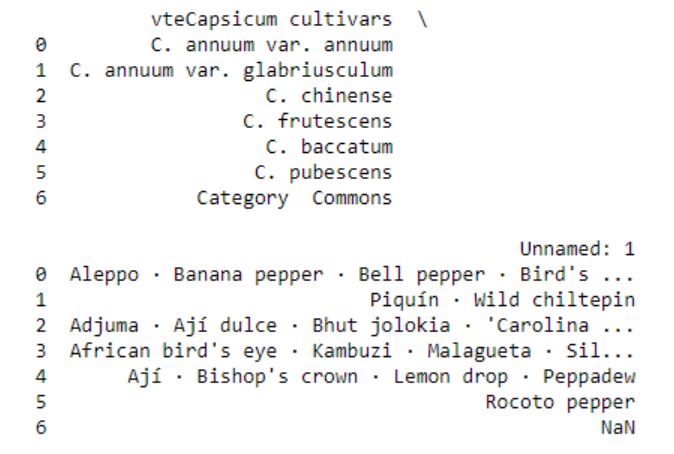
In the code above we are, as usual, starting by importing pandas. After that we have a string variable (i.e., URL) that is pointing to the URL. We are then using Pandas read_html to parse the HTML from the URL. As with the read_csv and read_excel methods, the parameter header is used to tell Pandas read_html on which row the headers are. In this case, it’s the first row. The parameter flavor is used, here, to make use of beatifulsoup4 as HTML parser. If we use LXML, some columns in the dataframe will be empty. Anyway, what we get is all tables from the URL. These tables are, in turn, stored in a list (data). In this Panda read_html example the last table is not of interest:

Thus we are going to remove this dataframe from the list:

# Let's remove the last table
del data[-1]

Merging Pandas Dataframes

The aim with this post is to explore the data and what we need to do now is to add a column in each dataframe in the list. This columns will have information about the species and we create a list with strings. In the following for-loop we are adding a new column, named “Species”, and we add the species name from the list.

species = ['Capsicum annum', 'Capsicum baccatum', 'Capsicum chinense',
          'Capsicum frutescens', 'Capsicum pubescens']


for i in range(len(species)):
    data[i]['Species'] = species[i]

Finally, we are going to concatenate the list of dataframes using Pandas concat:

df = pd.concat(data, sort=False)
df.head()

The data we obtained using Pandas read_html can, of course, be saved locally using either Pandas to_csv or to_excel, among other methods. See the two following tutorials on how to work with these methods and file formats:

Preparing the Data

Now that we have used Pandas read_html and merged the dataframes we need to clean up the data a bit.  We are going to use the method map together with lambda and regular expressions (i.e., sub, findall) to remove and extract certain things from the cells. We are also using the split and rstrip methods to split the strings into pieces. In this example we want the centimeter values. Because of the missing values in the data we have to see if the value from a cell (x, in this case) is a string. If not, we will us NumPy’s NaN to code that it is a missing value.

# Remove brackets and whats between them (e.g. [14])
df['Name'] = df['Name'].map(lambda x: re.sub("[\(\[].*?[\)\]]", "", x)
                                         if isinstance(x, str) else np.NaN)

# Pod Size get cm
df['Pod size'] = df['Pod size'].map(lambda x: x.split(' ', 1)[0].rstrip('cm') 
                                              if isinstance(x, str) else np.NaN)

# Taking the largest number in a range and convert all values to float
df['Pod size']  = df['Pod size'].map(lambda x: x.split('–', 1)[-1]
                                              if isinstance(x, str) else np.NaN)
# Convert to float
df['Pod size'] = df['Pod size'].map(lambda x: float(x))

# Taking the largest SHU
df['Heat'] = df['Heat'].map(lambda x: re.sub("[\(\[].*?[\)\]]", "", x) 
                            if isinstance(x, str) else np.NaN)
df['Heat'] = df['Heat'].str.replace(',', '')
df['Heat'] = df['Heat'].map(lambda x: float(re.findall(r'\d+(?:,\d+)?', x)[-1])
                            if isinstance(x, str) else np.NaN)

Explorative Data Analysis in Python

In this section we are going to explore the data using Pandas and Seaborn. First we are going to see how many missing values we have, count how many occurrences we have of one factor, and then group the data and calculate the mean values for the variables.

Counting Missing Values

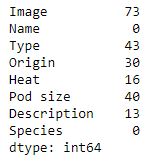
First thing we are going to do is to count the number of missing values in the different columns. We are going to do this using the isna and sum methods:

df.isna().sum()

Later in the post we are going to explore the relationship between the heat and the pod size of chili peppers.  Note, there are a lot of missing data in both of these columns.

Counting categorical Data in a Column

We can also count how many factors (or categorical data; i.e., strings) we have in a column by selecting that column and using the Pandas Series method value_counts:

df['Species'].value_counts()

Aggregating by Group

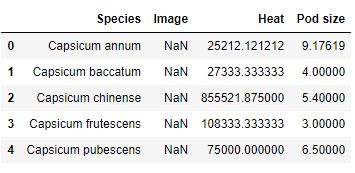
We can also calculate the mean Heat and Pod size for each species using Pandas groupby and mean methods:

df_aggregated = df.groupby('Species').mean().reset_index()
df_aggregated

There are of course many other ways to explore your data using Pandas methods (e.g., value_counts, mean, groupby). See the posts Descriptive Statistics using Python and Data Manipulation with Pandas for more information.

Data Visualization using Pandas and Seaborn

In this section we are going to visualize the data using Pandas and Seaborn. We are going to start to explore whether there is a relationship between the size of the chili pod (‘Pod size’) and the heat of the chili pepper (Scoville Heat Units).

Pandas Scatter Plot

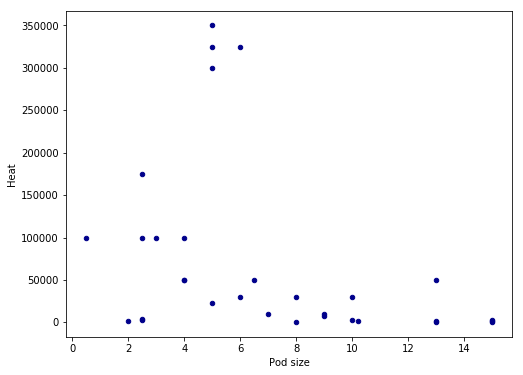
In the first scatter plot, we are going to use Pandas built-in method ‘scatter’.  In this basic example we are going to have pod size on the x-axis and heat on the y-axis. We are also getting the blue points by using the parameter c.

ax1 = df.plot.scatter(x='Pod size',
                    y='Heat',
                     c='DarkBlue')

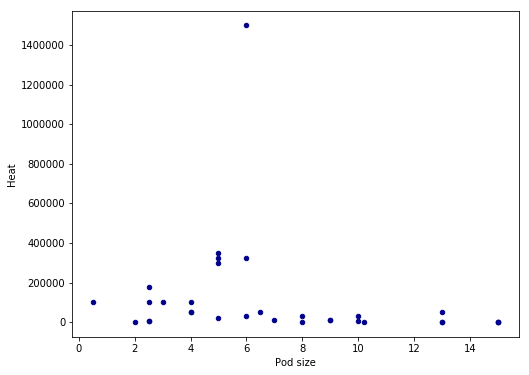
There seems to be a linear relationship between heat and pod size. However, we have an outlier in the data and the pattern may be more clear if we remove it. Thus, in the next Pandas scatter plot example we are going to subset the dataframe taking only values under 1,400,000 SHU:

ax1 = df.query('Heat < 1400000').plot.scatter(x='Pod size',
                    y='Heat',
                     c='DarkBlue', figsize=(8, 6))

We used pandas query to select the rows were the value in the column ‘Heat’ is lower than preferred value. The resulting scatter plot shows a more convincing pattern:

We still have some possible outliers (around 300,000 – 35000 SHU) but we are going to leave them. Note that I used the parameter figsize=(8, 6) in both plots above to get the dimensions of the posted images. That is, if you want to change the dimensions of the Pandas plots you should use figsize.

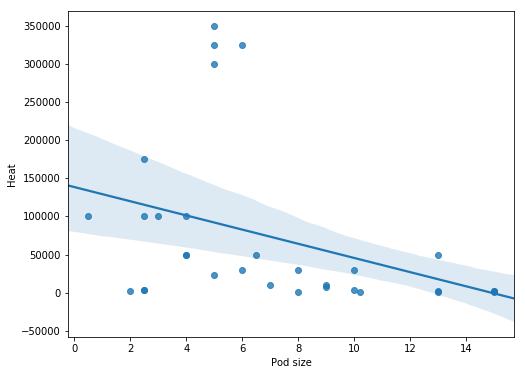
Now we would like to plot a regression line on the Pandas scatter plot. As far as I know, this is not possible (please comment below if you know a solution and I will add it). Therefore, we are now going to use Seaborn to visualize data as it gives us more control and options over our graphics.

Data Visualization using Seaborn

In this section we are going to continue exploring the data using the Python package Seaborn. We start with scatter plots and continue with

Seaborn Scatter Plot

Creating a scatter plot using Seaborn is very easy. In the basic scatter plot example below we are, as in the Pandas example, using the parameters x and y (x-axis and y-axis, respectively). However, we have use the parameter data and our dataframe.

import seaborn as sns

ax = sns.regplot(x="Pod size", y="Heat", data=df.query('Heat < 1400000'))


Correlation in Python

Judging from above there seems to be a relationship between the variables of interest. Next thing we are going to do is to see if this visual pattern also shows up as a statistical association (i.e., correlation). To this aim, we are going to use SciPy and the pearsonr method. We start by importing pearsonr from scipy.stats.

from scipy.stats import pearsonr

As we found out when exploring the data using Pandas groupby there was a lot of missing data  (both for heat and pod size). When calculating the correlation coefficient using Python we need to remove the missing values. Again, we are also removing the strongest chili pepper using Pandas query.

df_full = df[['Heat', 'Pod size']].dropna()
df_full = df_full.query('Heat < 1400000')
print(len(df_full))
# Output: 31

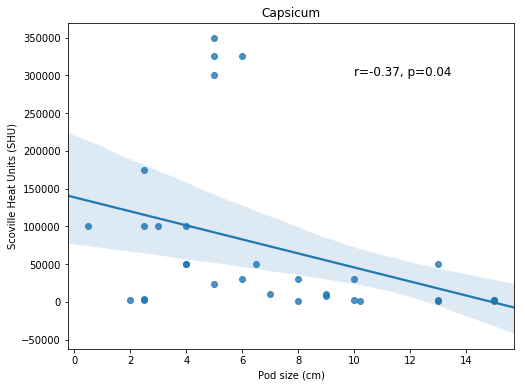
Note, in the example above we are selecting the columns “Heat” and “Pod size” only. If we want to keep the other variables but only have complete cases we can use the subset parameter (df_full = df.dropna(subset=[‘Heat’, ‘Pod size’])). That said, we now have a subset of our dataframe with 31 complete cases and it’s time to carry out the correlation. It’s quite simple, we just put in the variables of interest. We are going to display the correlation coefficient and p-value on the scatter plot later so we use NumPy’s round to round the values.

corr = pearsonr(df_full['Heat'], df_full['Pod size'])
corr = [np.round(c, 2) for c in corr]
print(corr)
# Output: [-0.37, 0.04]

Seaborn Correlation Plot with Trend Line

It’s time to stitch everything together! First, we are creating a text string for displaying the correlation coefficient (r=-0.37) and the p-value (p=0.04). Second, we are creating the correlation plot using Seaborn regplot, as in the previous example. To display the text we use the text method; the first parameter is the x coordinate and the second is the y coordinate. After the coordinates we have our text and the size of the font. We are also sing set_title to add a title to the Seaborn plot and we are changing the x- and y-labels using the set method.

text = 'r=%s, p=%s' % (corr[0], corr[1])
ax = sns.regplot(x="Pod size", y="Heat", data=df_full)
ax.text(10, 300000, text, fontsize=12)
ax.set_title('Capsicum')
ax.set(xlabel='Pod size (cm)', ylabel='Scoville Heat Units (SHU)')


Pandas Boxplot Example

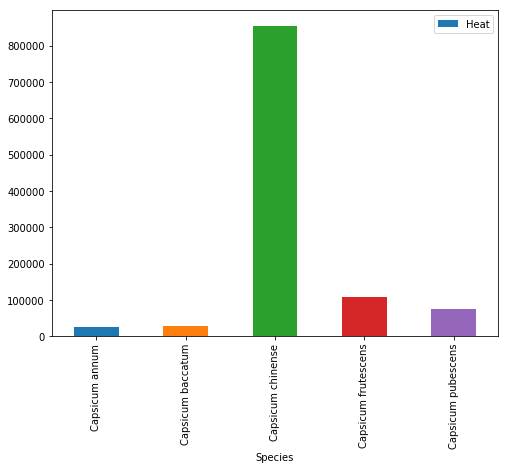
Now we are going to visualize some other aspects of the data. We are going to use the aggregated data (grouped by using Pandas groupby) to visualize the mean heat across species. We start by using Pandas boxplot method:

df_aggregated = df.groupby('Species').mean().reset_index()
df_aggregated.plot.bar(x='Species', y='Heat')


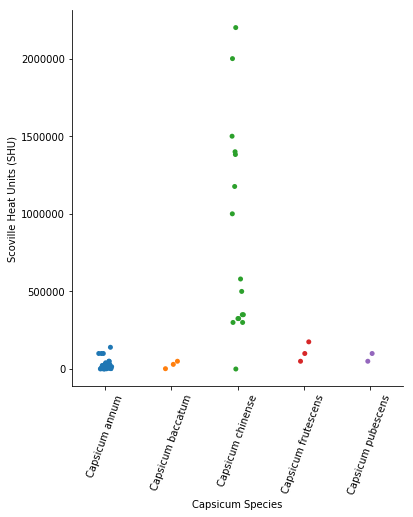
In the image above, we can see that the mean heat is highest for the Capsicum Chinense species. However, the bar graph my hide important information (remember, the scatter plot revealed some outliers). We are therefore continuing with a categorical scatter plot using Seaborn:

Grouped Scatter Plot with Seaborn

Here, we don’t add that much compared to the previous Seaborn scatter plots examples. However, we need to rotate the tick labels on the x-axis using set_xticklabels and the parameter rotation.

ax = sns.catplot(x='Species', y='Heat', data=df)
ax.set(xlabel='Capsicum Species', ylabel='Scoville Heat Units (SHU)')
ax.set_xticklabels(rotation=70)

Conclusion

Now we have learned how to explore data using Python, Pandas, NumPy, SciPy, and Seaborn. Specifically, we have learned how to us Pandas read_html to parse HTML from a URL, clean up the data in the columns (e.g., remove unwanted information), create scatter plots both in Pandas and Seaborn, visualize grouped data, and create categorical scatter plots in Seaborn. We have now an idea how to change the axis ticks labels rotation, change the y- and x-axis labels, and adding a title to Seaborn plots.

The post Explorative Data Analysis with Pandas, SciPy, and Seaborn appeared first on Erik Marsja.


Codementor: The Python API for Juniper Networks

$
0
0
Learn about Juniper networks and PyEZ in this guest post by Eric Chou, the author of Mastering Python Networking – Second Edition...

PyCharm: PyCharm 2018.3.1 RC Out Now

$
0
0

PyCharm 2018.3.1 Release Candidate is now available, with various bug fixes. Get it now from our Confluence page

Improved in This Version

  • A fix for recently added WSL support in PyCharm 2018.3
  • A few fixes for Docker and Docker Compose support
  • Fixes for the embedded terminal
  • Many fixes coming from WebStorm, DataGrip and IntelliJ IDEA, see the release notes for details

Interested?

Download the RC from our confluence page

If you’re on Ubuntu 16.04 or later, you can use snap to get PyCharm RC versions, and stay up to date. You can find the installation instructions on our website.

The release candidate (RC) is not an early access program (EAP) build, and does not bundle an EAP license. If you get PyCharm Professional Edition RC, you will either need a currently active PyCharm subscription, or you will receive a 30-day free trial.

PyPy Development

$
0
0

Hello everyone

At PyPy we are trying to support a relatively wide range of platforms. We have PyPy working on OS X, Windows and various flavors of linux (and unofficially various flavors of BSD) on the software side, with hardware side having x86, x86_64, PPC, 32-bit Arm (v7) and even zarch. This is harder than for other projects, since PyPy emits assembler on the fly from the just in time compiler and it requires significant amount of work to port it to a new platform.

We are pleased to inform that Arm Limited, together with Crossbar.io GmbH, are sponsoring the development of 64-bit Armv8-a architecture support through Baroque Software OU, which would allow PyPy to run on a new variety of low-power, high-density servers with that architecture. We believe this will be beneficial for the funders, for the PyPy project as well as to the wider community.

The work will commence soon and will be done some time early next year with expected speedups either comparable to x86 speedups or, if our current experience with ARM holds, more significant than x86 speedups.

Best,
Maciej Fijalkowski and the PyPy team


PythonClub - A Brazilian collaborative blog about Python: Algoritmos de Ordenação

$
0
0

Fala pessoal, tudo bom?

Nos vídeos abaixo, vamos aprender como implementar alguns dos algoritmos de ordenação usando Python.

Bubble Sort

Como o algoritmo funciona: Como implementar o algoritmo usando Python: https://www.youtube.com/watch?v=Doy64STkwlI.

Como implementar o algoritmo usando Python: https://www.youtube.com/watch?v=B0DFF0fE4rk.

Código do algoritmo

defsort(array):forfinalinrange(len(array),0,-1):exchanging=Falseforcurrentinrange(0,final-1):ifarray[current]>array[current+1]:array[current+1],array[current]=array[current],array[current+1]exchanging=Trueifnotexchanging:break

Selection Sort

Como o algoritmo funciona: Como implementar o algoritmo usando Python: https://www.youtube.com/watch?v=vHxtP9BC-AA.

Como implementar o algoritmo usando Python: https://www.youtube.com/watch?v=0ORfCwwhF_I.

Código do algoritmo

defsort(array):forindexinrange(0,len(array)):min_index=indexforrightinrange(index+1,len(array)):ifarray[right]<array[min_index]:min_index=rightarray[index],array[min_index]=array[min_index],array[index]

Insertion Sort

Como o algoritmo funciona: Como implementar o algoritmo usando Python: https://www.youtube.com/watch?v=O_E-Lj5HuRU.

Como implementar o algoritmo usando Python: https://www.youtube.com/watch?v=Sy_Z1pqMgko.

Código do algoritmo

defsort(array):forpinrange(0,len(array)):current_element=array[p]whilep>0andarray[p-1]>current_element:array[p]=array[p-1]p-=1array[p]=current_element

Merge Sort

Como o algoritmo funciona: Como implementar o algoritmo usando Python: https://www.youtube.com/watch?v=Lnww0ibU0XM.

Como implementar o algoritmo usando Python - Parte I: https://www.youtube.com/watch?v=cXJHETlYyVk.

Código do algoritmo

defsort(array):sort_half(array,0,len(array)-1)defsort_half(array,start,end):ifstart>=end:returnmiddle=(start+end)//2sort_half(array,start,middle)sort_half(array,middle+1,end)merge(array,start,end)defmerge(array,start,end):array[start:end+1]=sorted(array[start:end+1])

Continuum Analytics Blog: Understanding Conda and Pip

$
0
0

Conda and pip are often considered as being nearly identical. Although some of the functionality of these two tools overlap, they were designed and should be used for different purposes. Pip is the Python Packaging Authority’s recommended tool for installing packages from the Python Package Index, PyPI. Pip installs Python software packaged as wheels or …
Read more →

The post Understanding Conda and Pip appeared first on Anaconda.

Stack Abuse: Python Data Visualization with Matplotlib

$
0
0

Introduction

Python Data Visualization with Matplotlib

Visualizing data trends is one of the most important tasks in data science and machine learning. The choice of data mining and machine learning algorithms depends heavily on the patterns identified in the dataset during data visualization phase. In this article, we will see how we can perform different types of data visualizations in Python. We will use Python's Matplotlib library which is the de facto standard for data visualization in Python.

The article A Brief Introduction to Matplotlib for Data Visualization provides a very high level introduction to the Matplot library and explains how to draw scatter plots, bar plots, histograms etc. In this article, we will explore more Matplotlib functionalities.

Changing Default Plot Size

The first thing we will do is change the default plot size. By default, the size of the Matplotlib plots is 6 x 4 inches. The default size of the plots can be checked using this command:

import matplotlib.pyplot as plt

print(plt.rcParams.get('figure.figsize'))  

For a better view, may need to change the default size of the Matplotlib graph. To do so you can use the following script:

fig_size = plt.rcParams["figure.figsize"]  
fig_size[0] = 10  
fig_size[1] = 8  
plt.rcParams["figure.figsize"] = fig_size  

The above script changes the default size of the Matplotlib plots to 10 x 8 inches.

Let's start our discussion with a simple line plot.

Line Plot

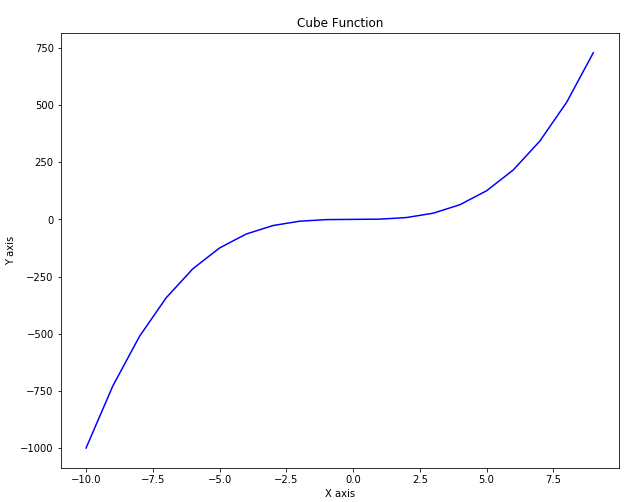
Line plot is the most basic plot in Matplotlib. It can be used to plot any function. Let's plot line plot for the cube function. Take a look at the following script:

import matplotlib.pyplot as plt  
import numpy as np

x = np.linspace(-10, 9, 20)

y = x ** 3

plt.plot(x, y, 'b')  
plt.xlabel('X axis')  
plt.ylabel('Y axis')  
plt.title('Cube Function')  
plt.show()  

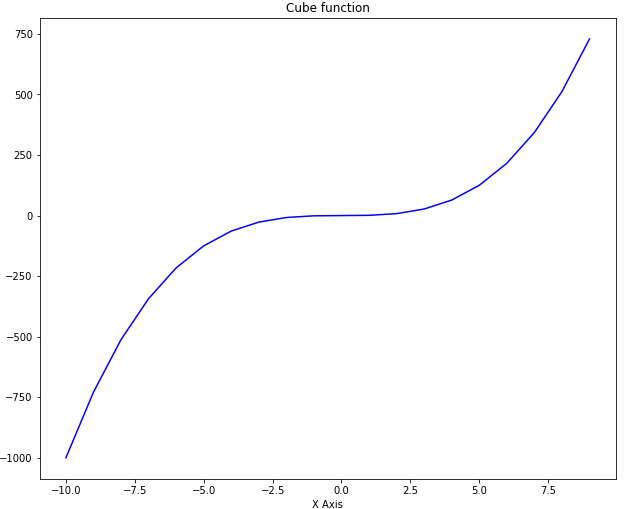
In the script above we first import the pyplot class from the Matplotlib library. We have two numpy arrays x and y in our script. We used the linspace method of the numpy library to create list of 20 numbers between -10 to positive 9. We then take cube root of all the number and assign the result to the variable y. To plot two numpy arrays, you can simply pass them to the plot method of the pyplot class of the Matplotlib library. You can use the xlabel, ylabel and title attributes of the pyplot class in order to label the x axis, y axis and the title of the plot. The output of the script above looks likes this:

Output:

Python Data Visualization with Matplotlib

Creating Multiple Plots

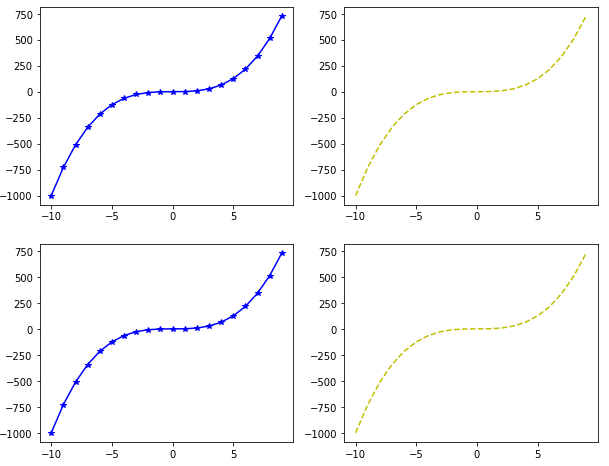
You can actually create more than one plots on one canvas using Matplotlib. To do so, you have to use the subplot function which specifies the location and the plot number. Take a look at the following example:

import matplotlib.pyplot as plt  
import numpy as np  
x = np.linspace(-10, 9, 20)

y = x ** 3

plt.subplot(2,2,1)  
plt.plot(x, y, 'b*-')  
plt.subplot(2,2,2)  
plt.plot(x, y, 'y--')  
plt.subplot(2,2,3)  
plt.plot(x, y, 'b*-')  
plt.subplot(2,2,4)  
plt.plot(x, y, 'y--')  

The first attribute to the subplot function is the rows that the subplots will have and the second parameter species the number of columns for the subplot. A value of 2,2 species that there will be four graphs. The third argument is the position at which the graph will be displayed. The positions start from top-left. Plot with position 1 will be displayed at first row and first column. Similarly, plot with position 2 will be displayed in first row and second column.

Take a look at the third argument of the plot function. This argument defines the shape and color of the marker on the graph.

Output:

Python Data Visualization with Matplotlib

Plotting in Object-Oriented Way

In the previous section we used the plot method of the pyplot class and pass it values for x and y coordinates along with the labels. However, in Python the same plot can be drawn in object-oriented way. Take a look at the following script:

import matplotlib.pyplot as plt  
import numpy as np

x = np.linspace(-10, 9, 20)

y = x ** 3

figure = plt.figure()

axes = figure.add_axes([0.2, 0.2, 0.8, 0.8])  

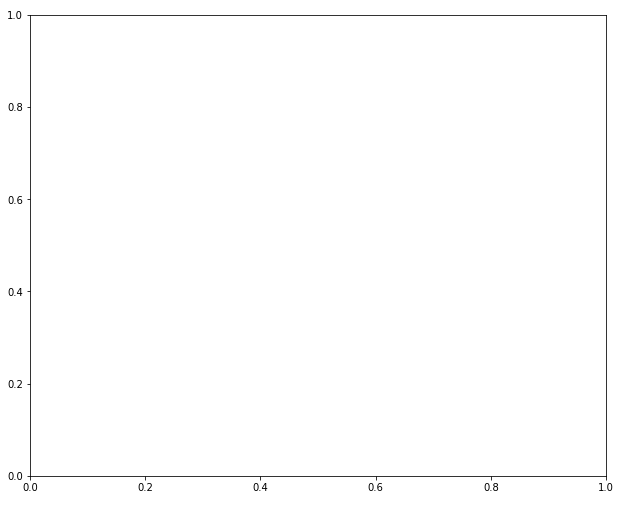
The figure method called using pyplot class returns figure object. You can call add_axes method using this object. The parameters passed to the add_axes method are the distance from the left and bottom of the default axis and the width and height of the axis, respectively. The value for these parameters should be mentioned as a fraction of the default figure size. Executing the above script creates an empty axis as shown in the following figure:

The output of the script above looks like this:

Python Data Visualization with Matplotlib

We have our axis, now we can add data and labels to this axis. To add the data, we need to call the plot function and pass it our data. Similarly, to create labels for x-axis, y-axis and for the title, we can use the set_xlabel, set_ylabel and set_title functions as shown below:

import matplotlib.pyplot as plt  
import numpy as np

x = np.linspace(-10, 9, 20)

y = x ** 3

figure = plt.figure()

axes = figure.add_axes([0.2, 0.2, 0.8, 0.8])

axes.plot(x, y, 'b')  
axes.set_xlabel('X Axis')  
axes.set_ylabel('Y Axis')  
axes.set_title('Cube function')  

Python Data Visualization with Matplotlib

You can see that the output is similar to the one we got in the last section but this time we used the object-oriented approach.

You can add as many axes as you want on one plot using the add_axes method. Take a look at the following example:

import matplotlib.pyplot as plt  
import numpy as np

x = np.linspace(-10, 9, 20)

y = x ** 3

z = x ** 2

figure = plt.figure()

axes = figure.add_axes([0.0, 0.0, 0.9, 0.9])  
axes2 = figure.add_axes([0.07, 0.55, 0.35, 0.3]) # inset axes

axes.plot(x, y, 'b')  
axes.set_xlabel('X Axis')  
axes.set_ylabel('Y Axis')  
axes.set_title('Cube function')

axes2.plot(x, z, 'r')  
axes2.set_xlabel('X Axis')  
axes2.set_ylabel('Y Axis')  
axes2.set_title('Square function')  

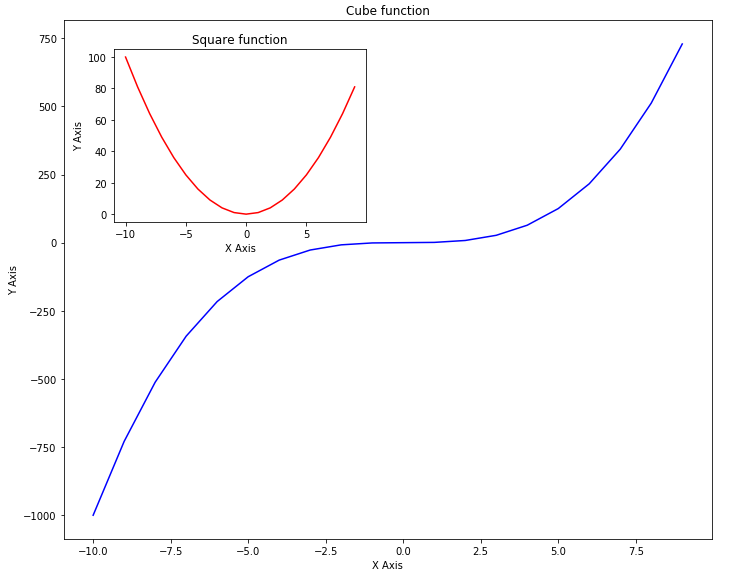
Take a careful look at the script above. In the script above we have two axes. The first axis contains graphs of the cube root of the input while the second axis draws the graph of the square root of the same data within the other graph for cube axis.

In this example, you will better understand the role of the parameters for left, bottom, width and height. In the first axis, the values for left and bottom are set to zero while the value for width and height are set to 0.9 which means that our outer axis will have 90% width and height of the default axis.

For the second axis, the value of the left is set to 0.07, for the bottom it is set to 0.55, while width and height are 0.35 and 0.3 respectively. If you execute the script above, you will see a big graph for cube function while a small graph for a square function which lies inside the graph for the cube. The output looks like this:

Python Data Visualization with Matplotlib

Subplots

Another way to create more than one plots at a time is to use subplot method. You need to pass the values for the nrow and ncols parameters. The total number of plots generated will be nrow x ncols. Let's take a look at a simple example. Execute the following script:

import matplotlib.pyplot as plt  
import numpy as np

x = np.linspace(-10, 9, 20)

y = x ** 3

z = x ** 2

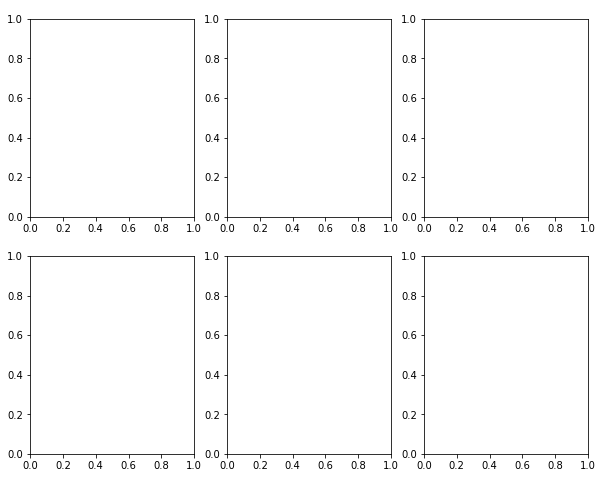
fig, axes = plt.subplots(nrows=2, ncols=3)  

In the output you will see 6 plots in 2 rows and 3 columns as shown below:

Python Data Visualization with Matplotlib

Next, we will use a loop to add the output of the square function to each of these graphs. Take a look at the following script:

import matplotlib.pyplot as plt  
import numpy as np  
x = np.linspace(-10, 9, 20)

z = x ** 2

figure, axes = plt.subplots(nrows=2, ncols=3)

for rows in axes:  
    for ax1 in rows:
        ax1.plot(x, z, 'b')
        ax1.set_xlabel('X - axis')
        ax1.set_ylabel('Y - axis')
        ax1.set_title('Square Function')

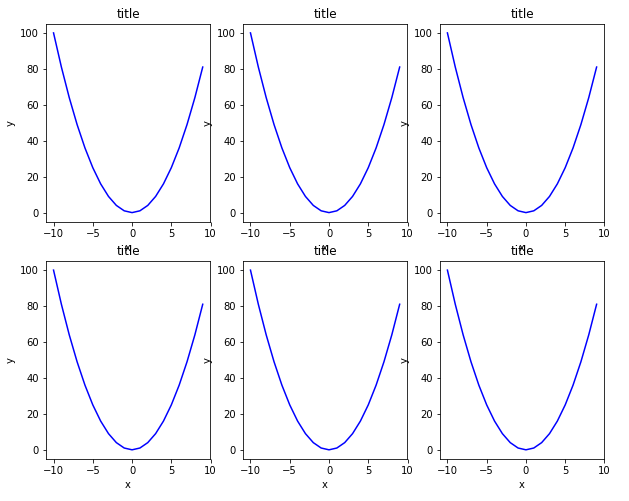
In the script above, we iterate over the axes returned by the subplots function and display the output of the square function on each axis. Remember, since we have axes in 2 rows and three columns, we have to execute a nested loop to iterate through all the axes. The outer for loop iterates through axes in rows while the inner for loop iterates through the axis in columns. The output of the script above looks likes this:

Python Data Visualization with Matplotlib

In the output, you can see all the six plots with square functions.

Changing Figure Size for a Plot

In addition to changing the default size of the graph, you can also change the figure size for specific graphs. To do so, you need to pass a value for the figsize parameter of the subplots function. The value for the figsize parameter should be passed in the form of a tuple where the first value corresponds to the width while the second value corresponds to the hight of the graph. Look at the following example to see how to change the size of a specific plot:

import matplotlib.pyplot as plt  
import numpy as np  
x = np.linspace(-10, 9, 20)

y = x ** 3

z = x ** 2

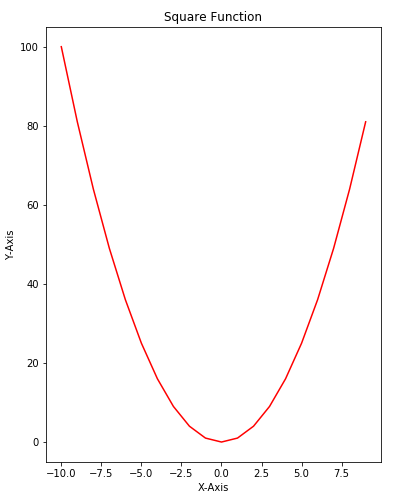
figure, axes = plt.subplots(figsize = (6,8))

axes.plot(x, z, 'r')  
axes.set_xlabel('X-Axis')  
axes.set_ylabel('Y-Axis')  
axes.set_title('Square Function')  

In the script above draw a plot for the square function that is 6 inches wide and 8 inches high. The output looks likes this:

Python Data Visualization with Matplotlib

Adding Legends

Adding legends to a plot is very straightforward using Matplotlib library. All you have to do is to pass the value for the label parameter of the plot function. Then after calling the plot function, you just need to call the legend function. Take a look at the following example:

import matplotlib.pyplot as plt  
import numpy as np

x = np.linspace(-10, 9, 20)

y = x ** 3

z = x ** 2

figure = plt.figure()

axes = figure.add_axes([0,0,1,1])

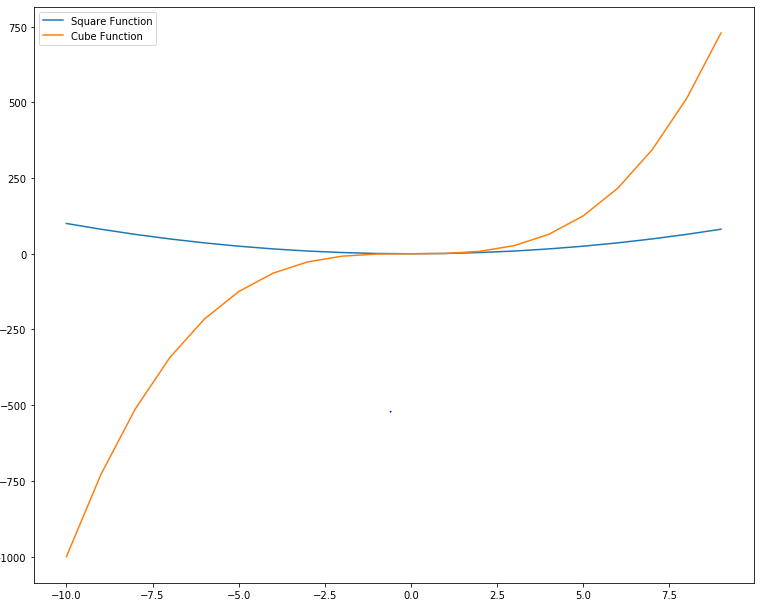
axes.plot(x, z, label="Square Function")  
axes.plot(x, y, label="Cube Function")  
axes.legend()  

In the script above we define two functions: square and cube using x, y and z variables. Next, we first plot the square function and for the label parameter, we pass the value Square Function. This will be the value displayed in the label for square function. Next, we plot the cube function and pass Cube Function as value for the label parameter. The output looks likes this:

Python Data Visualization with Matplotlib

In the output, you can see a legend at the top left corner.

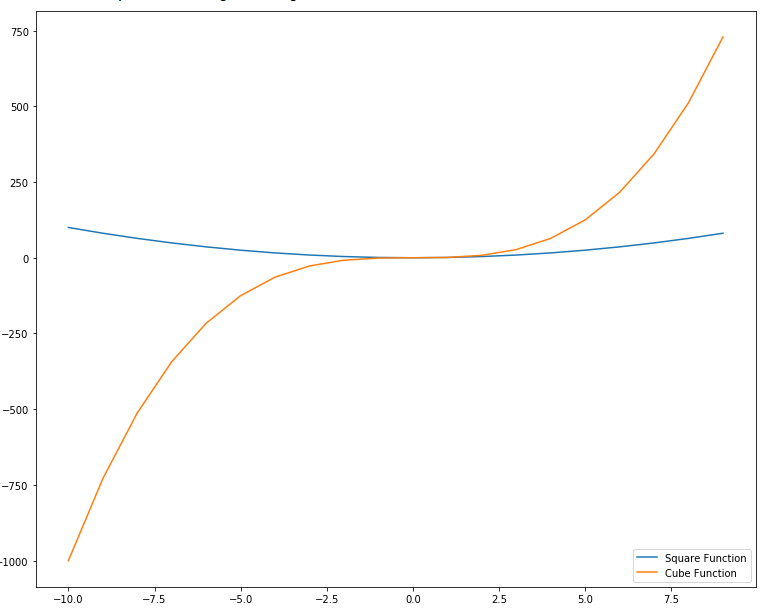
The position of the legend can be changed by passing a value for loc parameter of the legend function. The possible values can be 1 (for the top right corner), 2 (for the top left corner), 3 (for the bottom left corner) and 4 (for the bottom right corner). Let's draw a legend at the bottom right corner of the plot. Execute the following script:

import matplotlib.pyplot as plt  
import numpy as np

x = np.linspace(-10, 9, 20)

y = x ** 3

z = x ** 2

figure = plt.figure()

axes = figure.add_axes([0,0,1,1])

axes.plot(x, z, label="Square Function")  
axes.plot(x, y, label="Cube Function")  
axes.legend(loc=4)  

Output:

Python Data Visualization with Matplotlib

Color Options

There are several options to change the color and styles of the plots. The simplest way is to pass the first letter of the color as the third argument as shown in the following script:

import matplotlib.pyplot as plt  
import numpy as np

x = np.linspace(-10, 9, 20)

y = x ** 3

z = x ** 2

figure = plt.figure()

axes = figure.add_axes([0,0,1,1])

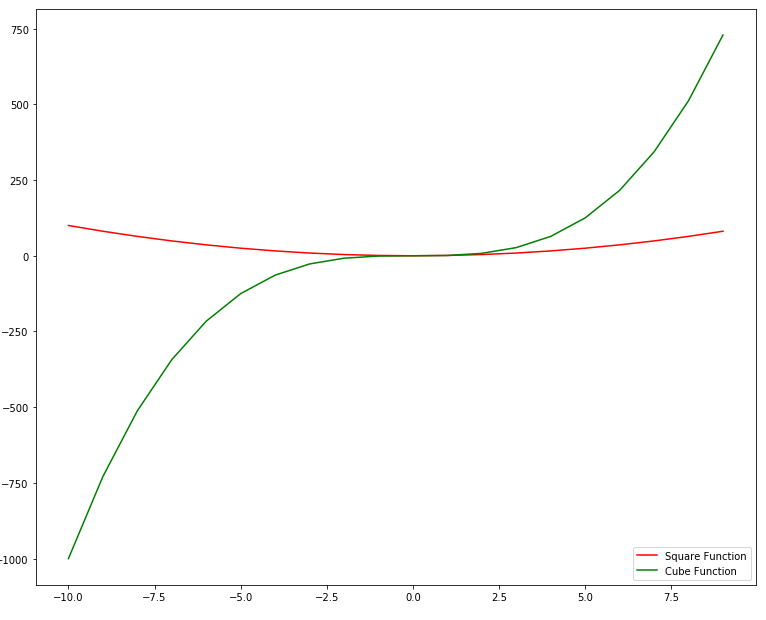
axes.plot(x, z, "r" ,label="Square Function")  
axes.plot(x, y, "g", label="Cube Function")  
axes.legend(loc=4)  

In the script above, a string "r" has been passed as the third parameter for the first plot. For the second plot, the string "g" has been passed at the third parameter. In the output, the first plot will be printed with a red solid line while the second plot will be printed with a green solid line as shown below:

Python Data Visualization with Matplotlib

Another way to change the color of the plot is to make use of the color parameter. You can pass the name of the color or the hexadecimal value of the color to the color parameter. Take a look at the following example:

import matplotlib.pyplot as plt  
import numpy as np

x = np.linspace(-10, 9, 20)

y = x ** 3

z = x ** 2

figure = plt.figure()

axes = figure.add_axes([0,0,1,1])

axes.plot(x, z, color = "purple" ,label="Square Function")  
axes.plot(x, y, color = "#FF0000", label="Cube Function")  
axes.legend(loc=4)  

Output:

Python Data Visualization with Matplotlib

Stack Plot

Stack plot is an extension of bar chart or line chart which breaks down data from different categories and stack them together so that comparison between the values from different categories can easily be made.

Suppose, you want to compare the goals scored by three different football players per year over the course of the last 8 years, you can create a stack plot using Matplot using the following script:

import matplotlib.pyplot as plt

year = [2011, 2012, 2013, 2014, 2015, 2016, 2017, 2018]

player1 = [8,10,17,15,23,18,24,29]  
player2 = [10,14,19,16,25,20,26,32]  
player3 = [12,17,21,19,26,22,28,35]

plt.plot([],[], color='y', label = 'player1')  
plt.plot([],[], color='r', label = 'player2')  
plt.plot([],[], color='b', label = 'player3 ')

plt.stackplot(year, player1, player2, player3, colors = ['y','r','b'])  
plt.legend()  
plt.title('Goals by three players')  
plt.xlabel('year')  
plt.ylabel('Goals')  
plt.show()  

Output:

Python Data Visualization with Matplotlib

To create a stack plot using Python, you can simply use the stackplot class of the Matplotlib library. The values that you want to display are passed as the first parameter to the class and the values to be stacked on the horizontal axis are displayed as the second parameter, third parameter and so on. You can also set the color for each category using the colors attribute.

Pie Chart

A pie type is a circular chart where different categories are marked as part of the circle. The larger the share of the category, larger will be the portion that it will occupy on the chart.

Let's draw a simple pie chart of the goals scored by a football team from free kicks, penalties and field goals. Take a look at the following script:

import matplotlib.pyplot as plt

goal_types = 'Penalties', 'Field Goals', 'Free Kicks'

goals = [12,38,7]  
colors = ['y','r','b']

plt.pie(goals, labels = goal_types, colors=colors ,shadow = True, explode = (0.05, 0.05, 0.05), autopct = '%1.1f%%')  
plt.axis('equal')

plt.show()  

Output:

Python Data Visualization with Matplotlib

To create a pie chart in Matplot lib, the pie class is used. The first parameter to the class constructor is the list of numbers for each category. Comma-separated list of categories is passed as the argument to the labels attribute. List of colors for each category is passed to the colors attribute. If set to true, shadow attribute creates shadows around different categories on the pie chart. Finally, the explode attribute breaks the pie chart into individual parts.

It is important to mention here that you do not have to pass the percentage for each category; rather you just have to pass the values and percentage for pie charts will automatically be calculated.

Saving a Graph

Saving a graph is very easy in Matplotlib. All you have to do is to call the savefig method from the figure object and pass it the path of the file that you want your graph to be saved with. Take a look at the following example:

import matplotlib.pyplot as plt  
import numpy as np  
x = np.linspace(-10, 9, 20)

y = x ** 3

z = x ** 2

figure, axes = plt.subplots(figsize = (6,8))

axes.plot(x, z, 'r')  
axes.set_xlabel('X-Axis')  
axes.set_ylabel('Y-Axis')  
axes.set_title('Square Function')

figure.savefig(r'E:/fig1.jpg')  

The above script will save your file with name fig1.jpg at the root of the E directory.

Conclusion

Matplotlib is one of the most commonly used Python libraries for data visualization and plotting. The article explains some of the most frequently used Matplotlib functions with the help of different examples. Though the article covers most of the basic stuff, this is just the tip of the iceberg. I would suggest that you explore the official documentation for the Matplotlib library and see what more you can do with this amazing library.

Catalin George Festila: Python Qt5 - submenu example.

$
0
0
Using my old example I will create a submenu with PyQt5.
First, you need to know the submenu works like the menu.
Let's see the result:

The source code is very simple:
# -*- coding: utf-8 -*-
"""
@author: catafest
"""
import sys
from PyQt5.QtWidgets import QMainWindow, QAction, qApp, QApplication, QDesktopWidget, QMenu
from PyQt5.QtGui import QIcon

class Example(QMainWindow):
#init the example class to draw the window application
def __init__(self):
super().__init__()
self.initUI()
#create the def center to select the center of the screen
def center(self):
# geometry of the main window
qr = self.frameGeometry()
# center point of screen
cp = QDesktopWidget().availableGeometry().center()
# move rectangle's center point to screen's center point
qr.moveCenter(cp)
# top left of rectangle becomes top left of window centering it
self.move(qr.topLeft())
#create the init UI to draw the application
def initUI(self):
#create the action for the exit application with shortcut and icon
#you can add new action for File menu and any actions you need
exitAct = QAction(QIcon('exit.png'), '&Exit', self)
exitAct.setShortcut('Ctrl+Q')
exitAct.setStatusTip('Exit application')
exitAct.triggered.connect(qApp.quit)
#create the status bar for menu
self.statusBar()
#create the menu with the text File , add the exit action
#you can add many items on menu with actions for each item
menubar = self.menuBar()
fileMenu = menubar.addMenu('&File')
fileMenu.addAction(exitAct)

# add submenu to menu
submenu = QMenu('Submenu',self)

# some dummy actions
submenu.addAction('Submenu 1')
submenu.addAction('Submenu 2')

# add to the top menu
menubar.addMenu(submenu)
#resize the window application
self.resize(640, 480)
#draw on center of the screen
self.center()
#add title on windows application
self.setWindowTitle('Simple menu')
#show the application
self.show()
#close the UI class

if __name__ == '__main__':
#create the application
app = QApplication(sys.argv)
#use the UI with new class
ex = Example()
#run the UI
sys.exit(app.exec_())

Hynek Schlawack: Python Application Dependency Management in 2018

$
0
0

We have more ways to manage dependencies in Python applications than ever. But how do they fare in production? Unfortunately this topic turned out to be quite polarizing and was at the center of a lot of heated debates. This is my attempt at an opinionated review through a DevOps lens.

Python Engineering at Microsoft: Python in Visual Studio Code – November 2018 Release

$
0
0

We are pleased to announce that the November 2018 release of the Python Extension for Visual Studio Code is now available. You can download the Python extension from the Marketplace, or install it directly from the extension gallery in Visual Studio Code. You can learn more about Python support in Visual Studio Code in the documentation.

This release was a quality focused release, we have closed a total of 28 issues, improving startup performance and fixing various bugs related to interpreter detection and Jupyter support. Keep on reading to learn more!

Improved Python Extension Load Time

We have started using webpack to bundle the TypeScript files in the extension for faster load times, this has significantly improved the extension download size, installation time and extension load time.  You can see the startup time of the extension by running the Developer: Startup Performance command. Below shows before and after times of extension loading (measured in milliseconds):

One downside to this approach is that reporting & troubleshooting issues with the extension is harder as the call stacks output by the Python extension are minified. To address this we have added the Python: Enable source map support for extension debugging command. This command will load source maps for for better error log output. This slows down load time of the extension, so we provide a helpful reminder to disable it every time the extension loads with source maps enabled:

These download, install, and startup performance improvements will help you get to writing your Python code faster, and we have even more improvements planned for future releases.

Other Changes and Enhancements

We have also added small enhancements and fixed issues requested by users that should improve your experience working with Python in Visual Studio Code. The full list of improvements is listed in our changelog; some notable changes include:

  • Update Jedi to 0.13.1 and parso 0.3.1. (#2667)
  • Make diagnostic message actionable when opening a workspace with no currently selected Python interpreter. (#2983)
  • Fix problems with virtual environments not matching the loaded python when running cells. (#3294)
  • Make nbconvert in a installation not prevent notebooks from starting. (#3343)

Be sure to download the Python extension for Visual Studio Code now to try out the above improvements. If you run into any problems, please file an issue on the Python VS Code GitHub page.

Matt Layman: Deciphering Python: How to use Abstract Syntax Trees (AST) to understand code

$
0
0
Let’s get a little “meta” about programming. How does the Python program (better know as the interpreter) “know” how to run your code? If you’re new to programming, it may seem like magic. In fact, it still seems like magic to me after being a professional for more than a decade. The Python interpreter is not magic (sorry to disappoint you). It follows a predictable set of steps to translate your code into instructions that a machine can run.

Reinout van Rees: Amsterdam Python meetup, november 2018

$
0
0

My summary of the 28 november python meetup at the Byte office. I myself also gave a talk (about cookiecutter) but I obviously haven't made a summary of that. I'll try to summarize that one later :-)

Project Auger - Chris Laffra

One of Chris' pet projects is auger, automated unittest generation. He wrote it when lying in bed with a broken ankle and thought about what he hated most: writing tests.

Auger? Automated Unittest GEneRator. It works by running a tracer

The project's idea is:

  • Write code as always
  • Don't worry about tests
  • Run the auger tracer to record function parameter values and function results.
  • After recording, you can generate mocks and assertions.

"But this breaks test driven development"!!! Actually, not quite. It can be useful if you have to start working on an existing code base without any tests: you can generate a basic set of tests to start from.

So: it records what you did once and uses that as a starting point for your tests. It makes sure that what ones worked keeps on working.

It works with a "context manager". A context manager normally has __enter__() and __exit__(). But you can add more interesting things. If in the __enter__()` you call sys.settrace(self.trace), you can add a def trace(self, frame, event, args), which is then fired upon everything that happens within the context manager. You can use it for coverage tracking or logging or visualization of what happens in your code. He used the last for algorithm visualizations on http://pyalgoviz.appspot.com/

So... this sys.settrace() magic is used to figure out which functions get called with which parameters.

Functions and classes in the modules you want to check are tested, classes from other modules are partially mocked.

Python LED animation system BiblioPixel - Tom Ritchford

Bibliopixel (https://github.com/ManiacalLabs/BiblioPixel) is his pet project. It is a python3 program that runs on basically everything (raspberry pi, linux, osx, windows. What it does? It controls large numbers of lights in real-time without programming.

There are lots of output drivers form led strips and philips hue to an opengl in-browser renderer. There are also lots of different ways to steer it. Here is the documentation.

He actually started on a lot of programs having to do with audio and lights and so. Starting with a PDP-11 (which only produced beeps). Amiga, macintosch (something that actually worked and was used for real), java, javascript, python + C++. And now python.

The long-term goal is to programmatically control lights and other hardware in real time. And... he wants to define the project in text files. The actual light "program" should not be in code. Ideally, bits of projects ought to be reusable. And any input ought to be connectable to any output.

Bibliopixel started with the AllPixel LED controller which had a succesful kickstarter campaign (he got involved two years later).

An "animation" talks to a "layout" and the layout talks to one or more drivers (one could be a debug visualization on your laptop and the other the real physical installation). Animations can be nested.

Above it all is the "Project". A YAML (or json) file that defines the project and configures everything.

Bibliopixel is quite forgiving about inputs. It accepts all sorts of colors (red, #ff0000, etc). Capitalization, missing spaces, extraneous spaces: all fine. Likewise about "controls": a control receives a "raw" message and then tries to convert it into something it understands.

Bibliopixel is very reliable. Lots of automated tests. Hardware test boards to test the code with the eight most common types of hardware. Solid error handling and readable error messages help a lot.

There are some weak points. The biggest is lack of developers. Another problem is that it only supports three colors (RGB). So you can't handle RGBW (RGB plus white) and other such newer combinations. He hopes to move the code over completely to numpy, that would help a lot. Numpy is already supported, but the existing legacy implementation currently also still needs to be work.

He showed some nice demos at the end.

PyBites: 3 Cool Things You Can do With the dateutil Module

$
0
0

In this short article I will show you how to use dateutil's parse, relativedelta and rrule to make it easier to work with datetimes in Python.

Firt some necessary imports:

>>>fromdatetimeimportdate>>>fromdateutil.parserimportparse>>>fromdateutil.relativedeltaimportrelativedelta>>>fromdateutil.rruleimportrrule,WEEKLY,WE

1. Parse a datetime from a string

This is actually what made me look into dateutil to start with. Camaz shared this technique in the forum for Bite 7. Parsing dates from logs

Imagine you have this log line:

>>> log_line = 'INFO 2014-07-03T23:27:51 supybot Shutdown complete.'

Up until recently I used datetime's strptime like so:

>>> date_str = '%Y-%m-%dT%H:%M:%S'
>>> datetime.strptime(log_line.split()[1], date_str)
datetime.datetime(2014, 7, 3, 23, 27, 51)

More string manipulation and you have to know the format string syntax. dateutil's parse takes this complexity away:

>>> timestamp = parse(log_line, fuzzy=True)
>>> print(timestamp)
2014-07-03 23:27:51
>>> print(type(timestamp))
<class 'datetime.datetime'>

2. Get a timedelta in months

A limitation of datetime's timedelta is that it does not show the number of months:

>>> today = date.today()
>>> pybites_born = date(year=2016, month=12, day=19)
>>> (today-pybites_born).days
711

So far so good. However this does not work:

>>> (today-pybites_born).years
Traceback (most recent call last):
File "<stdin>", line 1, in <module>
AttributeError: 'datetime.timedelta' object has no attribute 'years'

Nor this:

>>> (today-pybites_born).months
Traceback (most recent call last):
File "<stdin>", line 1, in <module>
AttributeError: 'datetime.timedelta' object has no attribute 'months'

relativedelta to the rescue:

>>> diff = relativedelta(today, pybites_born)
>>> diff.years
1
>>> diff.months
11

When you need months, use relativedelta. And yes, we can almost celebrate two years of PyBites!

Another use case of this we saw in my previous article, How to Test Your Django App with Selenium and pytest, where I used it to get the last 3 months for our new Platform Coding Streak feature:

>>> def _make_3char_monthname(dt):
...     return dt.strftime('%b').upper()
...
>>> this_month = _make_3char_monthname(today)
>>> last_month = _make_3char_monthname(today-relativedelta(months=+1))
>>> two_months_ago = _make_3char_monthname(today-relativedelta(months=+2))
>>> for month in (this_month, last_month, two_months_ago):
...     print(f'{month} {today.year}')
...
NOV 2018
OCT 2018
SEP 2018

Let's get next Wednesday for the next example:

>>> next_wednesday = today+relativedelta(weekday=WE(+1))
>>> next_wednesday
datetime.date(2018, 12, 5)

3. Make a range of dates

Say I want to schedule my next batch of Italian lessons, each Wednesday for the coming 10 weeks. Easy:

>>> rrule(WEEKLY, count=10, dtstart=next_wednesday)
<dateutil.rrule.rrule object at 0x1033ef898>

As this will return an iterator and it does not show up vertically, let's materialize it in a list and pass it to pprint:

>>>frompprintimportpprintaspp>>>pp(list(rrule(WEEKLY,count=10,dtstart=next_wednesday)))[datetime.datetime(2018,12,5,0,0),datetime.datetime(2018,12,12,0,0),datetime.datetime(2018,12,19,0,0),datetime.datetime(2018,12,26,0,0),datetime.datetime(2019,1,2,0,0),datetime.datetime(2019,1,9,0,0),datetime.datetime(2019,1,16,0,0),datetime.datetime(2019,1,23,0,0),datetime.datetime(2019,1,30,0,0),datetime.datetime(2019,2,6,0,0)]

Double-check with Unix cal

$ cal 122018
December 2018
Su Mo Tu We Th Fr Sa
                   12345678910111213141516171819202122232425262728293031

$ cal 12019
    January 2019
Su Mo Tu We Th Fr Sa
       12345678910111213141516171819202122232425262728293031

$ cal 22019
February 2019
Su Mo Tu We Th Fr Sa
                123456789
...

We added an exercise to our platform to create a #100DaysOfCode planning, skipping weekend days. rrule made this relatively easy.


And that's it, my favorite use cases of dateutil so far. There is some timezone functionality in dateutil as well, but I have mostly used pytz for that.
Learn more? Check out this nice dateutil examples page and feel free to share your favorite snippets in the comments below.

Don't forget this is an external library (pip install python-dateutil), for most basic operations datetime would suffice. Another nice stdlib module worth checking out is calendar.


Keep Calm and Code in Python!

-- Bob

Viewing all 24370 articles
Browse latest View live


<script src="https://jsc.adskeeper.com/r/s/rssing.com.1596347.js" async> </script>