Quantcast
Channel: Planet Python
Viewing all 23953 articles
Browse latest View live

John Cook: Org-mode as a lightweight notebook

$
0
0

You can think of org-mode as simply a kind of markdown, a plain text file that can be exported to fancier formats such as HTML or PDF. It’s a lot more than that, but that’s a reasonable place to start.

Org-mode also integrates with source code. You can embed code in your file and have the code and/or the result of running the code appear when you export the file to another format.

Org-mode as notebook

You can use org-mode as a notebook, something like a Jupyter notebook, but much simpler. An org file is a plain text file, and you can execute embedded code right there in your editor. You don’t need a browser, and there’s no hidden state.

Here’s an example of mixing markup and code:

    The volume of an n-sphere of radius r is 

    $$\frac{\pi^{\frac{n}{2}}}{\Gamma\left(\frac{n}{2} + 1\right)}r^n.$$

    #+begin_src python :session
    from scipy import pi
    from scipy.special import gamma

    def vol(r, n):
        return pi**(n/2)*r**n/gamma(n/2 + 1)

    vol(1, 5)
    #+end_src

If you were to export the file to PDF, the equation for the volume of a sphere would be compiled into a image using LaTeX.

To run the code [1], put your cursor somewhere in the code block and type C-c C-c. When you do, the following lines will appear below your code.

    #+RESULTS:
    : 5.263789013914324

If you think of your org-mode file as primary, and you’re just inserting some code as a kind of scratch area, an advantage of org-mode is that you never leave your editor.

Jupyter notebooks

Now let’s compare that to a Jupyter notebook. Jupyter organizes everything by cells, and a cell can contain markup or code. So you could create a markup cell and enter the exact same introductory text [2].

    The volume of an n-sphere of radius r is 

    $$\frac{\pi^{\frac{n}{2}}}{\Gamma\left(\frac{n}{2} + 1\right)}r^n$$.

When you “run” the cell, the LaTeX is processed and you see the typeset expression rather than its LaTeX source. You can click on the cell to see the LaTeX code again.

Then you would enter the Python code in another cell. When you run the cell you see the result, much as in org-mode. And you could export your notebook to PDF as with org-mode.

File diff

Now suppose we make a couple small changes. We want the n

and r in the comment section set in math italic, and we’d like to find the volume of a 5-sphere of radius 2 rather than radius 1. We do this, in Jupyter and in org-mode [3], by putting dollar signs around the “n” and the “r”, and we change vol(1, 5) to vol(2, 5).

Let’s run diff on the two versions of the org-mode file and on the two versions of the Jupyter notebook.

The differences in the org files are easy to spot:

    1c1
    < The volume of an n-sphere of radius r is 
    ---
    > The volume of an \(n\)-sphere of radius \(r\) is 
    12c12
    < vol(1, 5)
    ---
    > vol(2, 5)
    16c16,17
    < : 5.263789013914324
    ---
    > : 168.44124844525837

However, the differences in the Jupyter files are more complicated:

    5c5
    <    "id": "2a1b0bc4",
    ---
    >    "id": "a0a89fcf",
    8c8
    <     "The volume of an n-sphere of radius r is \n",
    ---
    >     "The volume of an $n$-sphere of radius $r$ is \n",
    15,16c15,16
    <    "execution_count": 1,
    <    "id": "888660a2",
    ---
    >    "execution_count": 2,
    >    "id": "1adcd8b1",
    22c22
    <        "5.263789013914324"
    ---
    >        "168.44124844525837"
    25c25
    <      "execution_count": 1,
    ---
    >      "execution_count": 2,
    37c37
    <     "vol(1, 5)"
    ---
    >     "vol(2, 5)"
    43c43
    <    "id": "f8d4d1b0",

There’s a lot of extra stuff in a Jupyter notebook. This is a trivial notebook, and more complex notebooks have more extra stuff. An apparently small change to the notebook can cause a large change in the underlying notebook file. This makes it difficult to track changes in a Jupyter notebook in a version control system.

Related posts

[1] Before this will work, you have to tell Emacs that Python is one of the languages you want to run inside org-mode. I have the following line in my init file to tell Emacs that I want to be able to run Python, DITAA, R, and Perl.

    (org-babel-do-load-languages 'org-babel-load-languages '((python . t) (ditaa . t) (R . t) (perl . t)))

[2] Org-mode will let you use \[ and \] to bracket LaTeX code for a displayed equation, and it will also let you use $$. Jupyter only supports the latter.

[3] In org-mode, putting dollar signs around variables sometimes works and sometimes doesn’t. And in this example, it works for the “r” but not for the “n”. This is very annoying, but it can be fixed by using \( and \) to enter and leave math mode rather than use a dollar sign for both.

The post Org-mode as a lightweight notebook first appeared on John D. Cook.

PyCharm: Flask tutorial: Create a Flask application in PyCharm

$
0
0

If you are looking into building a simple web application with Python, the Flask microframework is probably one of the best choices. With Flask you can build a real web application with just a single Python file and extend it if you need to. 

It’s even easier to build a Flask application in PyCharm. PyCharm takes care of creating the specific (proper) directory structure and settings, and makes sure that Flask, Jinja, and the Werkzeug WSGI toolkit are successfully installed.

In this very short Flask tutorial, Nafiul Islam sets up a simple Flask application in just a minute and showcases the PyCharm toolkit you can benefit from. 

This tutorial will show you how to:

  • Create a Flask project in PyCharm.
  • Set up a virtual environment to work with your project.
  • Set up a run configuration for your Flask application.
  • Work efficiently with templates in PyCharm.

Watch on YouTube

How to create a new Flask project in PyCharm

There are two ways to create a new Flask project in PyCharm:

You can navigate to the main menu and select File | New Project.

You can also click “New Project” on the Welcome screen.

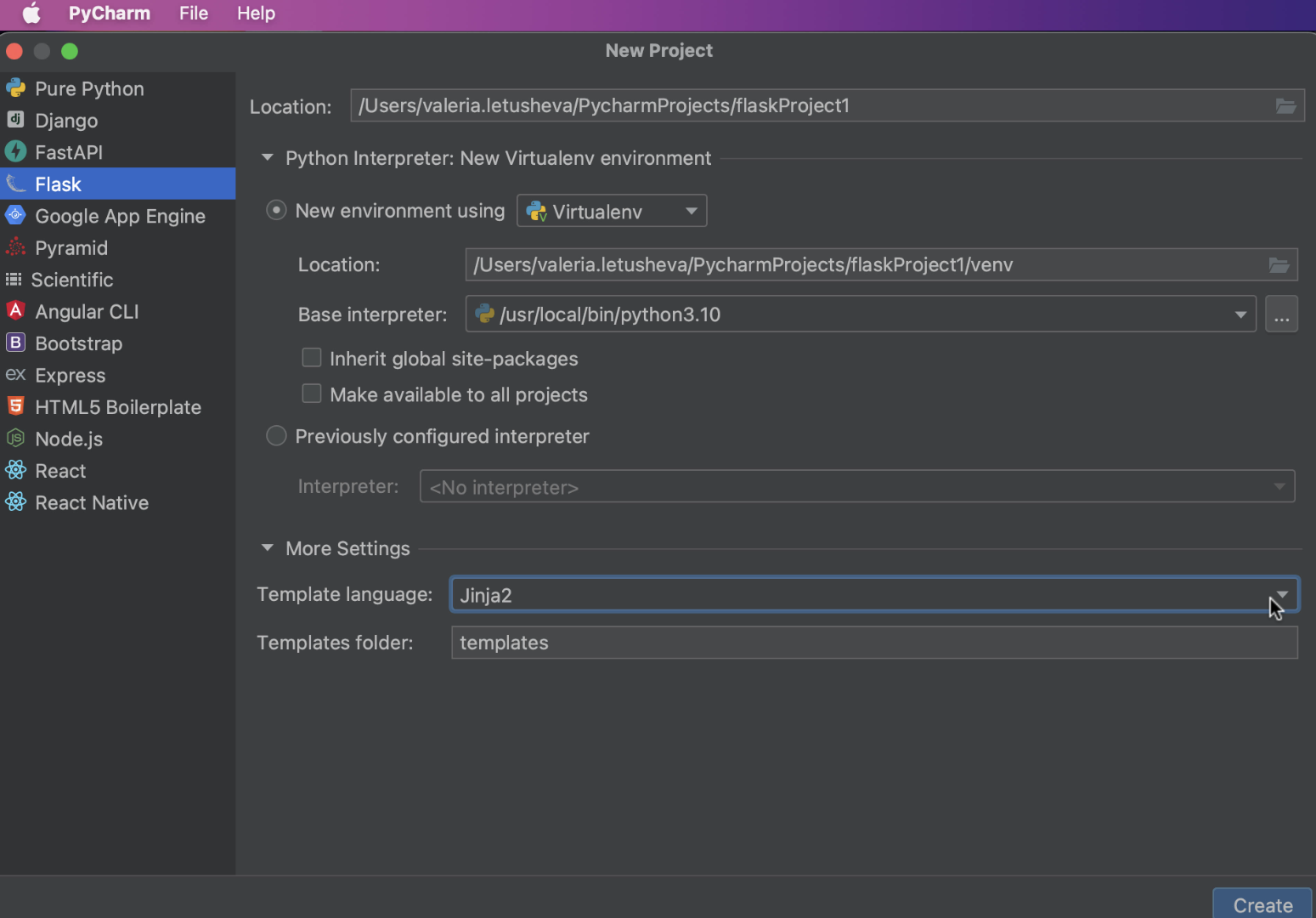
In both cases, PyCharm will bring you to the New Project dialog, where you can select Flask from the list of Project types on the left panel.

In the New Project dialog, you need to specify the project location path in the Location.

How to set up an environment for your project

The next step is to choose the interpreter you want to use for this particular project. You can use an existing interpreter that you’ve already set up for another project or create a new one. When setting up a new interpreter, you can select an environment of your choice, whether a Virtual environment, Pipenv, Poetry, or Conda.

You also need to specify the desired location and base interpreter of a new virtual environment. 

If you’d like to add all packages that are already installed in the global Python on your machine to your virtual environment, check the Inherit global site-packages checkbox.

If you are going to use this environment for other projects, tick the Make available to all projects checkbox and you will be able to select this environment the next time you set up a Python interpreter for your new project.

How to setup a template language

After you are done with the environment setup, you may want to specify the Template language and the name for your Templates folder. This can be done from the New Project dialog. By default, PyCharm sets Jinja as the template language and names the template folder  “templates”.

Now you are all set to get started with your new Flask project! Don’t forget to click the “Create” button at the right bottom corner of the dialog. PyCharm will create a Flask application for you with a specific directory structure and dedicated templates folder, and install Flask on your machine if it is not already.

How to set up a run configuration for your Flask application

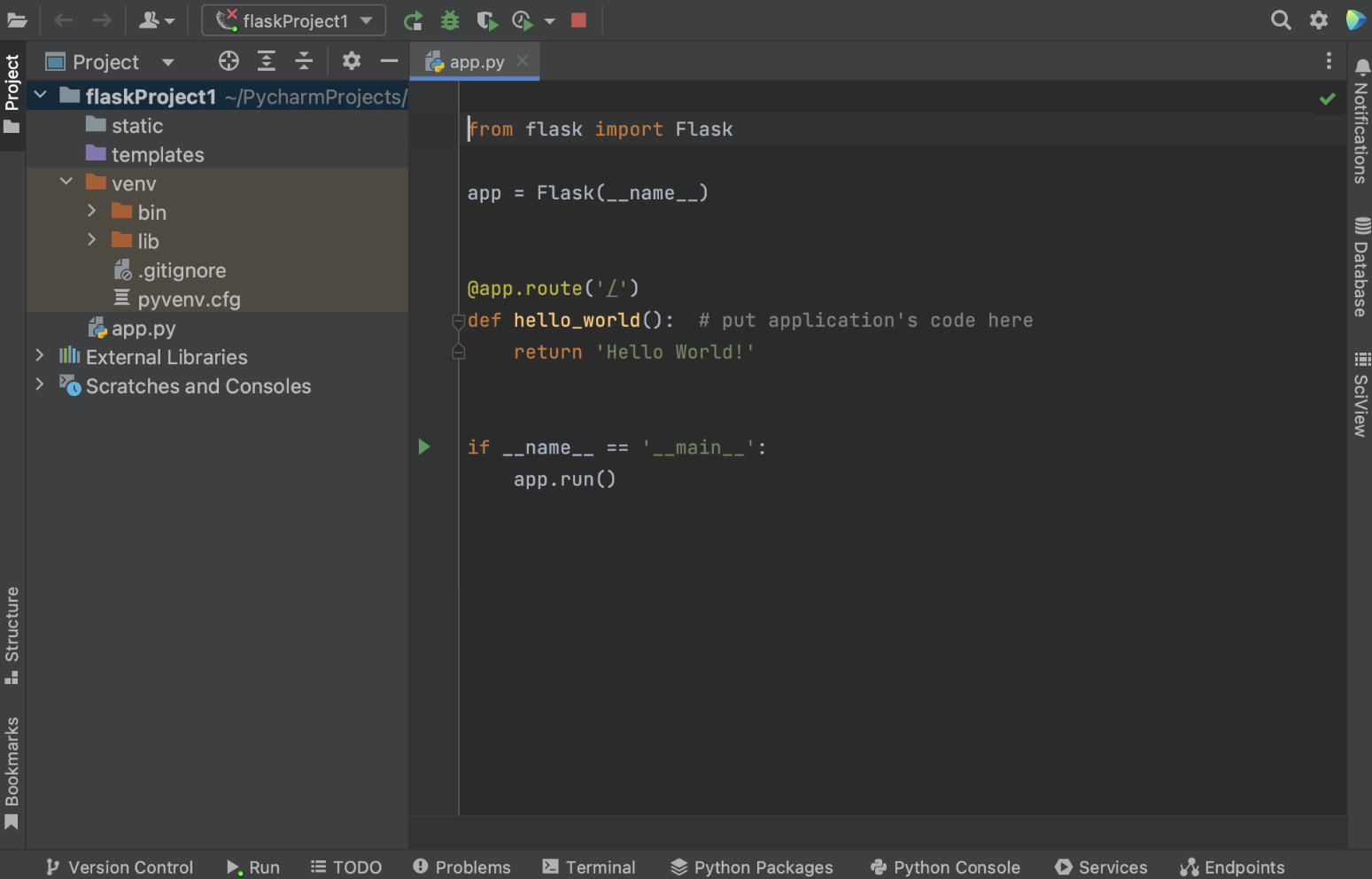
Once your new Flask application is preconfigured for you by PyCharm, you will see an open app.py file, which is a stub Python script that can be used to test whether your application is working and your settings are correct.

Note that if you are using macOS Monterey, you will likely need to change the default port to run app.py, otherwise you’ll get an error. Read on to see how you can change the port. 

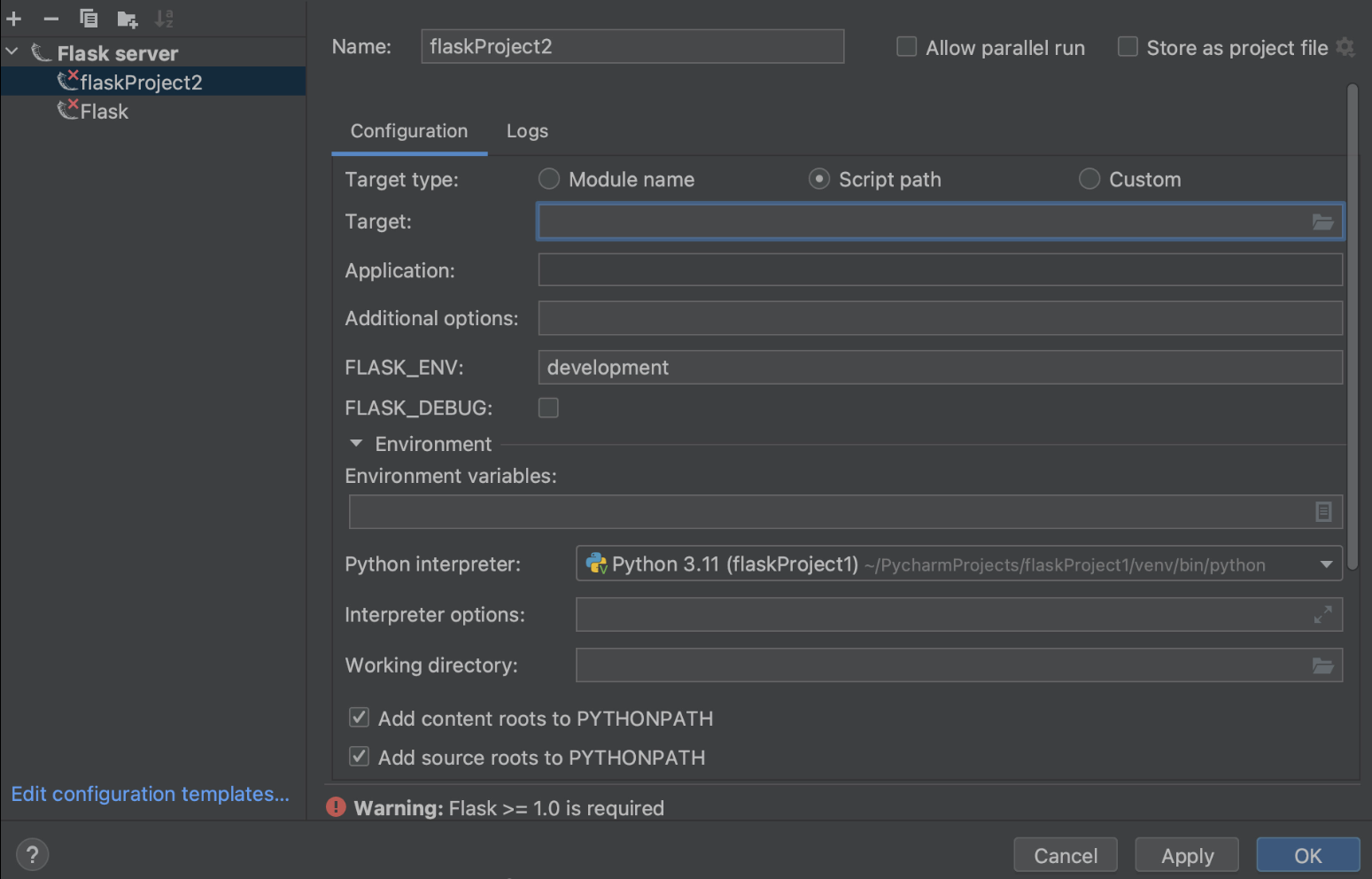
To configure a Run configuration manually, you can select Edit run configuration in the dropdown menu next to the run button in the gutter.

In the Run / Debug Configurations dialog, you need to click Add new run configuration (or just press plus in the left upper corner of the dialog window) and select Flask server from the list of Configurations.

You need to specify the values for Target and Application fields.

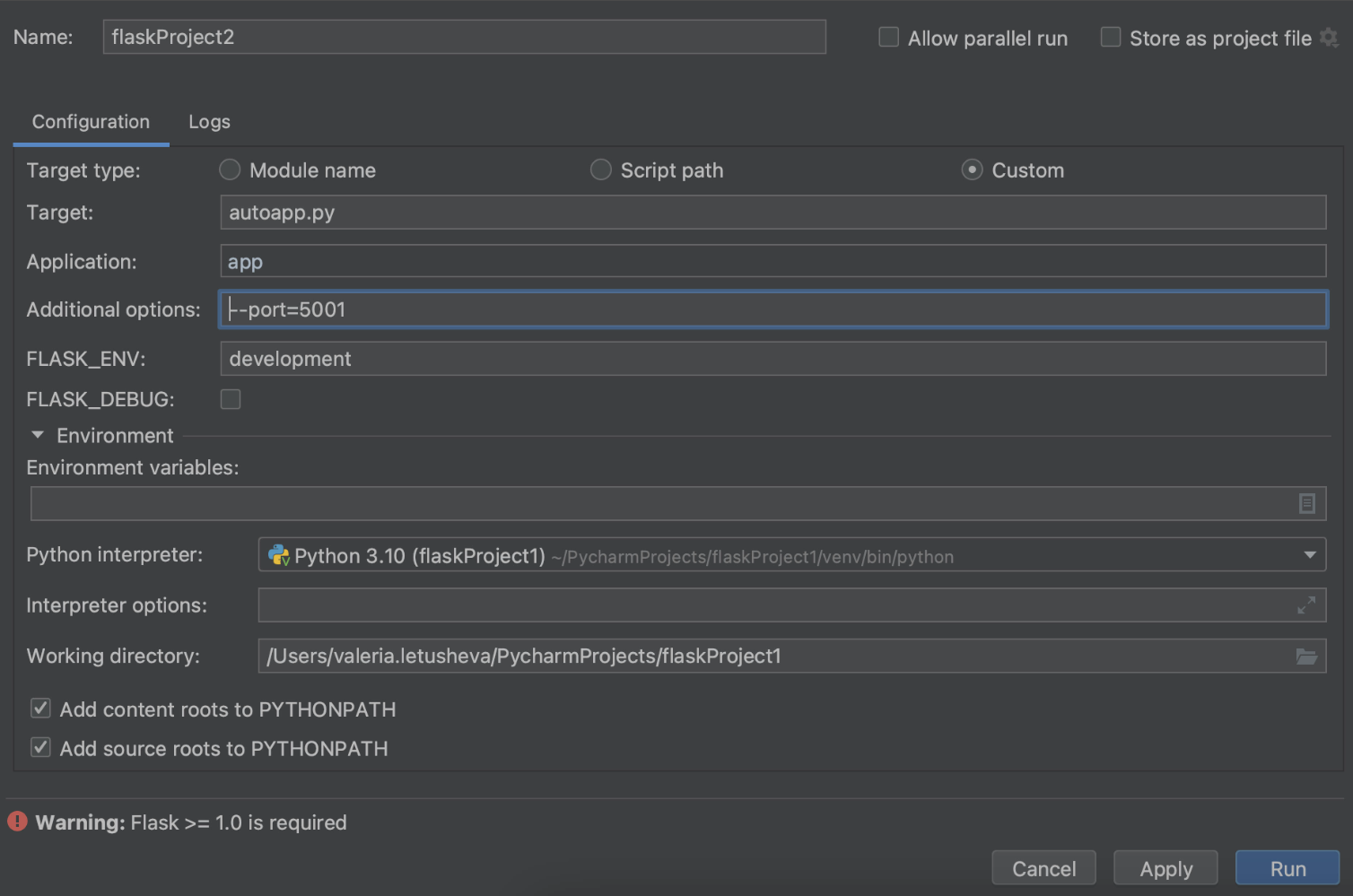
You can specify different Target types in the Target field, depending on what you would like to run: a path to the Python file, a module in your Flask project, or even a custom combination of modules, scripts, and Flask instances. For our example, we would like to run a file called autoapp.py

In the Application field we will need to define the name of the application we are going to execute. In our case it will just be “app”.

If you want to learn more about these and other Run Configuration settings, please visit the dedicated Help page.

How you can change the default port

If you need to change the default port, you can also do it in the Run / Debug Configurations dialog. Print --port=[number of port] in the Additional options field.

Working with templates

How to create a template file from usage

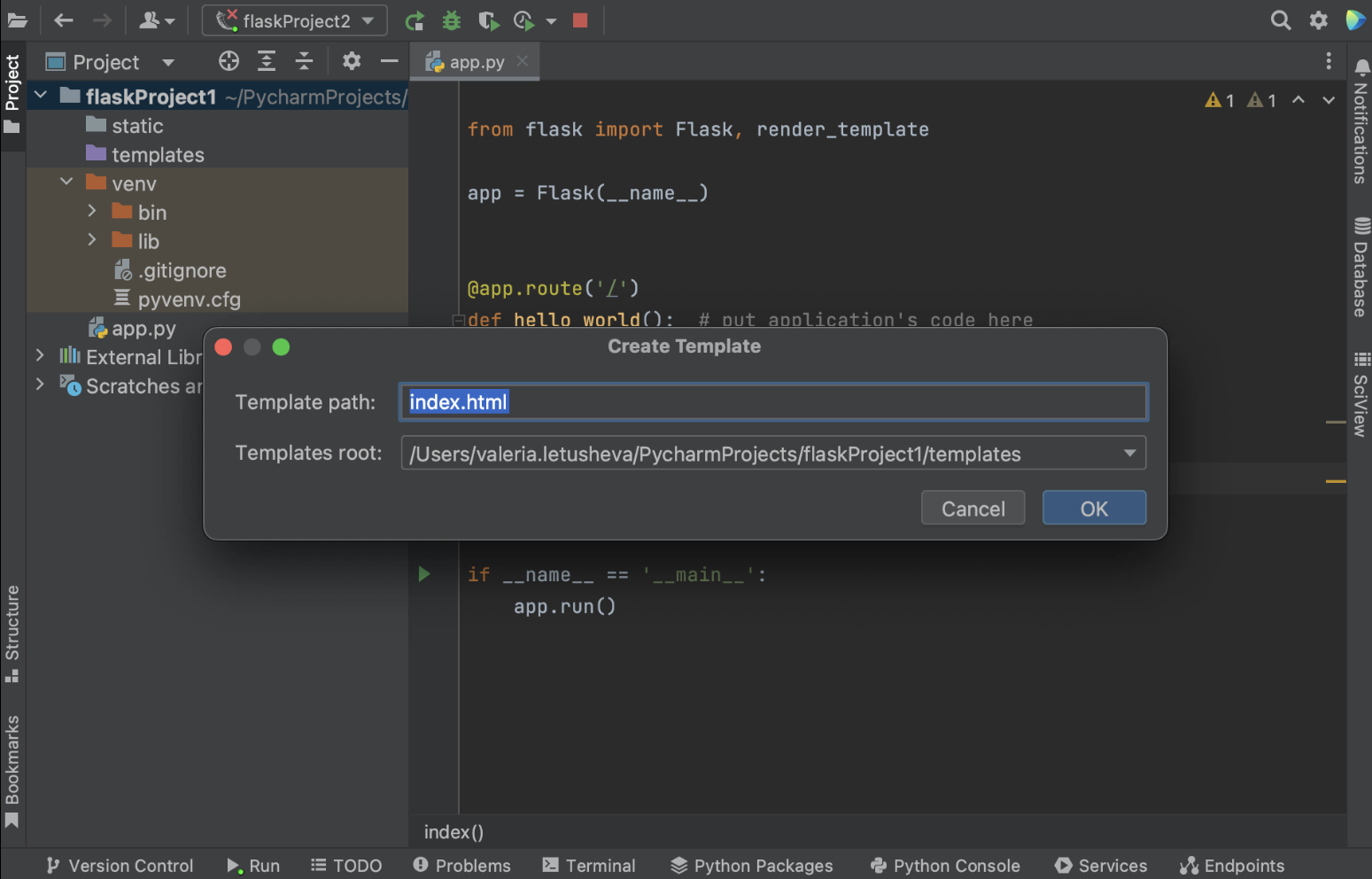
As a part of Flask support, PyCharm provides the ability to automatically create a template file while you are working on the code. So if you happen to mention a non-existing template in your route, PyCharm will highlight the name of the template file. Use the quick-fix Create template<name> by placing a caret at the highlighted template name, press ⌥ ⏎, and choose Create template <name> from the list of available intention actions. 

Alternatively, you can click the yellow light bulb and choose Create template <name> from there.

In the Create Template dialog, select the template directory, where the new template will be created. Note that this quick-fix will create an empty template.

On the contrary, if you create a new template by right-clicking on the templates folder in the project view and choosing New / HTML file, you will get a file prefilled with generic HTML code.

You can learn more about how PyCharm can help with templates on our Help page.

How to use a live template

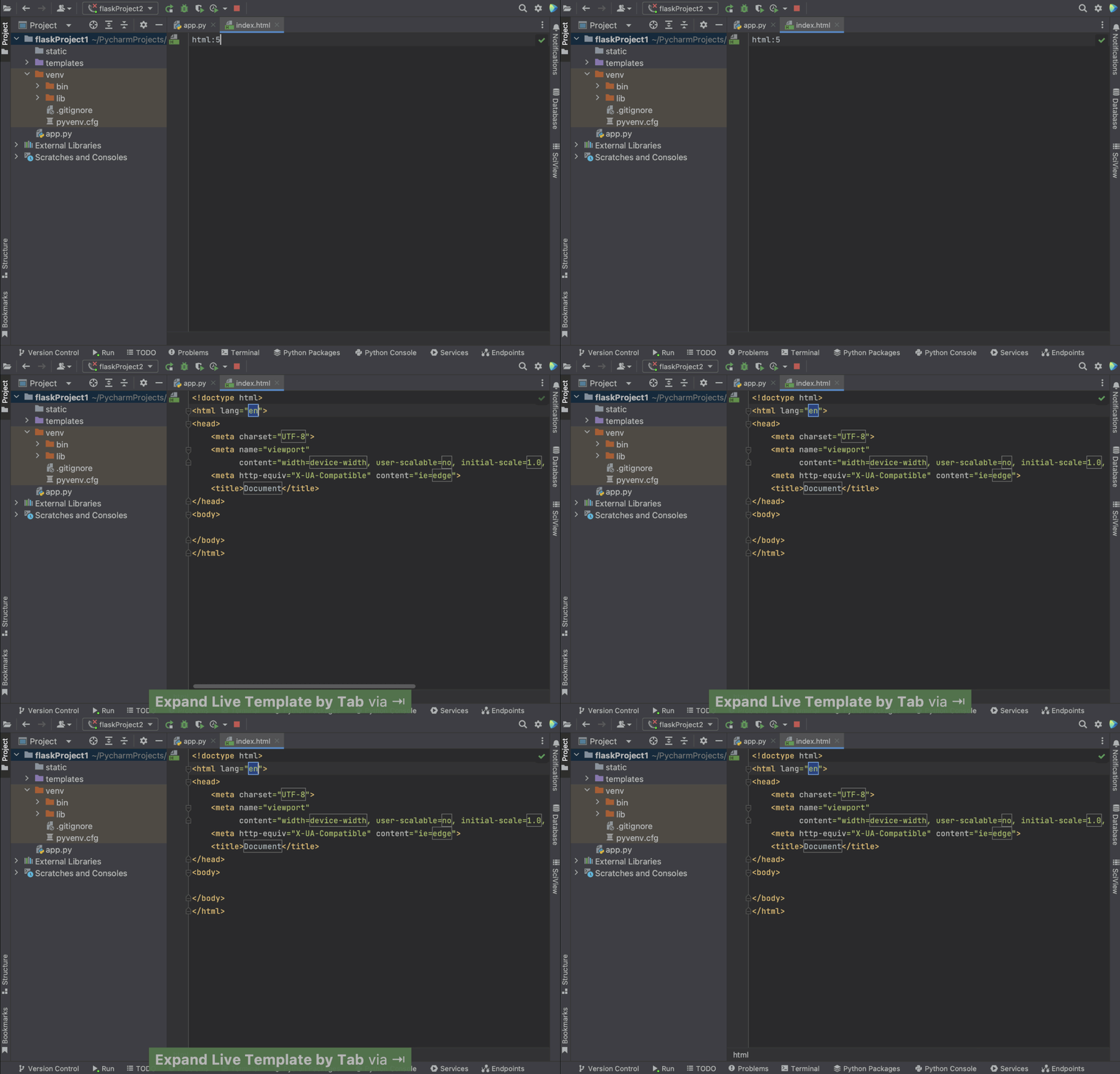
To optimize your work, you can create live templates instead of writing the same pieces of code multiple times. To expand a code snippet, type the corresponding template abbreviation and press ⇥. Keep pressing ⇥ to jump from one variable in the template to the next one. Press ⇧ ⇥ to move to the previous variable.

In our case, we will use a pre-built live template with html: 5 typing and press  ⇥. We will get basic HTML code that we can modify further. 

There are many predefined live templates available for you in PyCharm. To view and customize the one you would like to use, go to Settings | Preferences / Editor / Live Templates. The live template that we used here is under Zen HTML. You can click on it and see detailed information about the template, including abbreviations and template text. You can modify the template according to your needs.

Coming back to our template file, we will add Hello {{ name }} to the <body> and run our app to check if the template is working.

We get a url on our localhost that we can paste into the browser. Add /index to the url and we see “Hello PyCharm” text – everything is working!

How to add a templates folder to your project

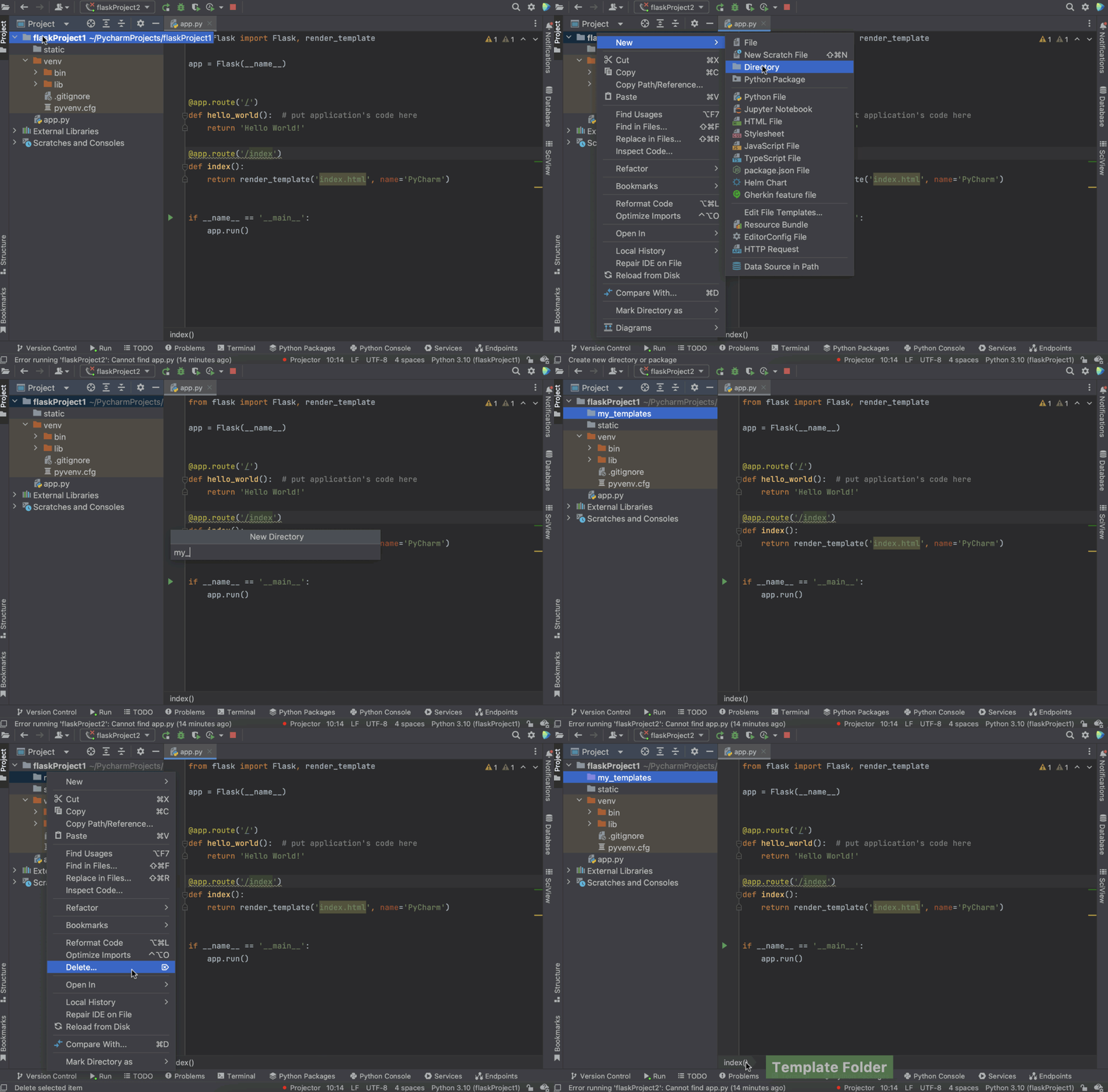
If you are willing to have a templates folder under a different name (not “templates”), you can delete the existing templates folder from the project view and then right-click on the project name, select New / Directory, and define the folder’s name in the dialog window. 

Don’t forget to mark the folder as a Template folder by right-clicking on it and choosing Mark Directory as / Template Folder. Now you have a template folder with a name of your choice!

How to associate an SQL database with your Flask project (and why you might do so)

If your project has an SQL database, you can associate it with the project in PyCharm by simply dragging it from the project structure to the Database tool window on the right panel. 

Associating a database with your project will provide you with proper code insight both for SQL statements and across the whole project. PyCharm will be able to introspect the whole project, including the associated database, and will recognize it when you need the table name from the database in your code.

Now you are all set for productive work on your new Flask application. If you have any further questions, please leave a comment or ping us on Twitter.

If you’re in the mood to learn more than this Flask tutorial, here are some resources you might find useful:

To read:

To watch:

PyCoder’s Weekly: Issue #536 (Aug. 2, 2022)

$
0
0

#536 – AUGUST 2, 2022
View in Browser »

The PyCoder’s Weekly Logo


Your Python Coding Environment on Windows: Setup Guide

With this opinionated guide to setting up a basic, fully featured and flexible setup for Python coding and open source contributing when working from Windows, you’ll go from a fresh install to ready to contribute, and even check out a PowerShell script to automate much of the process.
REAL PYTHON

Programming Languages Endorsed for Server-Side Use at Meta

Facebook (Meta) shares its internal programming language guidance that helps their developers choose the best language for their projects. Python is used heavily for ML, data science, and Instagram.
ERIC GARCIA

Connect, Integrate, & Automate Your Data – From Python or Any Other Application

alt

At CData, we simplify connectivity between the application and data sources that power business, making it easier to unlock the value of data. Our SQL-based connectors streamline data access making it easy to access real-time data from on-premise or cloud databases, SaaS, APIs, NoSQL, and Big Data →
CDATA SOFTWAREsponsor

Natural Language Processing & How ML Understands Text

How do you process and classify text documents in Python? What are the fundamental techniques and building blocks for Natural Language Processing (NLP)? This week on the show, Jodie Burchell, developer advocate for data science at JetBrains, talks about how machine learning (ML) models understand text.
REAL PYTHONpodcast

Testing PyPy

Brian interviews Carl Friedrich Bolz-Tereick of the PyPy project and they talk about how to test the alternative Python implementation.
CARL FRIEDRICH BOLZ-TEREICKpodcast

Discussions

Performance Comparison: Python, C/C++, Rust, and More

Ben Hoyt’s article Performance comparison: counting words in Python, Go, C++, C, AWK, Forth, and Rust is making the rounds again. It prompted this deep discussion on Hacker News.
HACKER NEWS

Python Jobs

Backend Software Engineer (Anywhere)

Catalpa

Backend Engineering Manager (Anywhere)

Close

Remote (US) Python/JavaScript Full-Stack Engineers (Anywhere)

United States Senate Sergeant at Arms

Senior Data Engineer - Java/Python - Remote (Dallas, TX, USA)

Infinity Consulting

Lead Software Engineer, Python, Remote (Eden Prairie, MN, USA)

Diversant LLC

More Python Jobs >>>

Articles & Tutorials

Primer on Jinja Templating

With Jinja, you can build rich templates that power the front end of your web applications. But you can use Jinja without a web framework running in the background. Anytime you want to create text files with programmatic content, Jinja can help you out.
REAL PYTHON

How to Support Open-Source Software and Stay Sane

When researchers develop code for their projects it often gets released as Open Source. There is extra work involved in this though. This article talks about what you need to think about before releasing that code.
ANNA NOWOGRODZKI

Scout APM: Find and Fix Performance Issues with Ease

alt

Scout’s APM tool pinpoints and prioritizes performance and stability issues in Python applications. With Scout’s tracing logic, developers can detect the exact line of code causing the performance abnormality, and with detailed backtraces, you can fix the issue before customers ever notice →
SCOUT APMsponsor

Understanding Pass by Reference in Python

“Python, in general, is a pass-by-reference language. What does that really mean and what do you need to look out for?” Learn how this impacts your code, where you can run into trouble, and what to do about it.
BAS STEINS

How to Create a Python Package in 2022

From how to get structure your package and its tests to dealing with pre-commit hooks and publishing to PyPI, this article walks you through recommended tools and techniques for creating a Python package.
RODRIGO GIRÃO SERRÃO

Add Google Login to a FastAPI App With EasyAuth

Learn how to setup Google authentication for a FastAPI application and control what new users can access with granular User, Group, Role and Action level permissions.
JOSHUA JAMISON• Shared by Joshua Jamison

Managing Attributes With Python’s property()

In this video course, you’ll learn how to create managed attributes, also known as properties, using Python’s property() in your custom classes.
REAL PYTHONcourse

Low Quality Code Is 15x More Prone to Bugs. Cut Down on Bug Risk and Tech Debt With Sourcery

It’s easy for technical debt to creep up in any codebase. With Sourcery you can instantly review and fix tech debt issues and make sure your own teams code standards are being met.
SOURCERYsponsor

Protestware: Why Developers Sabotage Their Own Code

Both Python and Node code repositories have had developers intentionally breaking their packages in protest. Is this a trend on the rise?
AX SHARMA

Building a Spotify Song and Playlist Recommendation Engine

Follow along to learn how to build a song and playlist recommendation app using Python, Word2Vec, PySpark, Tensorflow and MongoDB.
RACHELLE PALMER• Shared by Rachelle Palmer

Projects & Code

Events

STL Python

August 3, 2022
MEETUP.COM


Happy Pythoning!
This was PyCoder’s Weekly Issue #536.
View in Browser »

alt

[ Subscribe to 🐍 PyCoder’s Weekly 💌 – Get the best Python news, articles, and tutorials delivered to your inbox once a week >> Click here to learn more ]

ABlog for Sphinx: ABlog v0.10.28 released

Shannon -jj Behrens: Python: My Favorite Python Tricks for LeetCode Questions

$
0
0

I've been spending a lot of time practicing on LeetCode recently, so I thought I'd share some of my favorite intermediate-level Python tricks with an emphasis on newer features of Python you may not have started using yet.

I'll start with basic tips and then move to more advanced.

Get help()

Python's documentation is pretty great, and some of these examples are taken from there.

For instance, if you just google "heapq", you'll see the official docs for heapq, which are often enough.

However, it's also helpful to sometimes just quickly get help() in the shell. Here, I can't remember how to insert works:

>>> help([])

>>> dir([])

>>> help([].insert)

enumerate()

If you need to loop over a list, you can use enumerate() to get both the item as well as the index. As a pneumonic, I like to think for (i, x) in enumerate(...):

for (i, x) in enumerate(some_list):
...

items()

Similarly, you can get both the key and the value at the same time when looping over a dict using items():

for (k, v) in some_dict.items():
...

[] vs. get()

Remember, when you use [] with a dict, if the value doesn't exist, you'll get a KeyError. Rather than see if an item is in the dict and then look up its value, you can use get():

val = some_dict.get(key)  # It defaults to None.
if val is None:
...

Similarly, .setdefault() is sometimes helpful.

Some people prefer to just use [] and handle the KeyError since exceptions aren't as expensive in Python as they are in other languages.

range() is smarter than you think

for item in range(items):
...

for index in range(len(items)):
...

# Count by 2s.
for i in range(0, 100, 2):
...

# Count backwards from 100 to 0 inclusive.
for i in range(100, -1, -1):
...

# Surprisingly, ranges can even be reversed cheaply.
r = range(100)
r = r[::-1] # range(99, -1, -1)

print(f'') debugging

Have you switched to Python's new format strings yet? They're nicer than % and .format():

print(f'Got item: {item}')

Use a list as a stack

The cost of using a list as a stack is (amortized) O(1):

elements = []
elements.append(element) # Not push
element = elements.pop()

Note that inserting something at the beginning of the list or in the middle is more expensive because you have to shift everything to the right.

sort() vs. sorted()

# sort() sorts a list in place.
my_list.sort()

# Whereas sorted() returns a sorted *copy* of an iterable:
my_sorted_list = sorted(some_iterable)

set and frozenset

Sets are just so useful in so many problems. Just in case you didn't know some of these tricks:

# There is now syntax for creating sets.
s = {'Von'}

# There are set "comprehensions" which are like list comprehensions, but for sets.
s2 = {f'{name} the III' for name in s}
{'Von the III'}

# If you need an immutable set, for instance, to use as a dict key, use frozenset.
frozenset((1, 2, 3))

deque

If you find yourself needing a queue, or a list that you can push and pop from either side, use a deque:

>>> from collections import deque
>>>
>>> d = deque()
>>> d.append(3)
>>> d.append(4)
>>> d.appendleft(2)
>>> d.appendleft(1)
>>> d
deque([1, 2, 3, 4])
>>> d.popleft()
1
>>> d.pop()
4

Using a stack instead of recursion

Instead of using recursion (which has a depth of about 1000 frames), you can use a while loop and manually manage a stack yourself:

work = []
while work:
work_item = work.pop()
piece1, piece2 = process(work_item)
work.push(piece1)
work.push(piece2)

Pre-initialize your list

If you know how long your list is going to be ahead of time, you can avoid needing to resize it multiple times by just pre-initializing it:

dp = [None] * len(items)

collections.Counter()

How many times have you used a dict to count up something. It's built in in Python:

>>> from collections import Counter
>>> c = Counter('abcabcabcaaa')
>>> c
Counter({'a': 6, 'b': 3, 'c': 3})

defaultdict

Similarly, there's defaultdict:

>>> from collections import defaultdict
>>> d = defaultdict(list)
>>> d['girls'].append('Jocylenn')
>>> d['boys'].append('Greggory')
>>> d
defaultdict(<class 'list'>, {'girls': ['Jocylenn'], 'boys': ['Greggory']})

Notice that I didn't need to set d['girls'] to an empty list before I started appending to it.

heapq

I had heard of heaps in school, but I didn't really know what they were. Well, it turns out they're pretty helpful for several of the problems, and Python has a list-based heap implementation built in.

For of all, if you don't know what a heap is, I recommend this video and this video. They'll explain what a heap is and how to implement one using a list.

The heapq module is a built-in module for managing a heap. It builds on top of an existing list:

import heapq

some_list = ...
heapq.heapify(some_list)

# The head of the heap is some_list[0].
# The len of the heap is still len(some_list).

heapq.heappush(some_list, item)
head_item = heapq.heappop(some_list)

The heapq module also has nlargest and nsmallest built in so you don't have to implement those things yourself.

Keep in mind that heapq is a minheap. Let's say that what you really want is a maxheap, and you're not working with ints, you're working with objects. Here's how to tweak your data to get it to fit heapq's way of thinking:

heap = []
heapq.heappush(heap, (-obj.value, obj))

(ignored, first_obj) = heapq.heappop()

Here, I'm using - to make it a maxheap. I'm wrapping things in a tuple so that it's sorted by the obj.value, and I'm including the obj as the second value so that I can get it.

I'm sure you've implemented binary search before. Python has it built in. It even has keyword arguments that you can use to search in only part of the list:

import bisect

insertion_point = bisect.bisect_left(sorted_list, some_item, lo=lo, high=high)

Pay attention to the key argument which is sometimes useful, but may take a little work for it to work the way you want.

namedtuple and dataclasses

Tuples are great, but it can be a pain to deal with remembering the order of the elements or unpacking just a single element in the tuple. That's where namedtuple comes in.

>>> from collections import namedtuple
>>> Point = namedtuple('Point', ['x', 'y'])
>>> p = Point(5, 7)
>>> p
Point(x=5, y=7)
>>> p.x
5
>>> q = p._replace(x=92)
>>> p
Point(x=5, y=7)
>>> q
Point(x=92, y=7)

Keep in mind though that tuples are immutable. If you need something mutable, use a Dataclass instead:

from dataclasses import dataclass


@dataclass
class InventoryItem:
"""Class for keeping track of an item in inventory."""
name: str
unit_price: float
quantity_on_hand: int = 0

def total_cost(self) -> float:
return self.unit_price * self.quantity_on_hand


item = InventoryItem(name='Box', unit_price=19, quantity_on_hand=2)

int, decimal, infinity, etc.

Thankfully, Python's int type supports arbitrarily large values by default

>>> 1 << 128
340282366920938463463374607431768211456

There's also the decimal module if you need to work with things like money where a float isn't accurate enough.

Sometimes, they'll say the range is -2 ^ 32 to 2 ^ 32 - 1. You can get those values via bitshifting:

>>> -(2 ** 32) == -(1 << 32)
True
>>> (2 ** 32) - 1 == (1 << 32) - 1
True

And, sometimes, it's useful to represent infinity via float('inf').

Closures

I'm not sure every interviewer is going to like this, but I tend to skip the OOP stuff and use a bunch of local helper functions so that I can access things via closure:

class Solution():  # This is what LeetCode gave me.
def solveProblem(self, arg1, arg2): # Why they used camelCase, I have no idea.

def helper_function():
# I have access to arg1 and arg2 via closure.
# I don't have to store them on self or pass them around.
return arg1 + arg2

counter = 0

def can_mutate_counter():
# By using nonlocal, I can even mutate counter.
# I rarely use this approach in practice. I usually pass in it
# as an argument and return a value.
nonlocal counter
counter += 1

can_mutate_counter()
return helper_function() + counter

match statement

Did you know Python now has a match statement?

# Taken from: https://learnpython.com/blog/python-match-case-statement/

>>> command = 'Hello, World!'
>>> match command:
... case 'Hello, World!':
... print('Hello to you too!')
... case 'Goodbye, World!':
... print('See you later')
... case other:
... print('No match found')

OrderedDict

If you ever need to implement an LRU cache, it'll be quite helpful to have an OrderedDict.

Python's dicts are now ordered by default. However, the docs for OrderedDict say that there are still some cases where you might need to use OrderedDict. I can't remember. If you never need your dicts to be ordered, just read the docs and figure out if you need an OrderedDict or if you can use just a normal dict.

@functools.cache

If you need a cache, sometimes you can just wrap your code in a function and use @functools.cache:

from functools import cache


@cache
def factorial(n):
return n * factorial(n - 1) if n else 1

Saving memory with the array module

Sometimes you need a really long list of simple numeric (or boolean) values. The array module can help with this, and it's an easy way to decrease your memory usage after you've already gotten your algorithm working.

>>> import array
>>> array_of_bytes = array.array('b')
>>> array_of_bytes.frombytes(b'\0' * (array_of_bytes.itemsize * 10_000_000))

Conclusion

Well, those are my favorite tricks off the top of my head. I'll add more if I think of any.

This is just a single blog post, but if you want more, check out Python 3 Module of the Week.

Django Weblog: Django security releases issued: 4.0.7 and 3.2.15

$
0
0

In accordance with our security release policy, the Django team is issuing Django 4.0.7, and Django 3.2.15. These releases addresses the security issue detailed below. We encourage all users of Django to upgrade as soon as possible.

CVE-2022-36359: Potential reflected file download vulnerability in FileResponse

An application may have been vulnerable to a reflected file download (RFD) attack that sets the Content-Disposition header of a FileResponse when the filename was derived from user-supplied input. The filename is now escaped to avoid this possibility.

This issue has high severity, according to the Django security policy.

Thanks to Motoyasu Saburi for the report.

Affected supported versions

  • Django main branch
  • Django 4.1 (which will be released in a separate blog post later today)
  • Django 4.0
  • Django 3.2

Resolution

Patches to resolve the issue have been applied to Django's main branch and the 4.1, 4.0, and 3.2 release branches. The patches may be obtained from the following changesets:

The following releases have been issued:

The PGP key ID used for this release is Carlton Gibson: E17DF5C82B4F9D00.

General notes regarding security reporting

As always, we ask that potential security issues be reported via private email to security@djangoproject.com, and not via Django's Trac instance or the django-developers list. Please see our security policies for further information.

Django Weblog: Django 4.1 released

$
0
0

The Django team is happy to announce the release of Django 4.1.

The release notes cover the profusion of new features in detail, but a few highlights are:

You can get Django 4.1 from our downloads page or from the Python Package Index. The PGP key ID used for this release is Carlton Gibson: E17DF5C82B4F9D00.

With the release of Django 4.1, Django 4.0 has reached the end of mainstream support. The final minor bug fix release, 4.0.7, was issued today. Django 4.0 will receive security and data loss fixes until April 2023. All users are encouraged to upgrade before then to continue receiving fixes for security issues.

See the downloads page for a table of supported versions and the future release schedule.

Python for Beginners: Count Occurrences of Each Character in a String in Python

$
0
0

String manipulation is one of the critical components of text data analysis. While analyzing text data, we might need to count the frequency of characters in the text. In this article, we will discuss different approaches to count occurrences of each character in a string in Python. 

Using For Loop and set() Function to Count Occurrences of Each Character in a String

We can use a for loop and the set() function to count the occurrences of each character in a string in Python. For this, we will use the following steps.

  • First, we will create a set of all the characters present in the input string. For this, we will use the set() function. The set() function takes an iterable object as its input argument and returns a set of all the elements of the iterable object. 
  • After creating the set of characters, we will use nested for loops to count the occurrences of each character in the string. 
  • In the outer for loop, we will iterate through the elements of the set. Inside the for loop, we will define a variable countOfChar and initialize it to 0.
  • Then, we will iterate over the input string using another for loop.
  • Inside the inner for loop, if we find the current character of the set in the string, we will increment countOfChar by 1. Otherwise, we will move to the next character in the string.
  • After execution of the inner for loop, we will get the count of a single character. We will print it using a print statement. Then, we will move to the next character in the set using the outer for loop.

After execution of the for loops, the number of occurrences of each character in the string will be printed. You can observe this in the following example.

input_string = "Pythonforbeginners is a great source to get started with Python."
print("The input string is:", input_string)
mySet = set(input_string)
for element in mySet:
    countOfChar = 0
    for character in input_string:
        if character == element:
            countOfChar += 1
    print("Count of character '{}' is {}".format(element, countOfChar))

Output:

The input string is: Pythonforbeginners is a great source to get started with Python.
Count of character 'o' is 5
Count of character 'a' is 3
Count of character 'c' is 1
Count of character 'e' is 6
Count of character 'd' is 1
Count of character 't' is 8
Count of character 'r' is 5
Count of character 'y' is 2
Count of character 'n' is 4
Count of character 'u' is 1
Count of character 's' is 4
Count of character 'g' is 3
Count of character 'w' is 1
Count of character '.' is 1
Count of character 'h' is 3
Count of character ' ' is 9
Count of character 'P' is 2
Count of character 'b' is 1
Count of character 'i' is 3
Count of character 'f' is 1

If you want to store the frequencies of the characters, you can use a python dictionary. For storing the frequencies, we will first create an empty dictionary named countOfChars

After calculating the count of a character, we will add the character as the key and the count as the value to the dictionary. You can observe this in the following code.

input_string = "Pythonforbeginners is a great source to get started with Python."
print("The input string is:", input_string)
mySet = set(input_string)
countOfChars = dict()
for element in mySet:
    countOfChar = 0
    for character in input_string:
        if character == element:
            countOfChar += 1
    countOfChars[element] = countOfChar
print("Count of characters is:")
print(countOfChars)

Output:

The input string is: Pythonforbeginners is a great source to get started with Python.
Count of characters is:
{'s': 4, 'P': 2, 'b': 1, '.': 1, 'd': 1, 'c': 1, 'g': 3, 'r': 5, 'i': 3, 'o': 5, 'u': 1, 'a': 3, 'f': 1, 'e': 6, 'n': 4, 'y': 2, ' ': 9, 'w': 1, 't': 8, 'h': 3}

Count Occurrences of Each Character in a String Using the count() Method in Python

The count() method in a string is used to count the frequency of a character in a string. When invoked on a string, the count() method takes a character as its input argument. After execution, it returns the frequency of the character given as the input argument. 

To count the occurrences of each character in a string using the count() method, we will use the following steps.

  • First, we will create a set of characters in the input string using the set() function.
  • After that, we will iterate through the elements of the set using a for loop.
  • Inside the for loop, we will invoke the count() method on the input string with the current element of the set as its input argument. After execution, the count() method will return the number of occurrences of the current element of the set. We will print the value using the print statement.

After execution of the for loop, the frequency of all the characters will be printed. You can observe this in the following example.

input_string = "Pythonforbeginners is a great source to get started with Python."
print("The input string is:", input_string)
mySet = set(input_string)
countOfChars = dict()
for element in mySet:
    countOfChar = input_string.count(element)
    countOfChars[element] = countOfChar
    print("Count of character '{}' is {}".format(element, countOfChar))

Output:

The input string is: Pythonforbeginners is a great source to get started with Python.
Count of character 'e' is 6
Count of character 'n' is 4
Count of character 'a' is 3
Count of character '.' is 1
Count of character 'h' is 3
Count of character 'r' is 5
Count of character 'f' is 1
Count of character 'y' is 2
Count of character 's' is 4
Count of character 't' is 8
Count of character 'w' is 1
Count of character 'i' is 3
Count of character 'd' is 1
Count of character 'g' is 3
Count of character 'u' is 1
Count of character 'c' is 1
Count of character 'o' is 5
Count of character 'P' is 2
Count of character 'b' is 1
Count of character ' ' is 9

You can also store the frequency of the characters in a dictionary as shown below.

input_string = "Pythonforbeginners is a great source to get started with Python."
print("The input string is:", input_string)
mySet = set(input_string)
countOfChars = dict()
for element in mySet:
    countOfChar = input_string.count(element)
    countOfChars[element] = countOfChar
print("Count of characters is:")
print(countOfChars)

Output:

The input string is: Pythonforbeginners is a great source to get started with Python.
Count of characters is:
{'t': 8, 'o': 5, 'P': 2, 'n': 4, 'f': 1, 'e': 6, 'g': 3, 'c': 1, '.': 1, 's': 4, 'w': 1, 'y': 2, ' ': 9, 'u': 1, 'i': 3, 'd': 1, 'a': 3, 'h': 3, 'r': 5, 'b': 1}

The above approaches have high time complexity. If there are N distinct characters in the string and the string length is M, the time complexity of the execution will be of the order of M*N. Therefore, using these approaches is not advised if you have to analyze strings of thousands of characters. For that, we can use other approaches discussed in the following sections.

Using A Python Dictionary to Count Occurrences of Each Character in a String

A dictionary in python stores key-value pairs. To count occurrences of each character in a string in Python using a dictionary, we will use the following approach.

  • First, we will create an empty dictionary named countOfChars to store the characters and their frequency.
  • Now, we will iterate over the input string using a for loop. 
  • During iteration, we will check if the present character is present in the dictionary using the membership operator. 
  • If the character is present in the dictionary, we will increment the value associated with the character by 1. Otherwise, we will add the character as a key in the dictionary with 1 as its associated value. 

After execution of the for loop, we will get the count of each character in the countOfChars dictionary. You can observe this in the following example.

input_string = "Pythonforbeginners is a great source to get started with Python."
print("The input string is:", input_string)
countOfChars = dict()
for character in input_string:
    if character in countOfChars:
        countOfChars[character] += 1
    else:
        countOfChars[character] = 1
print("The count of characters in the string is:")
print(countOfChars)

Output:

The input string is: Pythonforbeginners is a great source to get started with Python.
The count of characters in the string is:
{'P': 2, 'y': 2, 't': 8, 'h': 3, 'o': 5, 'n': 4, 'f': 1, 'r': 5, 'b': 1, 'e': 6, 'g': 3, 'i': 3, 's': 4, ' ': 9, 'a': 3, 'u': 1, 'c': 1, 'd': 1, 'w': 1, '.': 1}

Instead of using the if else statements, you can use python try-except blocks to count the occurrences of the characters in the string.

  • Inside the for loop, we will increment the value associated with the current character in the dictionary by 1 in the try block. If the character doesn’t exist in the dictionary, the program will raise a KeyError exception. 
  • In the except block, we will catch the KeyError exception. Here, we will assign the character to the dictionary as a key with 1 as its associated value. 

After execution of the for loop, we will get the count of each character in the countOfChars dictionary. You can observe this in the following example.

input_string = "Pythonforbeginners is a great source to get started with Python."
print("The input string is:", input_string)
countOfChars = dict()
for character in input_string:
    try:
        countOfChars[character] += 1
    except KeyError:
        countOfChars[character] = 1
print("The count of characters in the string is:")
print(countOfChars)

Output:

The input string is: Pythonforbeginners is a great source to get started with Python.
The count of characters in the string is:
{'P': 2, 'y': 2, 't': 8, 'h': 3, 'o': 5, 'n': 4, 'f': 1, 'r': 5, 'b': 1, 'e': 6, 'g': 3, 'i': 3, 's': 4, ' ': 9, 'a': 3, 'u': 1, 'c': 1, 'd': 1, 'w': 1, '.': 1}

The approach using the try-except block works best if we have a large input string with very few distinct characters compared to the length of the string. If the input string is small and the length of the input string is not very large than the total number of distinct characters, the approach will be slower. This is due to the reason that handling exceptions is a costly operation. 

If the program raises the KeyError exception very frequently, it will degrade the performance of the program. So, you should choose between using the if-else statement or the try-except blocks according to the input string length and the number of distinct characters in the string.

You can also avoid using both the if else statements and the try-except blocks. For this, we need to use the following approach.

  • First, we will create a set of characters in the original string using the set() function. 
  • Then, we will initialize the dictionary countOfChars using the elements of the set as the keys and 0 as the associated values.
  • Now, we will iterate through the characters of the input string using a for loop. During iteration, we will increment the value associated with the current character in countOfChars by 1. 

After executing the for loop, we will get the count of occurrences of each character in the string. You can observe this in the following example.

input_string = "Pythonforbeginners is a great source to get started with Python."
print("The input string is:", input_string)
mySet = set(input_string)
countOfChars = dict()
for element in mySet:
    countOfChars[element] = 0
for character in input_string:
    countOfChars[character] += 1
print("The count of characters in the string is:")
print(countOfChars)

Output:

The input string is: Pythonforbeginners is a great source to get started with Python.
The count of characters in the string is:
{'d': 1, 'r': 5, 'y': 2, 'a': 3, 'P': 2, 'i': 3, 's': 4, ' ': 9, 'f': 1, '.': 1, 'h': 3, 't': 8, 'g': 3, 'c': 1, 'u': 1, 'e': 6, 'n': 4, 'w': 1, 'o': 5, 'b': 1}

Count Occurrences of Each Character in a String Using collections.Counter() Function

The collections module provides us with various functions to handle collection objects like list, string, set, etc. The Counter() function is one of those functions. It is used to count the frequency of elements in a collection object. 

The Counter() function takes a collection object as its input argument. After execution, it returns a collections Counter object. The Counter object contains all the characters and their frequency in the form of a dictionary. 

To count the occurrences of each character in a string in Python, you can simply pass it to the Counter() function and print the output as shown in the following example.

from collections import Counter
input_string = "Pythonforbeginners is a great source to get started with Python."
print("The input string is:", input_string)
countOfChars = Counter(input_string)
print("The count of characters in the string is:")
print(countOfChars)

Output:

The input string is: Pythonforbeginners is a great source to get started with Python.
The count of characters in the string is:
Counter({' ': 9, 't': 8, 'e': 6, 'o': 5, 'r': 5, 'n': 4, 's': 4, 'h': 3, 'g': 3, 'i': 3, 'a': 3, 'P': 2, 'y': 2, 'f': 1, 'b': 1, 'u': 1, 'c': 1, 'd': 1, 'w': 1, '.': 1})

Using  Collections.defaultdict()

The collections module provides us with a dictionary object with enhanced features. This is called defaultdict. The defaultdict objects don’t raise the KeyError exception if you try to modify the value associated with a key that doesn’t exist in the dictionary. Instead, it creates a key by itself and then proceeds with the execution of the statement. 

For instance, if there is no key named“Aditya” in a simple dictionary and we do the operation myDict[“Aditya”]+=1, the program will run into a KeyError exception. On the other hand, a defaultdict object will first create the key “Aditya” in the dictionary and will successfully execute the above statement. However, we need to help the defaultdict object to create the default value for the key.

The defaultdict() function takes another function, say fun1 as its input argument. Whenever the defaultdict object needs to create a new key with a default value, it executes fun1 and uses the value returned by fun1 as the associated value for the new key. In our case, we need to have the default value 0 for the count of a character, we will pass the int() function as the input argument to the defaultdict() function.

To count the occurrences of each character in a string using the defaultdict object in Python, we will use the following steps.

  • First, we will create a defaultdict object using the collections.defaultdict() function. Here, we will pass the int() function as input argument to the defaultdict() function.
  • Then, we will iterate through the characters of the input string using a for loop.
  • While iteration, we will keep incrementing the value associated with each character in the defaultdict object.

After execution of the for loop, we will get the count of each character in the defaultdict object. You can observe this in the following example.

from collections import defaultdict
input_string = "Pythonforbeginners is a great source to get started with Python."
print("The input string is:", input_string)
countOfChars = defaultdict(int)
for character in input_string:
    countOfChars[character] += 1
print("The count of characters in the string is:")
print(countOfChars)

Output:

The input string is: Pythonforbeginners is a great source to get started with Python.
The count of characters in the string is:
defaultdict(<class 'int'>, {'P': 2, 'y': 2, 't': 8, 'h': 3, 'o': 5, 'n': 4, 'f': 1, 'r': 5, 'b': 1, 'e': 6, 'g': 3, 'i': 3, 's': 4, ' ': 9, 'a': 3, 'u': 1, 'c': 1, 'd': 1, 'w': 1, '.': 1})

Conclusion

In this article, we have discussed different ways to count occurrences of each character in a string in python. Out of all these approaches, I would suggest you use the approaches using the collections module as these are the most efficient approaches.

I hope you enjoyed reading this article. To know more about python programming, you can read this article on dictionary comprehension in Python. You might also like this article on regression in machine learning. You can also have a look on this article on data analyst vs data scientist.

Stay tuned for more informative articles. Happy Learning!

The post Count Occurrences of Each Character in a String in Python appeared first on PythonForBeginners.com.


Python Anywhere: We are hiring!

$
0
0
As you probably already know, PythonAnywhere is now part of the Anaconda family! As we expected Anaconda’s investment in PythonAnywhere will allow us to expand and improve to better serve our users. So we’re starting to grow our team, and first time since 2014 we’re officially hiring! If you are an experienced frontend developer who wants too get their feet wet with the backend stuff, we might be looking for you.

Real Python: Python Constants: Improve Your Code's Maintainability

$
0
0

In programming, the term constant refers to names representing values that don’t change during a program’s execution. Constants are a fundamental concept in programming, and Python developers use them in many cases. However, Python doesn’t have a dedicated syntax for defining constants. In practice, Python constants are just variables that never change.

To prevent programmers from reassigning a name that’s supposed to hold a constant, the Python community has adopted a naming convention: use uppercase letters. For every Pythonista, it’s essential to know what constants are, as well as why and when to use them.

In this tutorial, you’ll learn how to:

  • Properly define constants in Python
  • Identify some built-in constants
  • Use constants to improve your code’s readability, reusability, and maintainability
  • Apply different approaches to organize and manage constants in a project
  • Use several techniques to make constants strictly constant in Python

By learning to define and use constants, you’ll dramatically improve your code’s readability, maintainability, and reusability.

To learn the most from this tutorial, you’ll need basic knowledge of Python variables, functions, modules, packages, and namespaces. You’ll also need to know the basics of object-oriented programming in Python.

Sample Code:Click here to download sample code that shows you how to use constants in Python.

Understanding Constants and Variables

Variables and constants are two historical and fundamental concepts in computer programming. Most programming languages use these concepts to manipulate data and work in an effective and logical fashion.

Variables and constants will probably be present in each project, app, library, or other piece of code that you’ll ever write. The question is: what are variables and constants in practice?

What Variables Are

In math, a variable is defined as a symbol that refers to a value or quantity that can change over time. In programming, a variable is also a symbol or name typically associated with a memory address containing a value, object, or piece of data. Like in math, the content of a programming variable can change during the execution of the code that defines it.

Variables typically have a descriptive name that’s somehow associated with a target value or object. This target value can be of any data type. So, you can use variables to represent numbers, strings, sequences, custom objects, and more.

You can perform two main operations on a variable:

  1. Access its value
  2. Assign it a new value

In most programming languages, you can access the value associated with a variable by citing the variable’s name in your code. To assign a new value to a given variable, you’ll use an assignment statement, which often consists of the variable’s name, an assignment operator, and the desired value.

In practice, you’ll find many examples of magnitudes, data, and objects that you can represent as variables. A few examples include temperature, speed, time, and length. Other examples of data that you can treat as variables include the number of registered users in a web app, the number of active characters in a video game, and the number of miles covered by a runner.

What Constants Are

Math also has the concept of constants. The term refers to a value or quantity that never changes. In programming, constants refer to names associated with values that never change during a program’s execution.

Just like variables, programming constants consist of two things: a name and an associated value. The name will clearly describe what the constant is all about. The value is the concrete expression of the constant itself.

Like with variables, the value associated with a given constant can be of any of data type. So, you can define integer constants, floating-point constants, character constants, string constants, and more.

After you’ve defined a constant, it’ll only allow you to perform a single operation on it. You can only access the constant’s value but not change it over time. This is different from a variable, which allows you to access its value, but also reassign it.

You’ll use constants to represent values that won’t change. You’ll find lots of these values in your day-to-day programming. A few examples include the speed of light, the number of minutes in an hour, and the name of a project’s root folder.

Why Use Constants

In most programming languages, constants protect you from accidentally changing their values somewhere in the code when you’re coding at two in the morning, causing unexpected and hard-to-debug errors. Constants also help you make your code more readable and maintainable.

Read the full article at https://realpython.com/python-constants/ »


[ Improve Your Python With 🐍 Python Tricks 💌 – Get a short & sweet Python Trick delivered to your inbox every couple of days. >> Click here to learn more and see examples ]

Python GUIs: Matplotlib plots in PyQt6, embedding charts in your GUI applications

$
0
0

In a previous tutorial we covered plotting in PyQt6 using PyQtGraph. PyQtGraph uses the Qt vector-based QGraphicsScene to draw plots and provides a great interface for interactive and high performance plotting.

However, there is another plotting library for Python which is used far more widely, and which offers a richer assortment of plots — Matplotlib. If you're migrating an existing data analysis tool to a Python GUI, or if you simply want to have access to the array of plot abilities that Matplotlib offers, then you'll want to know how to include Matplotlib plots within your application.

In this tutorial we'll cover how to embed Matplotlib plots in your PyQt applications

Many other Python libraries — such as seaborn and pandas— make use of the Matplotlib backend for plotting. These plots can be embedded in PyQt6 in the same way shown here, and the reference to the axes passed when plotting. There is a pandas example at the end of this tutorial.

Installing Matplotlib

The following examples assume you have Matplotlib installed. If not you can install it as normal using Pip, with the following —

bash
pip install matplotlib

A simple example

The following minimal example sets up a Matplotlib canvas FigureCanvasQTAgg which creates the Figure and adds a single set of axes to it. This canvas object is also a QWidget and so can be embedded straight into an application as any other Qt widget.

python
import sys
import matplotlib
matplotlib.use('Qt5Agg')

from PyQt6 import QtCore, QtWidgets

from matplotlib.backends.backend_qt5agg import FigureCanvasQTAgg
from matplotlib.figure import Figure


class MplCanvas(FigureCanvasQTAgg):

    def __init__(self, parent=None, width=5, height=4, dpi=100):
        fig = Figure(figsize=(width, height), dpi=dpi)
        self.axes = fig.add_subplot(111)
        super(MplCanvas, self).__init__(fig)


class MainWindow(QtWidgets.QMainWindow):

    def __init__(self, *args, **kwargs):
        super(MainWindow, self).__init__(*args, **kwargs)

        # Create the maptlotlib FigureCanvas object,
        # which defines a single set of axes as self.axes.
        sc = MplCanvas(self, width=5, height=4, dpi=100)
        sc.axes.plot([0,1,2,3,4], [10,1,20,3,40])
        self.setCentralWidget(sc)

        self.show()


app = QtWidgets.QApplication(sys.argv)
w = MainWindow()
app.exec()

In this case we're adding our MplCanvas widget as the central widget on the window with .setCentralWidget(). This means it will take up the entirety of the window and resize together with it. The plotted data [0,1,2,3,4], [10,1,20,3,40] is provided as two lists of numbers (x and y respectively) as required by the .plot method.

Basic plot with embedded MatplotlibBasic plot with embedded Matplotlib

Plot controls

Plots from Matplotlib displayed in PyQt6 are actually rendered as simple (bitmap) images by the Agg backend. The FigureCanvasQTAgg class wraps this backend and displays the resulting image on a Qt widget. The effect of this architecture is that Qt is unaware of the positions of lines and other plot elements — only the x, y coordinates of any clicks and mouse movements over the widget.

However, support for handling Qt mouse events and transforming them into interactions on the plot is built into Matplotlib. This can be controlled through a custom toolbar which can be added to your applications alongside the plot. In this section we'll look at adding these controls so we can zoom, pan and get data from embedded Matplotlib plots.

The complete code, importing the toolbar widget NavigationToolbar2QT and adding it to the interface within a QVBoxLayout, is shown below —

python
import sys
import matplotlib
matplotlib.use('Qt5Agg')

from PyQt6 import QtCore, QtGui, QtWidgets

from matplotlib.backends.backend_qt5agg import FigureCanvasQTAgg, NavigationToolbar2QT as NavigationToolbar
from matplotlib.figure import Figure


class MplCanvas(FigureCanvasQTAgg):

    def __init__(self, parent=None, width=5, height=4, dpi=100):
        fig = Figure(figsize=(width, height), dpi=dpi)
        self.axes = fig.add_subplot(111)
        super(MplCanvas, self).__init__(fig)


class MainWindow(QtWidgets.QMainWindow):

    def __init__(self, *args, **kwargs):
        super(MainWindow, self).__init__(*args, **kwargs)

        sc = MplCanvas(self, width=5, height=4, dpi=100)
        sc.axes.plot([0,1,2,3,4], [10,1,20,3,40])

        # Create toolbar, passing canvas as first parament, parent (self, the MainWindow) as second.
        toolbar = NavigationToolbar(sc, self)

        layout = QtWidgets.QVBoxLayout()
        layout.addWidget(toolbar)
        layout.addWidget(sc)

        # Create a placeholder widget to hold our toolbar and canvas.
        widget = QtWidgets.QWidget()
        widget.setLayout(layout)
        self.setCentralWidget(widget)

        self.show()


app = QtWidgets.QApplication(sys.argv)
w = MainWindow()
app.exec()

We'll step through the changes.

First we import the toolbar widget from matplotlib.backends.backend_qt5agg.NavigationToolbar2QT renaming it with the simpler name NavigationToolbar. We create an instance of the toolbar by calling NavigationToolbar with two parameters, first the canvas object sc and then the parent for the toolbar, in this case our MainWindow object self. Passing in the canvas links the created toolbar to it, allowing it to be controlled. The resulting toolbar object is stored in the variable toolbar.

We need to add two widgets to the window, one above the other, so we use a QVBoxLayout. First we add our toolbar widget toolbar and then the canvas widget sc to this layout. Finally, we set this layout onto our simple widget layout container which is set as the central widget for the window.

Running the above code will produce the following window layout, showing the plot at the bottom and the controls on top as a toolbar.

Matplotlib plot with ToolbarMatplotlib plot with Toolbar

The buttons provided by NavigationToolbar2QT allow the following actions —

  • Home, Back/Forward, Pan & Zoom which are used to navigate through the plots. The Back/Forward buttons can step backwards and forwards through navigation steps, for example zooming in and then clicking Back will return to the previous zoom. Home returns to the initial state of the plot.
  • Plot margin/position configuration which can adjust the plot within the window.
  • Axis/curve style editor, where you can modify plot titles and axes scales, along with setting plot line colours and line styles. The colour selection uses the platform-default colour picker, allowing any available colours to be selected.
  • Save, to save the resulting figure as an image (all Matplotlib supported formats).

A few of these configuration settings are shown below.

Matplotlib figure optionsMatplotlib figure options

Matplotlib curves figure optionsMatplotlib curves figure options

For more information on navigating and configuring Matplotlib plots, take a look at the official Matplotlib toolbar documentation.

Updating plots

Quite often in applications you'll want to update the data shown in plots, whether in response to input from the user or updated data from an API. There are two ways to update plots in Matplotlib, either

  1. clearing and redrawing the canvas (simpler, but slower) or,
  2. by keeping a reference to the plotted line and updating the data.

If performance is important to your app it is recommended you do the latter, but the first is simpler.

Clear and redraw

We start with the simple clear-and-redraw method first below —

python
import sys
import random
import matplotlib
matplotlib.use('Qt5Agg')

from PyQt6 import QtCore, QtWidgets

from matplotlib.backends.backend_qt5agg import FigureCanvasQTAgg as FigureCanvas
from matplotlib.figure import Figure


class MplCanvas(FigureCanvas):

    def __init__(self, parent=None, width=5, height=4, dpi=100):
        fig = Figure(figsize=(width, height), dpi=dpi)
        self.axes = fig.add_subplot(111)
        super(MplCanvas, self).__init__(fig)


class MainWindow(QtWidgets.QMainWindow):

    def __init__(self, *args, **kwargs):
        super(MainWindow, self).__init__(*args, **kwargs)

        self.canvas = MplCanvas(self, width=5, height=4, dpi=100)
        self.setCentralWidget(self.canvas)

        n_data = 50
        self.xdata = list(range(n_data))
        self.ydata = [random.randint(0, 10) for i in range(n_data)]
        self.update_plot()

        self.show()

        # Setup a timer to trigger the redraw by calling update_plot.
        self.timer = QtCore.QTimer()
        self.timer.setInterval(100)
        self.timer.timeout.connect(self.update_plot)
        self.timer.start()

    def update_plot(self):
        # Drop off the first y element, append a new one.
        self.ydata = self.ydata[1:] + [random.randint(0, 10)]
        self.canvas.axes.cla()  # Clear the canvas.
        self.canvas.axes.plot(self.xdata, self.ydata, 'r')
        # Trigger the canvas to update and redraw.
        self.canvas.draw()


app = QtWidgets.QApplication(sys.argv)
w = MainWindow()
app.exec()

In this example we've moved the plotting to a update_plot method to keep it self-contained. In this method we take our ydata array and drop off the first value with [1:] then append a new random integer between 0 and 10. This has the effect of scrolling the data to the left.

To redraw we simply call axes.cla() to clear the axes (the entire canvas) and the axes.plot(…) to re-plot the data, including the updated values. The resulting canvas is then redrawn to the widget by calling canvas.draw().

The update_plot method is called every 100 msec using a QTimer. The clear-and-refresh method is fast enough to keep a plot updated at this rate, but as we'll see shortly, falters as the speed increases.

In-place redraw

The changes required to update the plotted lines in-place are fairly minimal, requiring only an addition variable to store and retrieve the reference to the plotted line. The updated MainWindow code is shown below.

python
class MainWindow(QtWidgets.QMainWindow):

    def __init__(self, *args, **kwargs):
        super(MainWindow, self).__init__(*args, **kwargs)

        self.canvas = MplCanvas(self, width=5, height=4, dpi=100)
        self.setCentralWidget(self.canvas)

        n_data = 50
        self.xdata = list(range(n_data))
        self.ydata = [random.randint(0, 10) for i in range(n_data)]

        # We need to store a reference to the plotted line
        # somewhere, so we can apply the new data to it.
        self._plot_ref = None
        self.update_plot()

        self.show()

        # Setup a timer to trigger the redraw by calling update_plot.
        self.timer = QtCore.QTimer()
        self.timer.setInterval(100)
        self.timer.timeout.connect(self.update_plot)
        self.timer.start()

    def update_plot(self):
        # Drop off the first y element, append a new one.
        self.ydata = self.ydata[1:] + [random.randint(0, 10)]

        # Note: we no longer need to clear the axis.
        if self._plot_ref is None:
            # First time we have no plot reference, so do a normal plot.
            # .plot returns a list of line <reference>s, as we're
            # only getting one we can take the first element.
            plot_refs = self.canvas.axes.plot(self.xdata, self.ydata, 'r')
            self._plot_ref = plot_refs[0]
        else:
            # We have a reference, we can use it to update the data for that line.
            self._plot_ref.set_ydata(self.ydata)

        # Trigger the canvas to update and redraw.
        self.canvas.draw()

First, we need a variable to hold a reference to the plotted line we want to update, which here we're calling _plot_ref. We initialize self._plot_ref with None so we can check its value later to determine if the line has already been drawn — if the value is still None we have not yet drawn the line.

T> If you were drawing multiple lines you would probably want to use a list or dict data structure to store the multiple references and keep track of which is which.

Finally, we update the ydata data as we did before, rotating it to the left and appending a new random value. Then we either —

  1. if self._plotref is None (i.e. we have not yet drawn the line) draw the line and store the reference in self._plot_ref, or
  2. update the line in place by calling self._plot_ref.set_ydata(self.ydata)

We obtain a reference to the plotted when calling .plot. However .plot returns a list (to support cases where a single .plot call can draw more than one line). In our case we're only plotting a single line, so we simply want the first element in that list – a single Line2D object. To get this single value into our variable we can assign to a temporary variable plot_refs and then assign the first element to our self._plot_ref variable.

python
plot_refs = self.canvas.axes.plot(self.xdata, self.ydata, 'r')
self._plot_ref = plot_refs[0]

You could also use tuple-unpacking, picking off the first (and only) element in the list with —

python
self._plot_ref, = self.canvas.axes.plot(self.xdata, self.ydata, 'r')

If you run the resulting code, there will be no noticeable difference in performance between this and the previous method at this speed. However if you attempt to update the plot faster (e.g. down to every 10 msec) you'll start to notice that clearing the plot and re-drawing takes longer, and the updates do not keep up with the timer. We can compare the two versions below —

Both using 100 msec timer, clear-and-redraw on the left, update-in-place on the right.

Both using 10 msec timer, clear-and-redraw on the left, update-in-place on the right.

Whether this performance difference is enough to matter in your application depends on what you're building, and should be weighed against the added complication of keeping and managing the references to plotted lines.

Embedding plots from Pandas

Pandas is a Python package focused on working with table (data frames) and series data structures, which is particularly useful for data analysis workflows. It comes with built-in support for plotting with Matplotlib and here we'll take a quick look at how to embed these plots into PyQt6. With this you will be able to start building PyQt6 data-analysis applications built around Pandas.

Pandas plotting functions are directly accessible from the DataFrame objects. The function signature is quite complex, giving a lot of options to control how the plots will be drawn.

python
DataFrame.plot(
    x=None, y=None, kind='line', ax=None, subplots=False,
    sharex=None, sharey=False, layout=None, figsize=None,
    use_index=True, title=None, grid=None, legend=True, style=None,
    logx=False, logy=False, loglog=False, xticks=None, yticks=None,
    xlim=None, ylim=None, rot=None, fontsize=None, colormap=None,
    table=False, yerr=None, xerr=None, secondary_y=False,
    sort_columns=False, **kwargs
)

The parameter we're most interested in is ax which allows us to pass in our own matplotlib.Axes instance on which Pandas will plot the DataFrame.

python
import sys
import matplotlib
matplotlib.use('Qt5Agg')

from PyQt6 import QtCore, QtWidgets

from matplotlib.backends.backend_qt5agg import FigureCanvasQTAgg
from matplotlib.figure import Figure

import pandas as pd


class MplCanvas(FigureCanvasQTAgg):

    def __init__(self, parent=None, width=5, height=4, dpi=100):
        fig = Figure(figsize=(width, height), dpi=dpi)
        self.axes = fig.add_subplot(111)
        super(MplCanvas, self).__init__(fig)


class MainWindow(QtWidgets.QMainWindow):

    def __init__(self, *args, **kwargs):
        super(MainWindow, self).__init__(*args, **kwargs)

        # Create the maptlotlib FigureCanvas object,
        # which defines a single set of axes as self.axes.
        sc = MplCanvas(self, width=5, height=4, dpi=100)

        # Create our pandas DataFrame with some simple
        # data and headers.
        df = pd.DataFrame([
           [0, 10], [5, 15], [2, 20], [15, 25], [4, 10],
        ], columns=['A', 'B'])

        # plot the pandas DataFrame, passing in the
        # matplotlib Canvas axes.
        df.plot(ax=sc.axes)

        self.setCentralWidget(sc)
        self.show()


app = QtWidgets.QApplication(sys.argv)
w = MainWindow()
app.exec()

The key step here is passing the canvas axes in when calling the plot method on the DataFrameon the line df.plot(ax=sc.axes). You can use this same pattern to update the plot any time, although bear in mind that Pandas clears and redraws the entire canvas, meaning that it is not ideal for high performance plotting.

The resulting plot generated through Pandas is shown below —

Pandas plot embedded in PyQt6Pandas plot embedded in PyQt6

Just as before, you can add the Matplotlib toolbar and control support to plots generated using Pandas, allowing you to zoom/pan and modify them live. The following code combines our earlier toolbar example with the Pandas example.

python
import sys
import matplotlib
matplotlib.use('Qt5Agg')

from PyQt6 import QtCore, QtWidgets

from matplotlib.backends.backend_qt5agg import FigureCanvasQTAgg
from matplotlib.backends.backend_qt5agg import FigureCanvasQTAgg, NavigationToolbar2QT as NavigationToolbar
from matplotlib.figure import Figure

import pandas as pd


class MplCanvas(FigureCanvasQTAgg):

    def __init__(self, parent=None, width=5, height=4, dpi=100):
        fig = Figure(figsize=(width, height), dpi=dpi)
        self.axes = fig.add_subplot(111)
        super(MplCanvas, self).__init__(fig)


class MainWindow(QtWidgets.QMainWindow):

    def __init__(self, *args, **kwargs):
        super(MainWindow, self).__init__(*args, **kwargs)

        # Create the maptlotlib FigureCanvas object,
        # which defines a single set of axes as self.axes.
        sc = MplCanvas(self, width=5, height=4, dpi=100)

        # Create our pandas DataFrame with some simple
        # data and headers.
        df = pd.DataFrame([
           [0, 10], [5, 15], [2, 20], [15, 25], [4, 10],
        ], columns=['A', 'B'])

        # plot the pandas DataFrame, passing in the
        # matplotlib Canvas axes.
        df.plot(ax=sc.axes)

        # Create toolbar, passing canvas as first parament, parent (self, the MainWindow) as second.
        toolbar = NavigationToolbar(sc, self)

        layout = QtWidgets.QVBoxLayout()
        layout.addWidget(toolbar)
        layout.addWidget(sc)

        # Create a placeholder widget to hold our toolbar and canvas.
        widget = QtWidgets.QWidget()
        widget.setLayout(layout)
        self.setCentralWidget(widget)
        self.show()


app = QtWidgets.QApplication(sys.argv)
w = MainWindow()
app.exec()

Running this you should see the following window, showing a Pandas plot embedded in PyQt6 alongside the Matplotlib toolbar.

Pandas plot with Matplotlib toolbarPandas plot with Matplotlib toolbar

What's next

In this tutorial we looked at how you can embed Matplotlib plots in your PyQt6 applications. Being able to use Matplotlib plots in your applications allows you to create custom data analysis and visualization tools from Python.

Matplotlib is a huge library and too big to cover in detail here. If you're not familiar with Matplotlib plotting and want to give it a try, take a look at the documentation and example plots to see what is possible. If you are familiar with it you should now be able to put those skills to work in your PyQt6 apps!

For an in-depth guide to building GUIs with Python see my PyQt6 book.

Python Bytes: #295 Flutter + Python GUI Apps?

$
0
0
<p><strong>Watch the live stream:</strong></p> <a href='https://www.youtube.com/watch?v=rJLLixCrFxI' style='font-weight: bold;'>Watch on YouTube</a><br> <br> <p><strong>About the show</strong></p> <p>Sponsored by <a href="http://pythonbytes.fm/foundershub2022"><strong>Microsoft for Startups Founders Hub</strong></a>.</p> <p><strong>Michael #1:</strong> <a href="https://pgjones.dev/blog/faster-routing-2022/"><strong>Faster routing for Flask &amp; Quart</strong></a></p> <ul> <li>Flask and Quart both utilise Werkzeug's HTTP route</li> <li>With the upcoming 2.2 release of Werkzeug this router will be significantly faster, with up to a factor of 5.</li> <li>Better for large sets of routes</li> <li>Micro-benchmarks are unaffected and are unlikely to show a speedup.</li> <li>Started with tree-based radix algorithm</li> <li>Moved to state machine algorithm because of wild cards</li> </ul> <p><strong>Brian #2:</strong> <a href="https://quarto.org/"><strong>Quarto: an open-source scientific and technical publishing system built on Pandoc</strong></a></p> <ul> <li>suggested by Paul Mackenzie</li> <li>Power of Pandoc and Jupyter</li> <li>Build <ul> <li>documents - html, pdf, word</li> <li>presentations - Revealjs, PowerPoint, Beemer</li> <li>websites </li> <li>books - html, pdf, word, epub</li> <li>journal articles - acm, plos, elsevier, acs, jss</li> </ul></li> <li>Publish <ul> <li>GitHub pages, Netlify, …</li> </ul></li> <li>kinda related - <a href="https://ebookfriendly.com/epub-kindle-things-to-know/">Kindle to support ePub</a></li> </ul> <p><strong>Michael #3:</strong> <a href="https://flet.dev"><strong>Fl</strong></a><a href="https://flet.dev"><strong>e</strong></a><a href="https://flet.dev"><strong>t UI</strong></a></p> <ul> <li>via Mikael Honkala</li> <li>New and upcoming UI framework by Feodor Fitzner: <strong>flet</strong>.</li> <li>It has a very interesting stack - a Python client driving a Flutter front-end via a Go server.</li> <li>That sounds complicated, but the developer experience is incredibly simple. Installation is just pip install flet.</li> <li>Here's a quick and stupid but working sample: <pre><code>import time import flet from flet import Column, ElevatedButton, Page, Row, TextField def main(page: Page): text_field = TextField() def clear_field(event): text_field.value = "CLEARING" page.update() time.sleep(1) text_field.value = "" page.update() clear_button = ElevatedButton("Clear the field", on_click=clear_field) page.add(Row([Column([text_field, clear_button])], alignment="center")) page.update() flet.app(target=main) # If you run this, you get a native app window on Mac, Windows or Linux, looking something like this: </code></pre></li> </ul> <p><img src="https://paper-attachments.dropbox.com/s_C04B586155456E4F9A6DBBC0E3C98BB673F4D79145882E8AD80B47B15A25DBCA_1659560371560_flet-example.jpg" alt="" /></p> <ul> <li>While the example is simple, it shows the handling of an event, updating the UI, and even doing a little sleeping between the updates, without having to worry about threads and such.</li> <li><p>What's more important, if you change the last line to:</p> <pre><code> flet.app(target=main, view=WEB_BROWSER) </code></pre></li> <li><p>You get the exact same functionality, but as a web application in a browser, with support for multiple users and deep linking to different parts of the app. All without leaving the comfortable Python world, with its access to all Python libraries, and without having to learn 3 extra, completely different languages (yes, HTML, CSS and JavaScript).</p></li> <li>As this is Flutter, mobile support is in the works, after the basic UI functionality is all there.</li> <li>Check the project front page here: <a href="https://flet.dev">flet.dev</a></li> <li>Jump directly to the currently available controls: <a href="https://flet.dev/docs/controls">flet.dev/docs/controls</a></li> <li>Check couple of tutorials here: <a href="https://flet.dev/docs/tutorials">flet.dev/docs/tutorials</a></li> <li>Or read the plans for the mobile support here: <a href="https://flet.dev/blog/flet-mobile-strategy">flet.dev/blog/flet-mobile-strategy</a></li> </ul> <p><strong>Brian #4:</strong> <a href="https://www.notia.ai/articles/building-an-authenticated-python-cli"><strong>Building an authenticated Python CLI</strong></a></p> <ul> <li>Project that uses click, rich, and OAth for using Twitter API</li> <li>Persistent authentication <ul> <li>requests secret information from user using <code>getpass</code> and <code>input</code> <ul> <li>Client ID, Client Secret, App name</li> </ul></li> <li>fetches bearer token from Twitter API</li> <li>stores token in <code>netrc</code> file</li> </ul></li> <li>I’m not familiar with netrc, so I don’t know if this is a good idea or not. <ul> <li>So I figured I’d ask Michael</li> </ul></li> </ul> <p><strong>Extras</strong> </p> <p>Michael:</p> <ul> <li>New course: <a href="https://training.talkpython.fm/courses/getting-started-with-django"><strong>Django - Getting Started</strong></a></li> </ul> <p><strong>Joke:</strong> <a href="https://twitter.com/pr0grammerhum0r/status/1543972967205556225?s=12&amp;t=9gGvVIDpqOfv22I40TQUzw"><strong>Light touches kingdom</strong></a></p>

Talk Python to Me: #376: Pydantic v2 - The Plan

$
0
0
Pydantic has become a core building block for many Python projects. After 5 years, it's time for a remake. With version 2, the plan is to rebuild the internals (with benchmarks already showing a 17x performance improvement) and clean up the API. Sounds great, but what does that mean for us? Samuel Colvin, the creator of Pydantic, is here to share his plan for Pydantic v2.<br/> <br/> <strong>Links from the show</strong><br/> <br/> <div><b>Samuel on Twitter</b>: <a href="https://twitter.com/samuel_colvin" target="_blank" rel="noopener">@samuel_colvin</a><br/> <b>Pydantic v2 plan</b>: <a href="https://pydantic-docs.helpmanual.io/blog/pydantic-v2/" target="_blank" rel="noopener">pydantic-docs.helpmanual.io</a><br/> <b>Py03</b>: <a href="https://pyo3.rs" target="_blank" rel="noopener">pyo3.rs</a><br/> <b>FastAPI</b>: <a href="https://fastapi.tiangolo.com" target="_blank" rel="noopener">fastapi.tiangolo.com</a><br/> <b>Beanie</b>: <a href="https://github.com/roman-right/beanie" target="_blank" rel="noopener">github.com</a><br/> <b>SQLModel</b>: <a href="https://sqlmodel.tiangolo.com" target="_blank" rel="noopener">sqlmodel.tiangolo.com</a><br/> <b>Speedate</b>: <a href="https://docs.rs/speedate/latest/speedate/" target="_blank" rel="noopener">docs.rs</a><br/> <b>Pytests running on Pydantic in browser</b>: <a href="https://githubproxy.samuelcolvin.workers.dev/samuelcolvin/pydantic-core/blob/main/wasm-preview/index.html" target="_blank" rel="noopener">githubproxy.samuelcolvin.workers.dev</a><br/> <b>JSON to Pydantic tool</b>: <a href="https://jsontopydantic.com" target="_blank" rel="noopener">jsontopydantic.com</a><br/> <b>Pyscript</b>: <a href="https://pyscript.net" target="_blank" rel="noopener">pyscript.net</a><br/> <b>Michael's Pyscript + WebAssembly: Python Web Apps video</b>: <a href="https://www.youtube.com/watch?v=lC2jUeDKv-s" target="_blank" rel="noopener">youtube.com</a><br/> <b>Watch this episode on YouTube</b>: <a href="https://www.youtube.com/watch?v=URrUBgOFl6U" target="_blank" rel="noopener">youtube.com</a><br/> <b>Episode transcripts</b>: <a href="https://talkpython.fm/episodes/transcript/376/pydantic-v2-the-plan" target="_blank" rel="noopener">talkpython.fm</a><br/> <br/> <b>--- Stay in touch with us ---</b><br/> <b>Subscribe to us on YouTube</b>: <a href="https://talkpython.fm/youtube" target="_blank" rel="noopener">youtube.com</a><br/> <b>Follow Talk Python on Twitter</b>: <a href="https://twitter.com/talkpython" target="_blank" rel="noopener">@talkpython</a><br/> <b>Follow Michael on Twitter</b>: <a href="https://twitter.com/mkennedy" target="_blank" rel="noopener">@mkennedy</a><br/></div><br/> <strong>Sponsors</strong><br/> <a href='https://talkpython.fm/compiler'>RedHat</a><br> <a href='https://talkpython.fm/foundershub'>Microsoft</a><br> <a href='https://talkpython.fm/assemblyai'>AssemblyAI</a><br> <a href='https://talkpython.fm/training'>Talk Python Training</a>

IslandT: Draw an image on top of a circle with pygame

$
0
0

In this article, I am going to draw a small hat image on top of a circle with Pygame. Basically, this program has two parts, the circle part, and the image part.

I am going to draw the circle’s part with this line of code which will draw a circle in the middle of the display screen!

pygame.draw.circle(screen, pygame.Color(200,200,200), (circle_center_y, circle_center_y), circle_radius) # Draw white circle at the middle of screen

Then with these few lines of code, I load and draw the image on top of the circle…

# load hat image
pawn0 = pygame.image.load("pawn.png")
width, height = pawn0.get_size() # return width and height of the hat
# draw a hat on the top of circle
screen.blit(pawn0, (circle_center_x-width/2, circle_center_y-circle_radius-height))

The technique here is to position the image at the middle and top of the circle before drawing it!

Below is the whole code…do ignore the code with the comment placed beside it!

# Import and initialize the pygame library
import pygame
pygame.display.init()

# set the caption on the panel
pygame.display.set_caption("Draw Some Drawing")

# windows height and width
windowwidth = 600
windowheight = 600

# Print this line on output panel if the initialize process is successful
if(pygame.display.get_init() == True):
    print("Success initialize the game!")

# Initialize a window or screen for display
screen = pygame.display.set_mode([windowwidth, windowheight])

# Print the x, y size of the game display window

print("The windows size is " + str(pygame.display.get_window_size()))

_x = 0.5 # small increment in x and y direction
_y = 0.5
circle_center_x = 300 # set the circle initial coordinates, set its radius as well
circle_center_y = 300
circle_radius = 60

# hat image load
pawn0 = pygame.image.load("pawn.png")
width, height = pawn0.get_size() # return width and height of the hat

# Run the game until the user asks to quit
running = True
while running:

    # If the user clicks on the 'x' button on pygame display window then set running to false
    for event in pygame.event.get():
        if event.type == pygame.QUIT:
            running = False

    # Fill the rectangles with blue color
    screen.fill((0,0,255))

    pygame.draw.circle(screen, pygame.Color(200,200,200), (circle_center_y, circle_center_y), circle_radius) # Draw white circle at the middle of screen
    #pygame.draw.rect(screen, pygame.Color(225, 225, 225), pygame.Rect(x,y,rectangle_width,rectangle_height)) # Draw rectangle on screen
    #pygame.draw.line(screen, pygame.Color(255, 25, 255), (250, 300), (300,300), width=3) # Draw line on screen
    #pygame.draw.arc(screen, pygame.Color(255, 255, 255), pygame.Rect(400,30,100,100), 25.0, 30.0, width=3) # Draw arc on screen
    #pygame.draw.polygon(screen, pygame.Color(200, 125, 205), [(100,100), (150, 150), (200,250), (220, 270), (500, 300), (50, 160)], width=5) # Draw polygon on screen

    #circle_center_x+=_x # increase the center x and center y coordinates of the circle
    #circle_center_y+=_y

    # switch the _x or _y value if the circle hits the wall
   # if(circle_center_x+circle_radius >= windowwidth):
    #    _x= -0.5
   # elif(circle_center_x - circle_radius <= 0):
    #    _x= 0.5

   # if (circle_center_y + circle_radius >= windowwidth):
      #  _y = -0.5
    #elif (circle_center_y - circle_radius <= 0):
      #  _y = 0.5

    # draw a hat on the top of circle
    screen.blit(pawn0, (circle_center_x-width/2, circle_center_y-circle_radius-height))

    pygame.display.flip() # refresh the screen

# Quit the game
pygame.display.quit()

That is basically it, wish you will like the above program!

Python GUIs: Plotting in PyQt6 — Using PyQtGraph to create interactive plots in your apps

$
0
0

One of the major strengths of Python is in exploratory data science and visualization, using tools such as Pandas, numpy, sklearn for data analysis and matplotlib plotting. Buiding GUI applications with PyQt gives you access to all these Python tools directly from within your app, allowing you to build complex data-driven apps and interactive dashboards.

While it is possible to embed matplotlib plots in PyQt the experience does not feel entirely native. For simple and highly interactive plots you may want to consider using PyQtGraph instead. PyQtGraph is built on top of Qt's native QGraphicsScene giving better drawing performance, particularly for live data, as well as providing interactivity and the ability to easily customize plots with Qt graphics widgets.

In this tutorial we'll walk through the first steps of creating a plot widget with PyQtGraph and then demonstrate plot customization using line colours, line type, axis labels, background colour and plotting multiple lines.

Getting started

To be able to use PyQtGraph with PyQt you first need to install the package to your Python environment. You can do this as normal using pip.

bash
pip install pyqtgraph

Once the installation is complete you should be able to import the module as normal.

Creating a PyQtGraph widget

In PyQtGraph all plots are created using the PlotWidget widget. This widget provides a contained canvas on which plots of any type can be added and configured. Under the hood, this plot widget uses Qt native QGraphicsScene meaning it fast and efficient yet simple to integrate with the rest of your app. You can create a PlotWidget as for any other widget.

The basic template app, with a single PlotWidget in a QMainWindow is shown below.

In the following examples we'll create the PyQtGraph widget in code. Want to know how to embed PyQtGraph when using Qt Designer? See Embedding custom widgets from Qt Designer

python
from PyQt6 import QtWidgets
from pyqtgraph import PlotWidget, plot
import pyqtgraph as pg
import sys  # We need sys so that we can pass argv to QApplication
import os

class MainWindow(QtWidgets.QMainWindow):

    def __init__(self, *args, **kwargs):
        super(MainWindow, self).__init__(*args, **kwargs)

        self.graphWidget = pg.PlotWidget()
        self.setCentralWidget(self.graphWidget)

        hour = [1,2,3,4,5,6,7,8,9,10]
        temperature = [30,32,34,32,33,31,29,32,35,45]

        # plot data: x, y values
        self.graphWidget.plot(hour, temperature)


def main():
    app = QtWidgets.QApplication(sys.argv)
    main = MainWindow()
    main.show()
    sys.exit(app.exec())


if __name__ == '__main__':
    main()

In all our examples below we import PyQtGraph using import pyqtgraph as pg. This is a common convention in PyQtGraph examples to keep things tidy & reduce typing. You an import and use it as import pyqtgraph if you prefer.

The custom PyQtGraph widget showing dummy data.The custom PyQtGraph widget showing dummy data.

The default plot style of PyQtGraph is quite bare — a black background with a thin (barely visible) white line. In the next section we'll look at what options we have available to us in PyQtGraph to improve the appearance and usability of our plots.

Styling plots

PyQtGraph uses Qt's QGraphicsScene to render the graphs. This gives us access to all the standard Qt line and shape styling options for use in plots. However, PyQtGraph provides an API for using these to draw plots and manage the plot canvas.

Below we'll go through the most common styling features you'll need to create and customize your own plots.

Background Colour

Beginning with the app skeleton above, we can change the background colour by calling .setBackground on our PlotWidget instance (in self.graphWidget). The code below will set the background to white, by passing in the string 'w'.

python
self.graphWidget.setBackground('w')

You can set (and update) the background colour of the plot at any time.

python
from PyQt6 import QtWidgets
from pyqtgraph import PlotWidget, plot
import pyqtgraph as pg
import sys  # We need sys so that we can pass argv to QApplication
import os

class MainWindow(QtWidgets.QMainWindow):

    def __init__(self, *args, **kwargs):
        super(MainWindow, self).__init__(*args, **kwargs)

        self.graphWidget = pg.PlotWidget()
        self.setCentralWidget(self.graphWidget)

        hour = [1,2,3,4,5,6,7,8,9,10]
        temperature = [30,32,34,32,33,31,29,32,35,45]

        self.graphWidget.setBackground('w')
        self.graphWidget.plot(hour, temperature)


def main():
    app = QtWidgets.QApplication(sys.argv)
    main = MainWindow()
    main.show()
    sys.exit(app.exec())


if __name__ == '__main__':
    main()

Change PyQtGraph Plot Background to WhiteChange PyQtGraph Plot Background to White

There are a number of simple colours available using single letters, based on the standard colours used in matplotlib. They're pretty unsurprising, except that 'k' is used for black.

In addition to these single letter codes, you can also set more complex colours using hex notation eg. #672922 as a string.

python
self.graphWidget.setBackground('#bbccaa')         # hex

RGB and RGBA values can be passed in as a 3-tuple or 4-tuple respectively, using values 0-255.

python
self.graphWidget.setBackground((100,50,255))      # RGB each 0-255
self.graphWidget.setBackground((100,50,255,25))   # RGBA (A = alpha opacity)

Lastly, you can also specify colours using Qt's QColor type directly.

python
from PyQt6 import QtGui  # Place this at the top of your file.
self.graphWidget.setBackground(QtGui.QColor(100,50,254,25))

This can be useful if you're using specific QColor objects elsewhere in your application, or to set your plot background to the default GUI background colour.

python
color = self.palette().color(QtGui.QPalette.Window)  # Get the default window background,
self.graphWidget.setBackground(color)

Line Colour, Width & Style

Lines in PyQtGraph are drawn using standard Qt QPen types. This gives you the same full control over line drawing as you would have in any other QGraphicsScene drawing. To use a pen to plot a line, you simply create a new QPen instance and pass it into the plot method.

Below we create a QPen object, passing in a 3-tuple of int values specifying an RGB value (of full red). We could also define this by passing 'r', or a QColor object. Then we pass this into plot with the pen parameter.

python
pen = pg.mkPen(color=(255, 0, 0))
self.graphWidget.plot(hour, temperature, pen=pen)

The complete code is shown below.

python
from PyQt6 import QtWidgets
from pyqtgraph import PlotWidget, plot
import pyqtgraph as pg
import sys  # We need sys so that we can pass argv to QApplication
import os

class MainWindow(QtWidgets.QMainWindow):

    def __init__(self, *args, **kwargs):
        super(MainWindow, self).__init__(*args, **kwargs)

        self.graphWidget = pg.PlotWidget()
        self.setCentralWidget(self.graphWidget)

        hour = [1,2,3,4,5,6,7,8,9,10]
        temperature = [30,32,34,32,33,31,29,32,35,45]

        self.graphWidget.setBackground('w')

        pen = pg.mkPen(color=(255, 0, 0))
        self.graphWidget.plot(hour, temperature, pen=pen)


def main():
    app = QtWidgets.QApplication(sys.argv)
    main = MainWindow()
    main.show()
    sys.exit(app.exec())


if __name__ == '__main__':
    main()

Changing Line ColourChanging Line Colour

By changing the QPen object we can change the appearance of the line, including both line width in pixels and style (dashed, dotted, etc.) using standard Qt line styles. For example, the following example creates a 15px width dashed line in red.

python
pen = pg.mkPen(color=(255, 0, 0), width=15, style=QtCore.Qt.DashLine)

The result is shown below, giving a 15px dashed red line.

Changing Line Width and StyleChanging Line Width and Style

The standard Qt line styles can all be used, including Qt.SolidLine, Qt.DashLine, Qt.DotLine, Qt.DashDotLine and Qt.DashDotDotLine. Examples of each of these lines are shown in the image below, and you can read more in the Qt Documentation.

Qt Line TypesQt Line Types

Line Markers

For many plots it can be helpful to place markers in addition or instead of lines on the plot. To draw a marker on the plot, pass the symbol to use as a marker when calling .plot as shown below.

python
self.graphWidget.plot(hour, temperature, symbol='+')

In addition to symbol you can also pass in symbolSize, symbolBrush and symbolPen parameters. The value passed as symbolBrush can be any colour, or QBrush type, while symbolPen can be passed any colour or a QPen instance. The pen is used to draw the outline of the shape, while brush is used for the fill.

For example the below code will give a blue cross marker of size 30, on a thick red line.

python
pen = pg.mkPen(color=(255, 0, 0), width=15, style=QtCore.Qt.DashLine)
self.graphWidget.plot(hour, temperature, pen=pen, symbol='+', symbolSize=30, symbolBrush=('b'))

Adding Symbols on LineAdding Symbols on Line

In addition to the + plot marker, PyQtGraph supports the following standard markers shown in the table below. These can all be used in the same way.

If you have more complex requirements you can also pass in any QPainterPath object, allowing you to draw completely custom marker shapes.

Plot Titles

Chart titles are important to provide context to what is shown on a given chart. In PyQtGraph you can add a main plot title using the setTitle() method on the PlotWidget, passing in your title string.

python
self.graphWidget.setTitle("Your Title Here")

You can apply text styles, including colours, font sizes and weights to your titles (and any other labels in PyQtGraph) by passing additional arguments. The available syle arguments are shown below.

The code below sets the color to blue with a font size of 30px.

python
self.graphWidget.setTitle("Your Title Here", color="b", size="30pt")

You can also style your headers with HTML tag syntax if you prefer, although it's less readable.

python
self.graphWidget.setTitle("<span style=\"color:blue;font-size:30pt\">Your Title Here</span>")

Adding Chart TitleAdding Chart Title

Axis Labels

Similar to titles, we can use the setLabel() method to create our axis titles. This requires two parameters, position and text. The position can be any one of 'left,'right','top','bottom' which describe the position of the axis on which the text is placed. The 2nd parameter text is the text you want to use for the label.

You can pass additional style parameters into the method. These differ slightly than for the title, in that they need to be valid CSS name-value pairs. For example, the size is now font-size. Because the name font-size has a hyphen in it, you cannot pass it directly as a parameter, but must use the **dictionary method.

python
styles = {'color':'r', 'font-size':'20px'}
self.graphWidget.setLabel('left', 'Temperature (°C)', **styles)
self.graphWidget.setLabel('bottom', 'Hour (H)', **styles)

These also support HTML syntax for styling if you prefer.

python
self.graphWidget.setLabel('left', "<span style=\"color:red;font-size:20px\">Temperature (°C)</span>")
self.graphWidget.setLabel('bottom', "<span style=\"color:red;font-size:20px\">Hour (H)</span>")

Add Axis LabelsAdd Axis Labels

Legends

In addition to the axis and plot titles you will often want to show a legend identifying what a given line represents. This is particularly important when you start adding multiple lines to a plot. Adding a legend to a plot can be accomplished by calling .addLegend on the PlotWidget, however before this will work you need to provide a name for each line when calling .plot().

The example below assigns a name "Sensor 1" to the line we are plotting with .plot(). This name will be used to identify the line in the legend.

python
self.graphWidget.plot(hour, temperature, name = "Sensor 1",  pen = NewPen, symbol='+', symbolSize=30, symbolBrush=('b'))
self.graphWidget.addLegend()

Add LegendAdd Legend

The legend appears in the top left by default. If you would like to move it, you can easily drag and drop the legend elsewhere. You can also specify a default offset by passing a 2-tuple to the offset parameter when creating the legend.

Background Grid

Adding a background grid can make your plots easier to read, particularly when trying to compare relative x & y values against each other. You can turn on a background grid for your plot by calling .showGrid on your PlotWidget. You can toggle x and y grids independently.

The following with create the grid for both the X and Y axis.

python
self.graphWidget.showGrid(x=True, y=True)

Add GridAdd Grid

Setting Axis Limits

Sometimes it can be useful to restrict the range of data which is visible on the plot, or to lock the axis to a consistent range regardless of the data input (e.g. a known min-max range). In PyQtGraph this can be done using the .setXRange() and .setYRange() methods. These force the plot to only show data within the specified ranges on each axis.

Below we set two ranges, one on each axis. The 1st argument is the minimum value and the 2nd is the maximum.

python
self.graphWidget.setXRange(5, 20, padding=0)
self.graphWidget.setYRange(30, 40, padding=0)

A optional padding argument causes the range to be set larger than specified by the specified fraction (this between 0.02 and 0.1 by default, depending on the size of the ViewBox). If you want to remove this padding entirely, pass 0.

python
self.graphWidget.setXRange(5, 20, padding=0)
self.graphWidget.setYRange(30, 40, padding=0)

The complete code so far is shown below:

python
from PyQt6 import QtWidgets, QtCore
from pyqtgraph import PlotWidget, plot
import pyqtgraph as pg
import sys  # We need sys so that we can pass argv to QApplication
import os

class MainWindow(QtWidgets.QMainWindow):

    def __init__(self, *args, **kwargs):
        super(MainWindow, self).__init__(*args, **kwargs)

        self.graphWidget = pg.PlotWidget()
        self.setCentralWidget(self.graphWidget)

        hour = [1,2,3,4,5,6,7,8,9,10]
        temperature = [30,32,34,32,33,31,29,32,35,45]

        #Add Background colour to white
        self.graphWidget.setBackground('w')
        # Add Title
        self.graphWidget.setTitle("Your Title Here", color="b", size="30pt")
        # Add Axis Labels
        styles = {"color": "#f00", "font-size": "20px"}
        self.graphWidget.setLabel("left", "Temperature (°C)", **styles)
        self.graphWidget.setLabel("bottom", "Hour (H)", **styles)
        #Add legend
        self.graphWidget.addLegend()
        #Add grid
        self.graphWidget.showGrid(x=True, y=True)
        #Set Range
        self.graphWidget.setXRange(0, 10, padding=0)
        self.graphWidget.setYRange(20, 55, padding=0)

        pen = pg.mkPen(color=(255, 0, 0))
        self.graphWidget.plot(hour, temperature, name="Sensor 1",  pen=pen, symbol='+', symbolSize=30, symbolBrush=('b'))

def main():
    app = QtWidgets.QApplication(sys.argv)
    main = MainWindow()
    main.show()
    sys.exit(app.exec())

if __name__ == '__main__':
    main()

Set Axis RangeSet Axis Range

Plotting multiple lines

It is common for plots to involve more than one line. In PyQtGraph this is as simple as calling .plot() multiple times on the same PlotWidget. In the following example we're going to plot two lines of similar data, using the same line styles, thicknesses etc. for each, but changing the line colour.

To simplify this we can create our own custom plot method on our MainWindow. This accepts x and y parameters to plot, the name of the line (for the legend) and a colour. We use the colour for both the line and marker colour.

python
    def plot(self, x, y, plotname, color):
        pen = pg.mkPen(color=color)
        self.graphWidget.plot(x, y, name=plotname, pen=pen, symbol='+', symbolSize=30, symbolBrush=(color))

To plot separate lines we'll create a new array called temperature_2 and populate it with random numbers similar to temperature (now temperature_1). Plotting these alongside each other allows us to compare them together.

Now, you can call plot function twice and this will generate 2 lines on the plot.

python
self.plot(hour, temperature_1, "Sensor1", 'r')
self.plot(hour, temperature_2, "Sensor2", 'b')
python
from PyQt6 import QtWidgets, QtCore
from pyqtgraph import PlotWidget, plot
import pyqtgraph as pg
import sys  # We need sys so that we can pass argv to QApplication
import os

class MainWindow(QtWidgets.QMainWindow):

    def __init__(self, *args, **kwargs):
        super(MainWindow, self).__init__(*args, **kwargs)

        self.graphWidget = pg.PlotWidget()
        self.setCentralWidget(self.graphWidget)

        hour = [1,2,3,4,5,6,7,8,9,10]
        temperature_1 = [30,32,34,32,33,31,29,32,35,45]
        temperature_2 = [50,35,44,22,38,32,27,38,32,44]

        #Add Background colour to white
        self.graphWidget.setBackground('w')
        # Add Title
        self.graphWidget.setTitle("Your Title Here", color="b", size="30pt")
        # Add Axis Labels
        styles = {"color": "#f00", "font-size": "20px"}
        self.graphWidget.setLabel("left", "Temperature (°C)", **styles)
        self.graphWidget.setLabel("bottom", "Hour (H)", **styles)
        #Add legend
        self.graphWidget.addLegend()
        #Add grid
        self.graphWidget.showGrid(x=True, y=True)
        #Set Range
        self.graphWidget.setXRange(0, 10, padding=0)
        self.graphWidget.setYRange(20, 55, padding=0)

        self.plot(hour, temperature_1, "Sensor1", 'r')
        self.plot(hour, temperature_2, "Sensor2", 'b')

    def plot(self, x, y, plotname, color):
        pen = pg.mkPen(color=color)
        self.graphWidget.plot(x, y, name=plotname, pen=pen, symbol='+', symbolSize=30, symbolBrush=(color))

def main():
    app = QtWidgets.QApplication(sys.argv)
    main = MainWindow()
    main.show()
    sys.exit(app.exec())

if __name__ == '__main__':
    main()

2 Line Graph2 Line Graph

Play around with this function, customising your markers, line widths, colours and other parameters.

Clearing the plot

Finally, sometimes you might want to clear and refresh the plot periodically. You can easily do that by calling .clear().

python
self.graphWidget.clear()

This will remove the lines from the plot but keep all other attributes the same.

Updating the plot

While you can simply clear the plot and redraw all your elements again, this means Qt has to destroy and recreate all your QGraphicsScene objects. For small or simple plots this is probably not noticeable, but if you want to create high-peformance streaming plots it is much better to update the data in place. PyQtGraph takes the new data and updates the plotted line to match without affecting any other elements in the plot.

To update a line we need a reference to the line object. This reference is returned when first creating the line using .plot and we can simply store this in a variable. Note that this is a reference to the line not to the plot.

python
my_line_ref = graphWidget.plot(x, y)

Once we have the reference, updating the plot is simply a case of calling .setData on the reference to apply the new data. In the example below we've take our simple plot demo and expanded it to take a reference to the line.

python
from PyQt6 import QtWidgets, QtCore
from pyqtgraph import PlotWidget, plot
import pyqtgraph as pg
import sys  # We need sys so that we can pass argv to QApplication
import os
from random import randint

class MainWindow(QtWidgets.QMainWindow):

    def __init__(self, *args, **kwargs):
        super(MainWindow, self).__init__(*args, **kwargs)

        self.graphWidget = pg.PlotWidget()
        self.setCentralWidget(self.graphWidget)

        self.x = list(range(100))  # 100 time points
        self.y = [randint(0,100) for _ in range(100)]  # 100 data points

        self.graphWidget.setBackground('w')

        pen = pg.mkPen(color=(255, 0, 0))
        self.data_line =  self.graphWidget.plot(self.x, self.y, pen=pen)


app = QtWidgets.QApplication(sys.argv)
w = MainWindow()
w.show()
sys.exit(app.exec())

We're going to update our data every 50ms, although PyQtGraph can plot data much more quickly than this it can get hard to watch! To do this we define a Qt timer, and set it to call a custom method update_plot_data where we'll change the data. We define this timer in the __init__ block so it is automatically started. Add the following to the window class:

python
        # ... init continued ...
        self.timer = QtCore.QTimer()
        self.timer.setInterval(50)
        self.timer.timeout.connect(self.update_plot_data)
        self.timer.start()

    def update_plot_data(self):

        self.x = self.x[1:]  # Remove the first y element.
        self.x.append(self.x[-1] + 1)  # Add a new value 1 higher than the last.

        self.y = self.y[1:]  # Remove the first
        self.y.append( randint(0,100))  # Add a new random value.

        self.data_line.setData(self.x, self.y)  # Update the data.

If you run the app you will see a plot with random data scrolling rapidly to the left, with the X values also updating and scrolling in time, as if streaming data. You can replace the random data with your own real data, taken for example from a live sensor readout or API. PyQtGraph is performant enough to support multiple simultaneous plots using this method.

Conclusion

In this tutorial we've discovered how to draw simple plots with PyQtGraph and customize lines, markers and labels. For a complete overview of PyQtGraph methods and capabilities see the PyQtGraph Documentation & API Reference. The PyQtGraph repository on Github also has complete set of more complex example plots in Plotting.py (shown below).

PyQtGraph Repo Example (Plotting.py)PyQtGraph Repo Example (Plotting.py)

For more, see the complete PyQt6 tutorial.


Python Engineering at Microsoft: Python in Visual Studio Code – August 2022 Release

$
0
0

We’re excited to announce that the August 2022 release of the Python and Jupyter extensions for Visual Studio Code are now available!

This release includes the following improvements:

  • Automatic debug configurations for web apps
  • Improvements to the Getting Started Experience
  • Setting to configure the display of the interpreter information on the status bar
  • A new Python Tools extension template
  • Remove all unused imports with Pylance
  • Double click to accept type hints with Pylance
  • Copy output image in Jupyter cells
  • Go to most recently failed cell

If you’re interested, you can check the full list of improvements in our changelogs for the Python, Jupyter and Pylance extensions.

Automatic debug configurations for web apps

To simplify the process of setting up VS Code to run and/or debug your web applications, this release includes new automatic debug configurations for projects that use Flask, Django or FastAPI.

When you open the Run and Debug view in VS Code (Ctrl + Shift + D or ⌘+ ⇧ + D) and there is no debugger configuration (i.e., no launch.json file) on your workspace, you will see an “show all automatic debug configurations” option. If your project is a web application that follows the format expected by Flask, Django or FastAPI, once you click on that option you will be able to see debug configurations that were dynamically created to execute and debug your project. Now you can just select it to start catching all the bugs!

Debugging a FastAPI application by selecting an dynamically created debug configuration for FastAPI. Theme: Pink-Cat-Book

Improvements to the Getting Started Experience

The Python extension walkthrough has been improved to more easily guide users to installing Python when needed, and selecting it in VS Code. When Python is not installed on a Windows machine, selecting the “Install Python” button from the walkthrough will open the Python app in the Microsoft Store. When on Linux or macOS, the displayed installation instructions will be automatically run in the terminal.

Another improvement related to the getting started experience is that notifications for selecting the interpreter are now only shown when an interpreter is required (e.g. when running or debugging a file, or a tool such as a linter or formatter), and no longer on start-up. Other notification prompts have also been improved to be more precise about errors and suggested changes.

Python extension walkthrough with a create Python file button.

Python interpreter display on the status bar

We introduced a new User setting called “python.interpreter.infoVisibility”, which controls when the selected interpreter information is displayed in the status bar. You can set "python.interpreter.infoVisibility": “always” on your User settings (Preferences > Command Palette… > Open User Settings (JSON)) to always display it regardless of what file is opened. By default, it’s only displayed when Python-related files are open on the editor ("python.interpreter.infoVisibility": “onPythonRelated”). If you’d like to hide it completely, set "python.interpreter.infoVisibility": “never”.

A warning status was also added to indicate situations when the selected interpreter is invalid:

A warning icon and a different background color is displayed on the status bar when the selected Python interpreter is invalid.

Python Tools extension template

With all the work we have been doing to enable formatting and linting with Black, pylint, and isort to work behind the Language Server Protocol, we realized how simple we could make it to create an extension for mostly any Python linter or formatter without the need to require TypeScript knowledge (which is the language VS Code and its extensions are written in).

To that end, our team has created a template that allows you to create a VS Code extension for your favorite Python linter or formatter by changing mostly Python code (unless you’re planning to add more settings or custom logic to it – then you’ll need to work with a bit of TypeScript).

To try it out, you can follow the instructions in the repository. If at the end you’d like to publish your new extension (and maintain it, after all with great power comes great responsibility), you can follow the steps on the “Publishing Extensions” documentation.

And If you have any feedback on this new template, please file an issue on the GitHub repo!

Remove all unused imports

Pylance now offers a code action for removing all unused imports when there is more than one library that is being imported but not used or called anywhere in the code. To try it out, open a Python file with such statements and trigger the code action called “Remove all unused imports”: Code action for removing all unused imports displayed when more than one library is imported but not used in the code.Theme: Pink-Cat-Book

You can also configure VS Code to run all available “fix all” code actions when you save your Python files by adding the following configuration to your User settings:

"[python]": {
    "editor.codeActionsOnSave": {
        "source.fixAll": true
    }
}

Double click to accept Type Hints

In the July release, we have added support for variable types and return types inlay hints when using Pylance. In this release, we’re introducing support to accepting the suggested annotations to your code. You can now double click on a hint to add the suggestion to your code:

Adding type suggestions given by Pylance on the editor by double clicking on them.

To learn more about Inlay Type hints and for some tips on how you can best leverage this feature, check out Jay Miller’s explanatory video and blog post on how to “Make Inlay Type Hints in Python Appear/Disappear”.

Copy images to clipboard from Jupyter Notebooks

The new release of the Jupyter extension allows you to copy images from Jupyter notebooks output cells to the clipboard so you can more easily share them outside of VS Code!

To try it out, make sure you change the output presentation to png, by clicking on the icon on the left side of the image you’re trying to copy:

Selecting image/png as the rendered for a Jupyter notebook output image.

Then hover over the image and select the copy button that shows up to the right:

Copy icon displayed on the right of the Jupyter notebook image output

And now you can paste it into your e-mails, documents, reports and even Paint!

Go to most recently failed cell

Another improvement introduced in the latest Jupyter extension release is the ability to navigate to the most recently failed cell. When you run all your cells and one fails, you can click on the “Go To” button on the top of the editor and you will be taken to the one that halted the group execution.

Go to failed cell button displayed on the Jupyter Notebook toolbar.

Other Changes and Enhancements

We have also added small enhancements and fixed issues requested by users that should improve your experience working with Python and Jupyter Notebooks in Visual Studio Code. Some notable changes include:

  • There’s a new setting in the Pylint and Black extensions that allow you to specify a interpreter command to launch the LSP server (vscode-python#19303).
  • We now have a new command (python.triggerEnvSelection) that other extensions can use to trigger an error notification to select a valid Python interpreter (vscode-python#19450).
  • We improved support for magic commands in the interactive window when using Pylance (pylance-release#2894).
  • Type analysis performance has been improved with Pylance(pylance-release#2881).
  • The Jupyter extension now has diagnostic messages with code actions for files that could interfere with execution of Python Kernels (vscode-jupyter#10924).
  • Interactive Window sessions can now be restored across VS Code window reloads by turning on the setting restore (vscode-jupyter#6420).

We would also like to extend special thanks to this month’s contributors:

Try out these new improvements by downloading the Python extension and the Jupyter extension from the Marketplace, or install them directly from the extensions view in Visual Studio Code (Ctrl + Shift + X or ⌘ + ⇧ + X). You can learn more about Python support in Visual Studio Code in the documentation. If you run into any problems or have suggestions, please file an issue on the Python VS Code GitHub page.


The post Python in Visual Studio Code – August 2022 Release appeared first on Python.

PyBites: The importance of setting boundaries

$
0
0

Listen here:

This week we talk about boundaries (again), specially at work.

How can it be that 12 hour days are becoming the norm?

This has to stop!

And it’s insidious, because the extra work always seems to sneak in!

First we look at where we think this is coming from.

Then we offer some practical tips we’ve learned over the years that will have you better manage this.

Books we’re reading:
– The missing Readme
– Robust Python (type hints)
– The Insider’s Guide to Culture Change
– They are part of our Podcast reading list.

If you struggle with boundaries, get a copy of our Productivity course, you won’t regret it because implementing what you learn there will save you at least 1-2 hours daily!

And to combine these type of career skills with highly specialized Python + dev skills, come talk to us how our approach / coaching can turn you into a well rounded developer faster.

Real Python: The Real Python Podcast – Episode #120: Inspiring Young People to Learn Python With Mission Encodeable

$
0
0

Is there someone in your life you'd like to inspire to learn Python? Mission Encodeable is a website designed to teach people to code, built by two high-school students. This week on the show, Anna and Harry Wake talk about creating their site and motivating people to start coding.


[ Improve Your Python With 🐍 Python Tricks 💌 – Get a short & sweet Python Trick delivered to your inbox every couple of days. >> Click here to learn more and see examples ]

Python for Beginners: Remove a Character From a String in Python

$
0
0

We use strings in Python to manipulate text data. While analyzing text data we might need to remove some characters from our data. In this article, we will discuss different ways to remove a character from a string in Python.

Remove a Character From a String in Python Using For Loop

We use a for loop to iterate through the elements of an iterable object. We will use the following approach to remove a character from a string using the for loop in Python.

  • First, we will define an empty string named newStr to store the output string.
  • Now, we will iterate through the characters of the input string using a for loop. 
  • During iteration, if we find a character that is not equal to the character we want to remove, we will append the character to newStr.
  • If we find the character that needs to be removed, we skip it.

After execution of the for loop, we will get the output string in the variable newStr. You can observe this in the following example.

input_string = "Adcictcya"
char_to_remove = "c"
newStr = ""
for character in input_string:
    if character != char_to_remove:
        newStr += character

print("The input string is:", input_string)
print("The character to delete is:", char_to_remove)
print("The output string is:", newStr)

Output:

The input string is: Adcictcya
The character to delete is: c
The output string is: Aditya

Here, you can see that we have removed the character ‘c‘ from the input string ‘Adcictcya‘ to produce the output string ‘Aditya‘.

Using List Comprehension to Remove a Character From a String in Python

Instead of using a for loop, we can use list comprehension to remove a character from an input string in Python. For this, we will use the following approach.

  • First, we will use list comprehension to create a list of characters of the input string after excluding the character that we want to remove. We will store the list in the variable myList.
  • After creating myList, we will define an empty string named newStr to store the output string.
  • Now, we will iterate through the elements in the list using a for loop.
  • During iteration, we will concatenate each element of myList to newStr using string concatenation
  • After execution of the for loop, we will get the required output string in the variable newStr. You can observe this in the following example.
input_string = "Adcictcya"
char_to_remove = "c"
myList = [character for character in input_string if character != char_to_remove]
newStr = ""
for character in myList:
    newStr += character

print("The input string is:", input_string)
print("The character to delete is:", char_to_remove)
print("The output string is:", newStr)

Output:

The input string is: Adcictcya
The character to delete is: c
The output string is: Aditya

After creating myList, we can use the join() method instead of the for loop to create the output string. 

The join() method, when invoked on a separator string, takes an iterable object as its input argument. After execution, it returns a string in which all the elements of the iterable object are separated by the separator. 

We will use the following approach to remove a character from a string in python using the list comprehension and the join() method. 

  • First, we will use list comprehension to create a list of characters of the input string after excluding the character that we want to remove. We will store the list in the variable myList.
  • Now, we will define an empty string as a separator. 
  • After defining the separator, we will invoke the join() method on the separator. Here, we will pass myList as the input argument to the join() method.
  • After execution, the join() method will return the desired string. 

You can observe this in the following example.

input_string = "Adcictcya"
char_to_remove = "c"
myList = [character for character in input_string if character != char_to_remove]
separator = ""
newStr = separator.join(myList)

print("The input string is:", input_string)
print("The character to delete is:", char_to_remove)
print("The output string is:", newStr)

Output:

The input string is: Adcictcya
The character to delete is: c
The output string is: Aditya

Remove a Character From a String in Python Using the split() Method

The split() method is used to split a string into substrings. When invoked on a string, it takes a character as its input argument. After execution, it returns a list of substrings of the original string split at the given character.

To remove a character from a string in Python using the split() method, we will use the following steps.

  • First, we will invoke the split() method on the input string. Here, we will pass the character that needs to be removed from the string as an input argument.
  • After execution, the split() method will return a list. We will store the list in myList.
  • Now, we will define an empty string named newStr to store the output string.
  • After this, we will iterate through the elements in the list using a for loop.
  • During iteration, we will concatenate each element of myList to newStr using string concatenation. 

After execution of the for loop, we will get the required output string in the variable myStr. You can observe this in the following example.

input_string = "Adcictcya"
char_to_remove = "c"
myList = input_string.split(char_to_remove)
newStr = ""
for element in myList:
    newStr += element

print("The input string is:", input_string)
print("The character to delete is:", char_to_remove)
print("The output string is:", newStr)

Output:

The input string is: Adcictcya
The character to delete is: c
The output string is: Aditya

Instead of using the for loop and string concatenation to create the output string from myList, we can use the join() method as follows.

  • First, we will invoke the split() method on the input string. Here, we will pass the character that needs to be removed from the string as an input argument.
  • After execution, the split() method will return a list. We will store the list in myList.
  • Now, we will define an empty string as a separator. 
  • After defining the separator, we will invoke the join() method on the separator. Here, we will pass myList as the input argument to the join() method.
  • After execution, the join() method will return the output string. 

You can observe the entire process in the following example.

input_string = "Adcictcya"
char_to_remove = "c"
myList = input_string.split(char_to_remove)
separator = ""
newStr = separator.join(myList)

print("The input string is:", input_string)
print("The character to delete is:", char_to_remove)
print("The output string is:", newStr)

Output:

The input string is: Adcictcya
The character to delete is: c
The output string is: Aditya

Using the filter() Function to Remove a Character From a String in Python

The filter() function is used to filter the elements of an iterable object based on a condition. The filter() function takes another function as its first input argument and an iterable object as its second input argument. The function given as the first input argument must take the elements of the iterable object as its input and return True or False for each element.

After execution, the filter() function returns an iterator containing all the elements of the iterable object given in the input argument for which the function given in the first input argument returns True. 

To remove a character from a given string using the filter function, we will use the following steps.

  • First, we will define a function myFun that takes the character of the given string as its input argument. If the character given in the input argument is the character that needs to be deleted, it returns False. Otherwise, it returns True.
  • After defining myFun, we will pass myFun and the input string as first and second input arguments respectively to the filter() function.
  • After execution, the filter function returns an iterator containing the characters of the string. We will convert the iterator into a list using the list() function. We will store the list in myList.
  • Now, we will define an empty string named newStr to store the output string.
  • After this, we will iterate through the elements in the list using a for loop.
  • During iteration, we will concatenate each element of myList to newStr using string concatenation. 

After execution of the for loop, we will get the required output string in the variable newStr. You can observe this in the following example.

def myFun(character):
    char_to_remove = "c"
    return character != char_to_remove


input_string = "Adcictcya"
char_to_remove = "c"
filter_object = filter(myFun, input_string)
myList = list(filter_object)
newStr = ""
for element in myList:
    newStr += element

print("The input string is:", input_string)
print("The character to delete is:", char_to_remove)
print("The output string is:", newStr)

Output:

The input string is: Adcictcya
The character to delete is: c
The output string is: Aditya

You can also use the join() method to create the output string using the following steps.

  • First, we will define a function myFun that takes the character of the given string as its input argument. If the character given in the input argument is the character that needs to be deleted, it returns False. Otherwise, it returns True.
  • After defining myFun, we will pass myFun and the input string as first and second input arguments respectively to the filter() function.
  • After execution, the filter function returns an iterator containing the characters of the string. We will convert the iterator into a list using the list() function. We will store the list in myList.
  • Now, we will define an empty string as a separator. 
  • After defining the separator, we will invoke the join() method on the separator. Here, we will pass myList as the input argument to the join() method.
  • After execution, the join() method will return the output string. 

You can observe the entire process in the following example.

def myFun(character):
    char_to_remove = "c"
    return character != char_to_remove


input_string = "Adcictcya"
char_to_remove = "c"
filter_object = filter(myFun, input_string)
myList = list(filter_object)
separator = ""
newStr = separator.join(myList)

print("The input string is:", input_string)
print("The character to delete is:", char_to_remove)
print("The output string is:", newStr)

Output:

The input string is: Adcictcya
The character to delete is: c
The output string is: Aditya

Instead of using myFun, you can use a lambda expression with the filter() function as shown below.

input_string = "Adcictcya"
char_to_remove = "c"
filter_object = filter(lambda character:character!=char_to_remove, input_string)
myList = list(filter_object)
separator = ""
newStr = separator.join(myList)

print("The input string is:", input_string)
print("The character to delete is:", char_to_remove)
print("The output string is:", newStr)

Output:

The input string is: Adcictcya
The character to delete is: c
The output string is: Aditya

Here, the lambda expression does the same task as myFun did in the previous code.

Remove a Character From a String in Python Using the replace() Method

The replace() method is used to replace one character with another in a string. You can also remove a character from a string using the replace() method. When invoked on a string, the replace() method takes the character that needs to be replaced as its first argument and the new character as its second input argument. After execution, it returns the modified string.

To remove a character from a string using the replace() method, we will invoke the replace() method on the original string. Here, will pass the character that needs to be removed as the first input argument and an empty string as the second input argument to the replace() method. 

After execution, the replace() method will return the output string. You can observe this in the following example.

input_string = "Adcictcya"
char_to_remove = "c"
newStr = input_string.replace(char_to_remove, "")

print("The input string is:", input_string)
print("The character to delete is:", char_to_remove)
print("The output string is:", newStr)

Output:

The input string is: Adcictcya
The character to delete is: c
The output string is: Aditya

Using the translate() Method to Remove a Character From a String in Python

The translate() method is also used to replace characters in a string. The translate() method, when invoked on a string, takes a translation table as its input argument. After execution, it returns the modified string.

To remove a character from a given string, we will first make a translation table. For this, we can use the maketrans() method. 

The maketrans() method, when invoked on a string, takes a string of characters as its first argument and another string containing the same number of characters as its first argument in its second input argument. After execution, it returns a translation table.

  • To make the translation table for removing a character from the given string, we will pass the character that needs to be deleted as the first input argument and a space character as the second input argument to the maketrans() method. After execution, the maketrans() method will return a translation table that maps the character that needs to be deleted to a whitespace character.
  • Now, we will invoke the translate() method on the input string with the translation table as its input argument. After executing the translate() method, we will get a string where the characters that needed to be deleted are replaced by a whitespace character.
  • Next, we will use the split() method to split the string returned by the translate() method into a list. We will store the list in a variable named myList.
  • Next, we will define an empty string named newStr to store the output string.
  • After this, we will iterate through the elements in the list using a for loop.
  • During iteration, we will concatenate each element of myList to newStr using string concatenation. 

After execution of the for loop, we will get the required output string in the variable newStr. You can observe this in the following example.

input_string = "Adcictcya"
char_to_remove = "c"
translation_table = input_string.maketrans(char_to_remove, "")
tempStr = input_string.translate(translation_table)
myList = tempStr.split()
newStr = ""
for element in myList:
    newStr += element
print("The input string is:", input_string)
print("The character to delete is:", char_to_remove)
print("The output string is:", newStr)

Output:

The input string is: Adcictcya
The character to delete is: c
The output string is: Aditya

Instead of using a for loop and string concatenation, you can use the join() method to create the output string from myList. For this, you can use the following steps.

  • First, will define an empty string as a separator. 
  • After defining the separator, we will invoke the join() method on the separator. Here, we will pass myList as the input argument to the join() method.
  • After execution, the join() method will return the output string. 

You can observe the entire process in the following example.

input_string = "Adcictcya"
char_to_remove = "c"
translation_table = input_string.maketrans(char_to_remove, "")
tempStr = input_string.translate(translation_table)
myList = tempStr.split()
separator=""
newStr = separator.join(myList)
print("The input string is:", input_string)
print("The character to delete is:", char_to_remove)
print("The output string is:", newStr)

Output:

The input string is: Adcictcya
The character to delete is: c
The output string is: Aditya

The approach using the translate() method only works for the strings that do not contain whitespace characters. So, you must not use this approach in case the input string has a whitespace character in it. 

Remove a Character From a String in Python Using Regular Expressions

Regular expressions provide us with various functions for string manipulation in Python. You can also remove a character from a string in Python using regular expressions. For this, we will use the sub() function.

The sub() function is used to replace characters in a string. It takes three input arguments. The first input argument is the character that needs to be replaced. The second argument is the replacement character. Lastly, the third input argument is the original string. After execution, the sub() function returns the new string.

To remove a character from a string using the sub() function, we will use the following step.

  • In the first argument to the sub() function, we will pass the character that needs to be deleted.
  • We will pass an empty string as the second input argument and the original string as the third input argument to the sub() function. 
  • After execution of the sub() function, we will get the desired output string.

You can observe this in the following example.

import re

input_string = "Adcictcya"
char_to_remove = "c"
newStr = re.sub(char_to_remove, "", input_string)
print("The input string is:", input_string)
print("The character to delete is:", char_to_remove)
print("The output string is:", newStr)

Output:

The input string is: Adcictcya
The character to delete is: c
The output string is: Aditya

Conclusion

In this article, we have discussed different ways to remove a character from a string in Python. Out of all these approaches, the approach using the re.sub() function and the replace() method are the most efficient. Hence, you should use these two approaches to remove a character from a string in Python.

To learn more about python programming, you can read this article on how to remove all occurrences of a character from a list or string in Python. You might also like this article on regression in machine learning. You might also have a look at this article on data analyst vs data scientist.

Stay tuned for more informative articles. Happy Learning!

The post Remove a Character From a String in Python appeared first on PythonForBeginners.com.

IslandT: Move the image across the screen with Pygame

$
0
0

In this chapter, I am going to show you a simple python program that will move the image across the screen by clicking and then dragging it within the screen. While the image is in the dragging state I will make it semi-opaque. The game plan here is to set a few flags and basically make the image follow our mouse cursor.

Below is the entire code, why don’t you try it yourself?

# Import and initialize the pygame library
import pygame
pygame.display.init()

# set the caption on the panel
pygame.display.set_caption("Draw Some Drawing")

# windows height and width
windowwidth = 600
windowheight = 600

# Print this line on output panel if the initialize process is successful
if(pygame.display.get_init() == True):
    print("Success initialize the game!")

# Initialize a window or screen for display
screen = pygame.display.set_mode([windowwidth, windowheight])

# Print the x, y size of the game display window

print("The windows size is " + str(pygame.display.get_window_size()))

circle_center_x = 300 # set the circle initial coordinates, set its radius as well
circle_center_y = 300
circle_radius = 60

# set the mouse press coordinates
mouse_press = False
mouse_coordinate_x = 0
mouse_coordinate_y = 0

# hat image load
pawn0 = pygame.image.load("pawn.png")
width, height = pawn0.get_size() # return width and height of the hat
# the initial position of the hat image
original_image_x = circle_center_x-width/2
original_image_y = circle_center_y-circle_radius-height

# Run the game until the user asks to quit
running = True
while running:

    # If the user clicks on the 'x' button on pygame display window then set running to false
    for event in pygame.event.get():
        if event.type == pygame.QUIT:
            running = False

    # Fill the rectangles with blue color
    screen.fill((0,0,255))

    # check the left mouse button press state
    left_mouse_button_press_state = pygame.mouse.get_pressed(num_buttons=3)[0]

    if (left_mouse_button_press_state == True and mouse_press == False):
        mouse_coordinate_x, mouse_coordinate_y = pygame.mouse.get_pos()
        if (mouse_coordinate_x >= original_image_x and mouse_coordinate_x <= original_image_x + width and mouse_coordinate_y >= original_image_y and mouse_coordinate_y <= original_image_y + height):
            mouse_press = True
    elif (left_mouse_button_press_state == True and mouse_press == True):
        original_image_x, original_image_y = pygame.mouse.get_pos()
        pawn0.set_alpha(100)
    elif (left_mouse_button_press_state == False and mouse_press == True):
        mouse_press = False
        original_image_x, original_image_y = pygame.mouse.get_pos()
        pawn0.set_alpha(255)

    pygame.draw.circle(screen, pygame.Color(255,255,255), (circle_center_y, circle_center_y), circle_radius) # Draw white circle at the middle of screen

    screen.blit(pawn0, (original_image_x, original_image_y)) # drawing the hat

    pygame.display.flip() # refresh the display screen

# Quit the game
pygame.display.quit()

Here are a few outcomes, you can do it better by slightly adjusting the mathematical part of the equation!

Now it is time for me to get back to continue research on Pygame!

Viewing all 23953 articles
Browse latest View live


Latest Images

<script src="https://jsc.adskeeper.com/r/s/rssing.com.1596347.js" async> </script>