[Django 2.1.3 / Python 3.6.5 / Bootstrap 4.1.3]
In this tutorial we are going to explore some of the Django Crispy Forms features to handle advanced/custom forms rendering. This blog post started as a discussion in our community forum, so I decided to compile the insights and solutions in a blog post to benefit a wider audience.
Table of Contents
- Introduction
- Basic Form Rendering
- Basic Crispy Form Rendering
- Custom Fields Placement with Crispy Forms
- Crispy Forms Layout Helpers
- Custom Crispy Field
- Conclusions
Introduction
Throughout this tutorial we are going to implement the following Bootstrap 4 form using Django APIs:
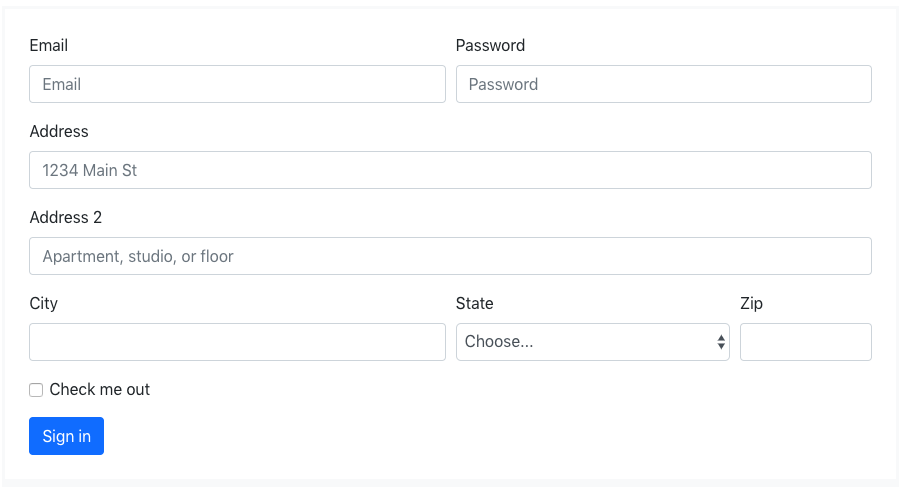
This was taken from Bootstrap 4 official documentation as an example of how to use form rows.
NOTE!
The examples below refer to a base.html template. Consider the code below:
base.html
<!doctype html><htmllang="en"><head><metacharset="utf-8"><metaname="viewport"content="width=device-width, initial-scale=1, shrink-to-fit=no"><linkrel="stylesheet"href="https://stackpath.bootstrapcdn.com/bootstrap/4.1.3/css/bootstrap.min.css"integrity="sha384-MCw98/SFnGE8fJT3GXwEOngsV7Zt27NXFoaoApmYm81iuXoPkFOJwJ8ERdknLPMO"crossorigin="anonymous"></head><body><divclass="container">{%blockcontent%}{%endblock%}</div></body></html>If you don’t know how to install django-crispy-forms, please follow the instructions here first: How to Use Bootstrap 4 Forms With Django
Basic Form Rendering
The Python code required to represent the form above is the following:
fromdjangoimportformsSTATES=(('','Choose...'),('MG','Minas Gerais'),('SP','Sao Paulo'),('RJ','Rio de Janeiro'))classAddressForm(forms.Form):email=forms.CharField(widget=forms.TextInput(attrs={'placeholder':'Email'}))password=forms.CharField(widget=forms.PasswordInput())address_1=forms.CharField(label='Address',widget=forms.TextInput(attrs={'placeholder':'1234 Main St'}))address_2=forms.CharField(widget=forms.TextInput(attrs={'placeholder':'Apartment, studio, or floor'}))city=forms.CharField()state=forms.ChoiceField(choices=STATES)zip_code=forms.CharField(label='Zip')check_me_out=forms.BooleanField(required=False)In this case I’m using a regular Form, but it could also be a ModelForm based on a Django model with similar
fields. The state field and the STATES choices could be either a foreign key or anything else. Here I’m just using
a simple static example with three Brazilian states.
Template:
{%extends'base.html'%}{%blockcontent%}<formmethod="post">{%csrf_token%}<table>{{form.as_table}}</table><buttontype="submit">Sign in</button></form>{%endblock%}Rendered HTML:
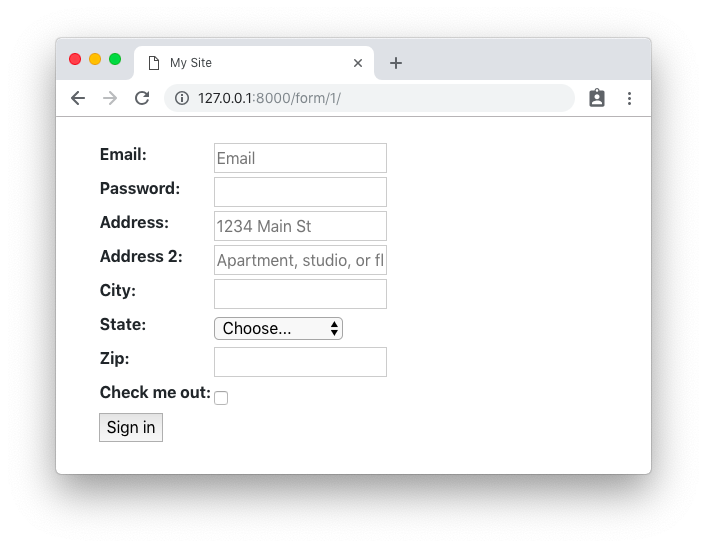
Rendered HTML with validation state:
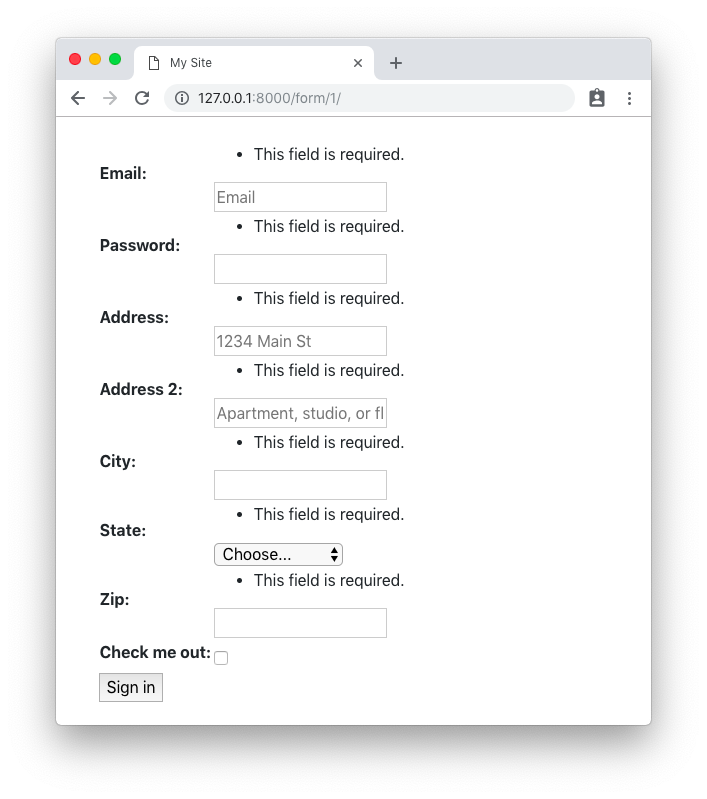
Basic Crispy Form Rendering
Same form code as in the example before.
Template:
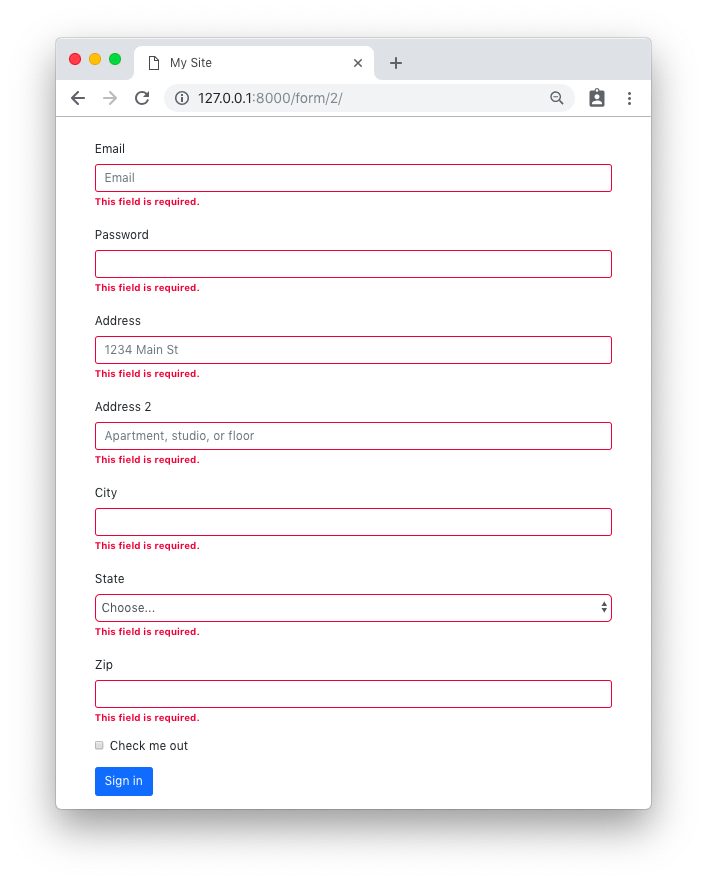
{%extends'base.html'%}{%loadcrispy_forms_tags%}{%blockcontent%}<formmethod="post">{%csrf_token%}{{form|crispy}}<buttontype="submit"class="btn btn-primary">Sign in</button></form>{%endblock%}Rendered HTML:
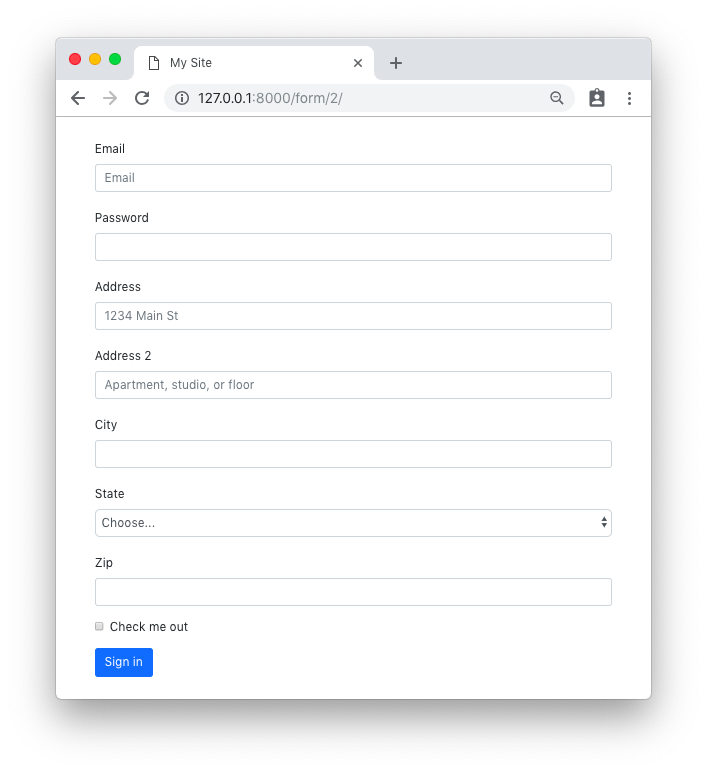
Rendered HTML with validation state:
Custom Fields Placement with Crispy Forms
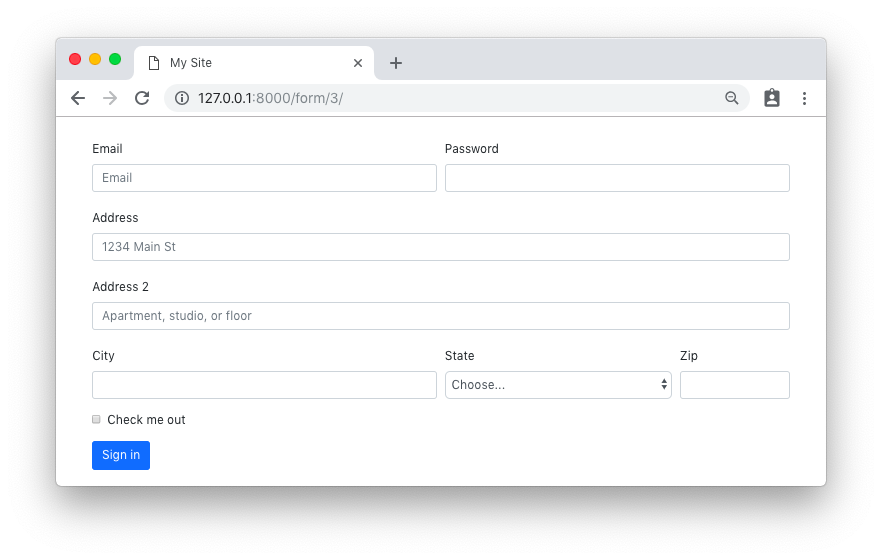
Same form code as in the first example.
Template:
{%extends'base.html'%}{%loadcrispy_forms_tags%}{%blockcontent%}<formmethod="post">{%csrf_token%}<divclass="form-row"><divclass="form-group col-md-6 mb-0">{{form.email|as_crispy_field}}</div><divclass="form-group col-md-6 mb-0">{{form.password|as_crispy_field}}</div></div>{{form.address_1|as_crispy_field}}{{form.address_2|as_crispy_field}}<divclass="form-row"><divclass="form-group col-md-6 mb-0">{{form.city|as_crispy_field}}</div><divclass="form-group col-md-4 mb-0">{{form.state|as_crispy_field}}</div><divclass="form-group col-md-2 mb-0">{{form.zip_code|as_crispy_field}}</div></div>{{form.check_me_out|as_crispy_field}}<buttontype="submit"class="btn btn-primary">Sign in</button></form>{%endblock%}Rendered HTML:
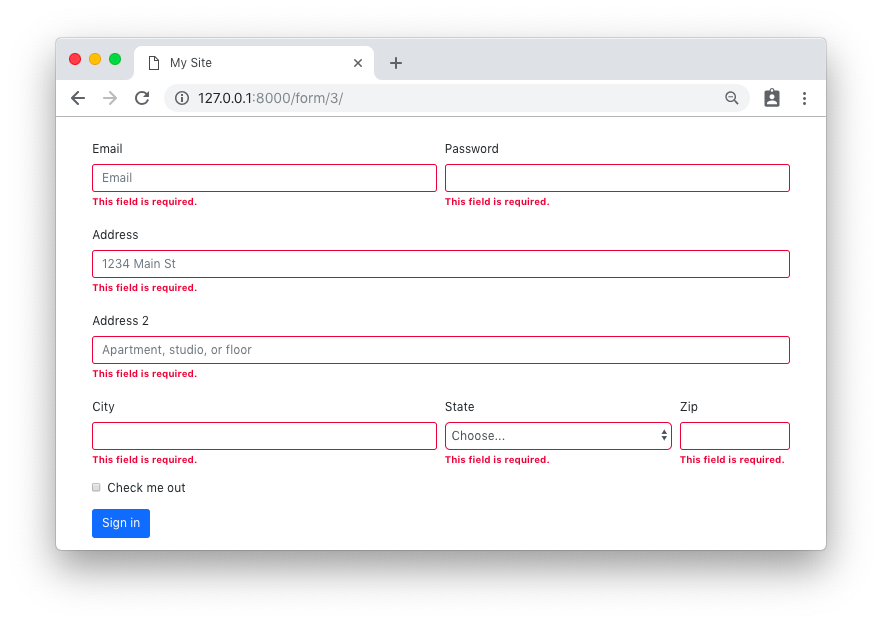
Rendered HTML with validation state:
Crispy Forms Layout Helpers
We could use the crispy forms layout helpers to achieve the same result as above. The implementation is done inside
the form __init__ method:
forms.py
fromdjangoimportformsfromcrispy_forms.helperimportFormHelperfromcrispy_forms.layoutimportLayout,Submit,Row,ColumnSTATES=(('','Choose...'),('MG','Minas Gerais'),('SP','Sao Paulo'),('RJ','Rio de Janeiro'))classAddressForm(forms.Form):email=forms.CharField(widget=forms.TextInput(attrs={'placeholder':'Email'}))password=forms.CharField(widget=forms.PasswordInput())address_1=forms.CharField(label='Address',widget=forms.TextInput(attrs={'placeholder':'1234 Main St'}))address_2=forms.CharField(widget=forms.TextInput(attrs={'placeholder':'Apartment, studio, or floor'}))city=forms.CharField()state=forms.ChoiceField(choices=STATES)zip_code=forms.CharField(label='Zip')check_me_out=forms.BooleanField(required=False)def__init__(self,*args,**kwargs):super().__init__(*args,**kwargs)self.helper=FormHelper()self.helper.layout=Layout(Row(Column('email',css_class='form-group col-md-6 mb-0'),Column('password',css_class='form-group col-md-6 mb-0'),css_class='form-row'),'address_1','address_2',Row(Column('city',css_class='form-group col-md-6 mb-0'),Column('state',css_class='form-group col-md-4 mb-0'),Column('zip_code',css_class='form-group col-md-2 mb-0'),css_class='form-row'),'check_me_out',Submit('submit','Sign in'))The template implementation is very minimal:
{%extends'base.html'%}{%loadcrispy_forms_tags%}{%blockcontent%}{%crispyform%}{%endblock%}The end result is the same.
Rendered HTML:
Rendered HTML with validation state:
Custom Crispy Field
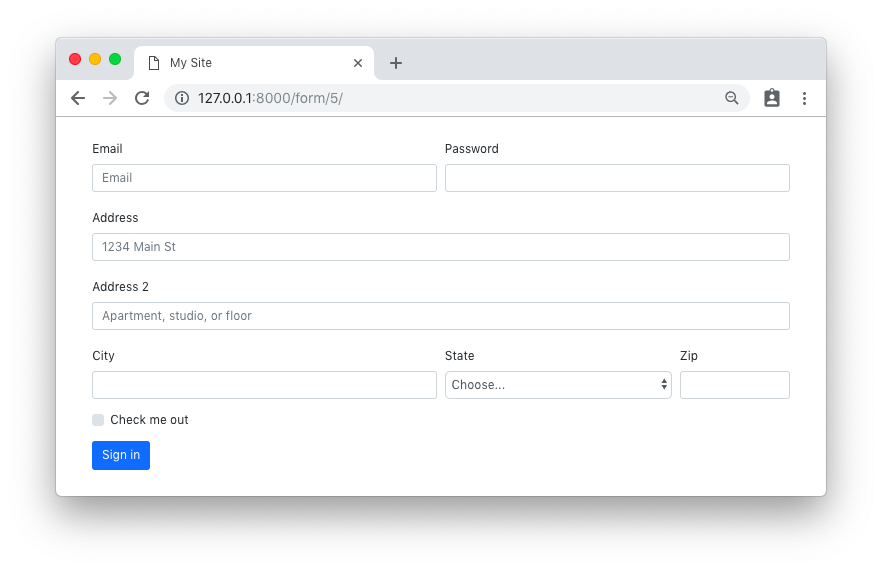
You may also customize the field template and easily reuse throughout your application. Let’s say we want to use the custom Bootstrap 4 checkbox:

From the official documentation, the necessary HTML to output the input above:
<divclass="custom-control custom-checkbox"><inputtype="checkbox"class="custom-control-input"id="customCheck1"><labelclass="custom-control-label"for="customCheck1">Check this custom checkbox</label></div>Using the crispy forms API, we can create a new template for this custom field in our “templates” folder:
custom_checkbox.html
{%loadcrispy_forms_field%}<divclass="form-group"><divclass="custom-control custom-checkbox">{%crispy_fieldfield'class''custom-control-input'%}<labelclass="custom-control-label"for="{{field.id_for_label}}">{{field.label}}</label></div></div>Now we can create a new crispy field, either in our forms.py module or in a new Python module named fields.py or something.
forms.py
fromcrispy_forms.layoutimportFieldclassCustomCheckbox(Field):template='custom_checkbox.html'We can use it now in our form definition:
forms.py
classCustomFieldForm(AddressForm):def__init__(self,*args,**kwargs):super().__init__(*args,**kwargs)self.helper=FormHelper()self.helper.layout=Layout(Row(Column('email',css_class='form-group col-md-6 mb-0'),Column('password',css_class='form-group col-md-6 mb-0'),css_class='form-row'),'address_1','address_2',Row(Column('city',css_class='form-group col-md-6 mb-0'),Column('state',css_class='form-group col-md-4 mb-0'),Column('zip_code',css_class='form-group col-md-2 mb-0'),css_class='form-row'),CustomCheckbox('check_me_out'),# <-- HereSubmit('submit','Sign in'))(PS: the AddressForm was defined here and is the same as in the previous example.)
The end result:
Conclusions
There is much more Django Crispy Forms can do. Hopefully this tutorial gave you some extra insights on how to use the form helpers and layout classes. As always, the official documentation is the best source of information:
Django Crispy Forms layouts docs
Also, the code used in this tutorial is available on GitHub at github.com/sibtc/advanced-crispy-forms-examples.