The new Dark Mode in macOS Mojave is a nice addition and is – especially in the night hours — more pleasing to your eyes than the light mode.
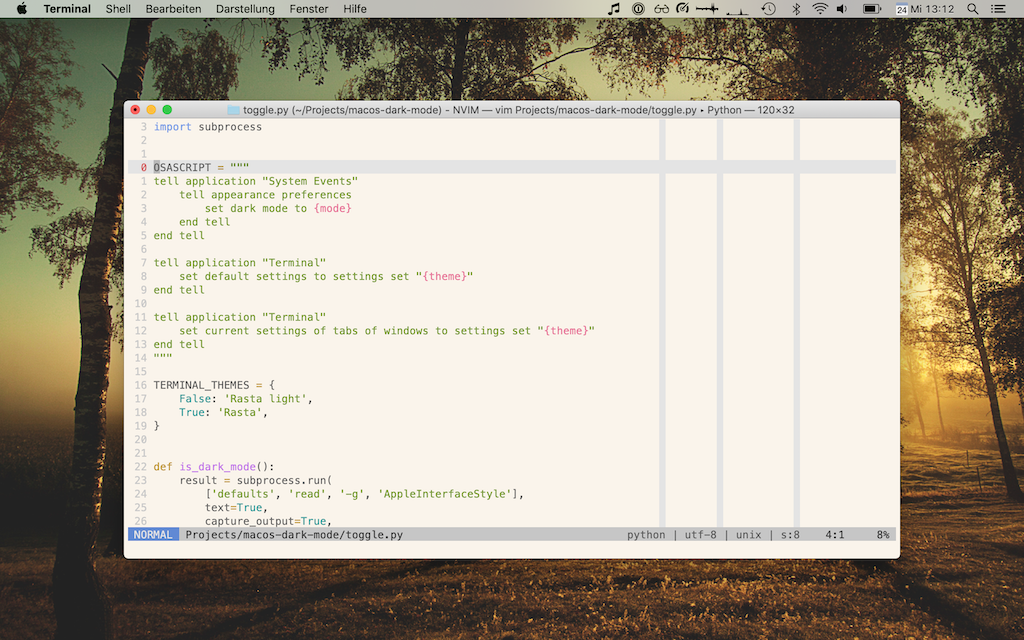
MacOS light mode with a light Terminal profile and a light Vim theme.
However, enabling Dark Mode will not change the Terminal profile, which is a little bit annoying – especially if your color theme has a light and a dark variant (like the infamous Solarized, Snow, One, or my own Rasta theme).
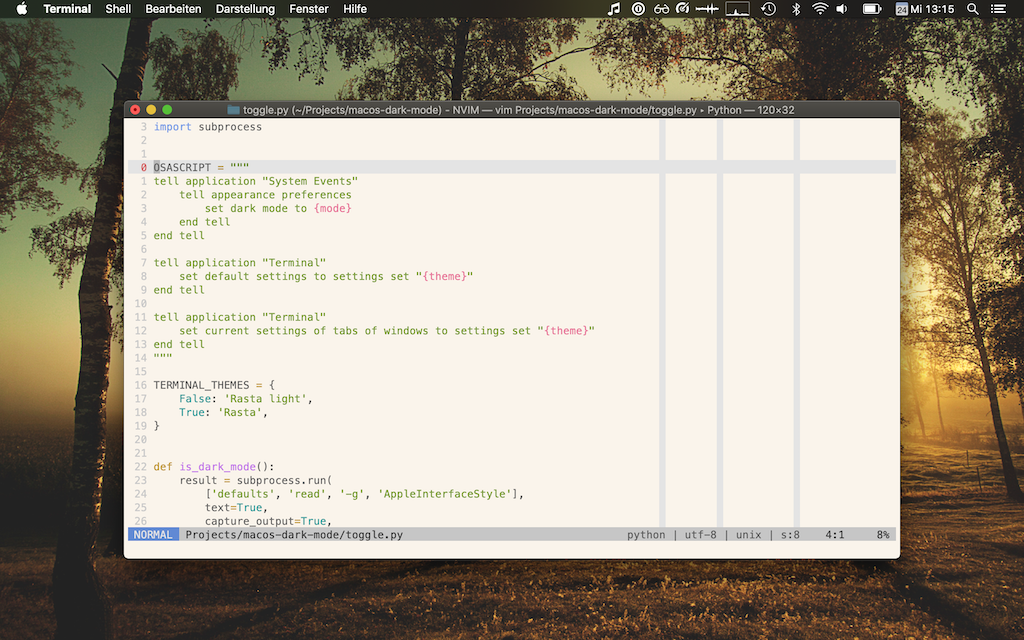
MacOS dark mode with a light Terminal profile and a light Vim theme.
If you change your Terminal profile to something dark, Vim still doesn’t look right because it uses its own mechanism for light/dark backgrounds (see :help 'background' for details) and doesn’t know about the changes you made to the Terminal profile.
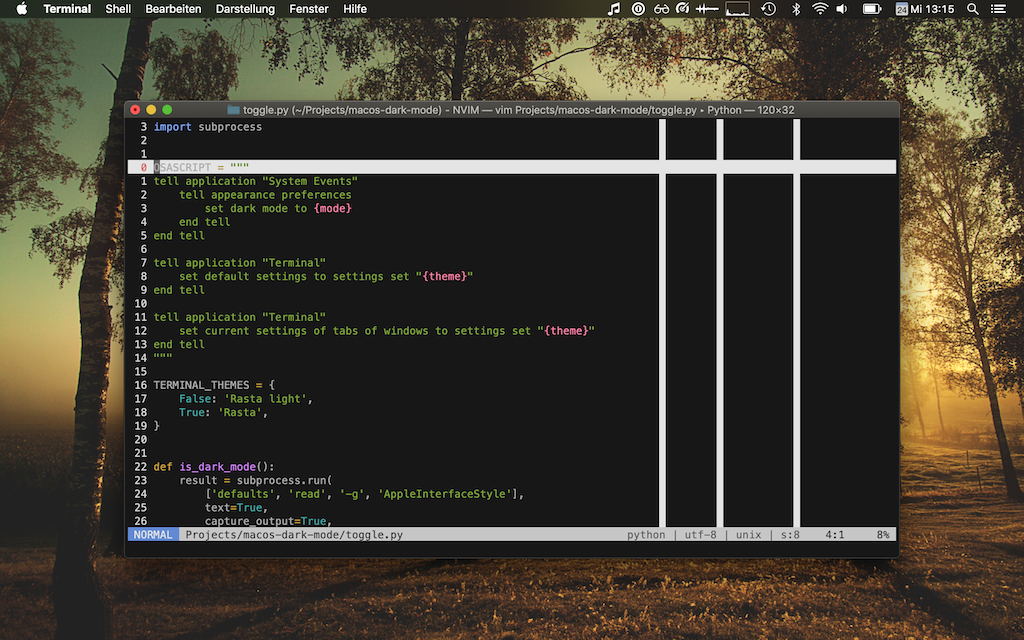
MacOS dark mode with a dark Terminal profile and a light Vim theme.
If you execute :set background=dark in Vim (and if you color scheme supports it), Vim looks nice and dark now, too.
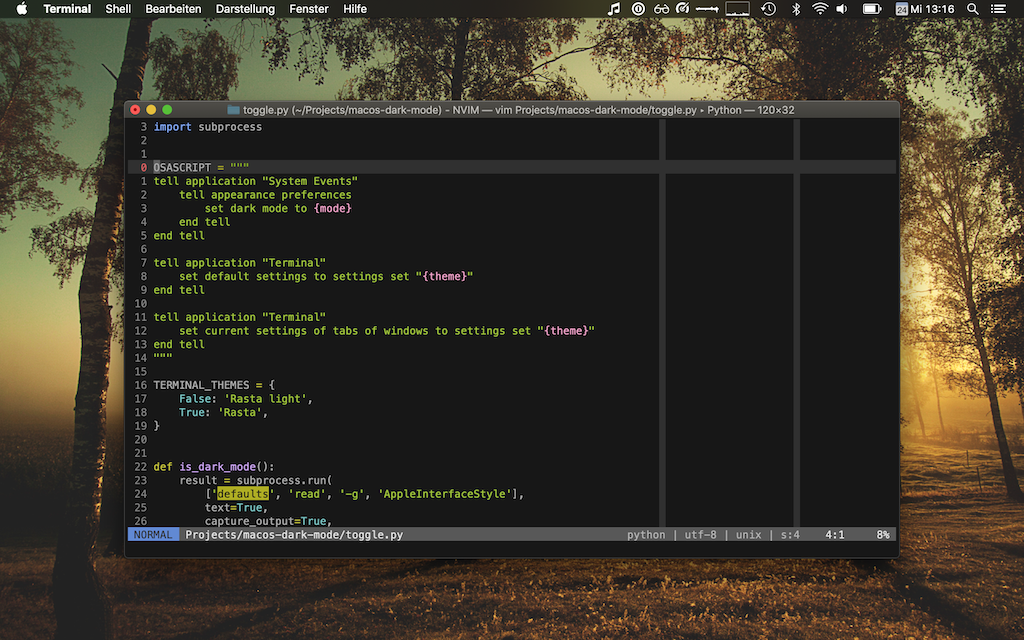
MacOS dark mode with a dark Terminal profile and a dark Vim theme.
However, on the next day, the fun begins again when you want to switch everything back to light mode …
Wouldn’t it be nice if this could all be accomplished with a single command?
There are tools, that help you with switching to/from macOS Dark Mode (e.g., NightOwl or Shifty), but they can’t change your Terminal profile or notify Vim.
As it turns out, it’s not too hard to implement a little program that does exactly this:
You can uses the defaults command to get the current macOS Dark Theme mode:
$ defaults read -g AppleInterfaceStyle
Dark
You can use AppleScript (oh, how I love this language …) to set Dark Mode and update the Terminal profile:
# Set Dark Modetellapplication"System Events"tellappearancepreferencessetdarkmodetotrue# Can be one of: true, false, not darkendtellendtell# Update default settings (for new windows/tabs)tellapplication"Terminal"setdefaultsettingstosettingsset"Rasta"endtell# Update settings for exsting windows/tabstellapplication"Terminal"setcurrentsettingsoftabsofwindowstosettingsset"Rasta"# Theme nameendtell
You can wrap both things with a Python script:
# toggle-macos-dark-mode.pyimportsubprocessOSASCRIPT="""tell application "System Events" tell appearance preferences set dark mode to {mode} end tellend telltell application "Terminal" set default settings to settings set "{theme}"end telltell application "Terminal" set current settings of tabs of windows to settings set "{theme}"end tell"""TERMINAL_THEMES={False:'Rasta light',True:'Rasta',}defis_dark_mode()->bool:"""Return the current Dark Mode status."""result=subprocess.run(['defaults','read','-g','AppleInterfaceStyle'],text=True,capture_output=True,)returnresult.returncode==0andresult.stdout.strip()=='Dark'defset_interface_style(dark:bool):"""Enable/disable dark mode."""mode='true'ifdarkelse'false'# mode can be {true, false, not dark}script=OSASCRIPT.format(mode=mode,theme=TERMINAL_THEMES[dark])result=subprocess.run(['osascript','-e',script],text=True,capture_output=True,)assertresult.returncode==0,resultif__name__=='__main__':set_interface_style(notis_dark_mode())
You can use the timer_start() function introduced in Vim 8 and neovim to regularly check for the current Dark Mode settings. Put this into your Vim config:
function! SetBackgroundMode(...)let s:new_bg ="light"if $TERM_PROGRAM ==? "Apple_Terminal"let s:mode= systemlist("defaults read -g AppleInterfaceStyle")[0]
        if s:mode==? "dark"let s:new_bg ="dark"elselet s:new_bg ="light"endifelse" This is for Linux where I use an environment variable for this:if $VIM_BACKGROUND ==? "dark"let s:new_bg ="dark"elselet s:new_bg ="light"endifendifif&background!=? s:new_bg
        let&background= s:new_bg
    endifendfunctioncall SetBackgroundMode()call timer_start(3000,"SetBackgroundMode", {"repeat": -1})
You can create an Automator action that runs the Python script and that can be activated with a global shortcut. I use ⌥⌘D (you need to deactivate this shortcut for showing/hiding the Dock first). This is the AppleScript I used:
do shell script"/usr/local/bin/python3 ~/toggle-macos-dark-mode.py"
![Yo dawg, I heard you like AppleScript … so I wrote some AppleScript that wraps your Python that wraps your AppleScript]()
The drawback of this method is that the current application (at the time you press ⌥⌘D) is used as “source” of the action you get two dialogs asking you to give that app permissions to remote control the System Settings and Terminal.
A better solution would be if the authors of NightOwl and Shifty would integrated this into their tools. I’m gonna contact them and see what happens. :-)