Are you interested in writing Python code on a Windows machine? Maybe you’re a lifelong Windows user getting into coding with Python, or perhaps you’re just beginning to branch out from macOS or Linux. In this tutorial, you’ll walk through an easy-to-follow and flexible Python coding setup on Windows 10.
Note: Most of the steps here will work equally well on Windows 11.
To set up your Windows machine for Python coding, you’ll:
- Clean and update a new Windows install
- Use a package manager to bulk install key software
- Use the built-in
ssh-keygento generate SSH keys and connect to your GitHub account - Set up a development environment, including PowerShell Core, pyenv for Windows, Python, and VS Code
- Examine scripts and tools to automate the setup and installation process
Along the way, you’ll learn about various recommended tools for a complete, free, and mostly open-source Windows Python coding setup. You won’t get to know all the possible tools, but you’ll walk away with one setup that should be flexible enough for most situations.
If you’re a beginner to intermediate Pythonista, or you’re just looking to get set up on a Windows machine without having to think about all the different options out there, then this tutorial is for you.
Free Bonus:Click here to get our free Python Cheat Sheet that shows you the basics of Python 3, like working with data types, dictionaries, lists, and Python functions.
Maybe you’re in a rush to get set up. If that’s the case, then you’ll find what you need in the section on fast-tracking your setup, where you’ll examine a PowerShell script to automate the process almost entirely. Jump over there if you need to get up and running quickly. That said, going over the first section will give you a good checklist to start with to make sure you won’t run into any errors.
Setting Up Your Basic Python Coding Environment in Windows
Say you’re sitting in front of a completely fresh Windows installation. In this section, you’ll go through the first steps that you should perform in that case. You’ll get an initial command line environment set up, install software via package managers, and configure essential Windows settings for a Python coding setup.
Note: If you’re going to be following along, you’ll be restarting your computer various times during this whole process. It’s worthwhile to have another device close by, not only for keeping this tutorial open, but for general queries, troubleshooting, and the ability to carry on reading other Real Python tutorials while waiting for updates or installations.
In addition to installing what you need, you’ll also learn how to get around some of Microsoft’s built-in programs that might get in the way. Your first step is to ensure that your Windows installation is up-to-date.
Updating Your Windows Installation
First, if your machine is new or you’ve disabled updates, then you’ll want to make sure your Windows installation is up-to-date. Updating is especially relevant if you want to use Windows Subsystem for Linux (WSL) and have Windows 10. It’s also a safeguard against the dreaded Windows auto-reboot.
Installing Windows updates can take an hour or two, but it’s relatively mindless. So if you’re starting here, line up some other tasks while waiting for the updates to complete.
To start the update process, go to the Start menu and search for Windows Update. Once there, prompt Windows to search for, download, and install any updates it can find:
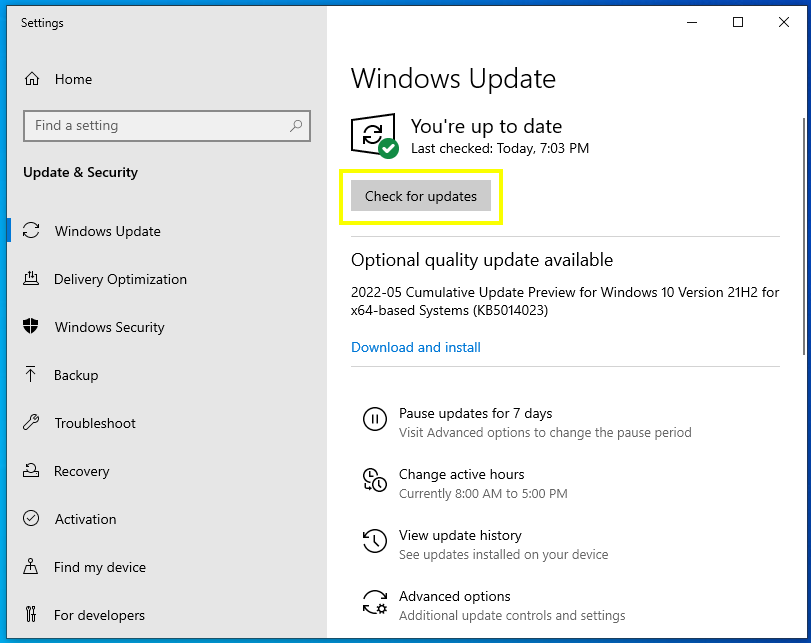
Once all the updates have been installed, you’ll probably be prompted to reboot the computer. Do this as many times as it asks you to.
You’ll probably have to repeat the update process two or three times. Once the first batch of updates have been installed and you’ve rebooted, if you go back to the update screen, then it’ll probably say that the system is up-to-date. However, if you wait a while and then check for updates again, it’ll likely find some more to install.
Once you have all the updates installed, then you’re ready to do the initial setup for the command line environment in your Windows Python coding setup.
Discovering the Windows Terminal
If you’ve always used Windows, then you may be used to using the Command Prompt and PowerShell through their own apps. Opening them this way may make you think that they’re self-contained programs. However, when you run these programs from the Start menu, two processes are running. One process is what performs the commands, and the other is a process to send your input and display the output.
The window that you see when you open the Command Prompt is the displaying process. The core of the Command Prompt is in the background awaiting your input that’s sent by the window. In this way, the window acts as a sort of host to the terminal.
For more information about the differences between command interpreters and interfaces, take a look at the introduction to the shell section in the article about the subprocess module.
Windows has created a new, open-source Windows Terminal to be a universal console host. It acts as an interface to multiple shells, allowing you to start the Command Prompt, PowerShell, and any other shell that you might have available as different tabs in the same host:
Read the full article at https://realpython.com/python-coding-setup-windows/ »
[ Improve Your Python With 🐍 Python Tricks 💌 – Get a short & sweet Python Trick delivered to your inbox every couple of days. >> Click here to learn more and see examples ]