This post introduces pygame basic concepts. Before we procceed, make sure you have pygame library installed.
pip install pygame
First thing to do is to import the library and necessary packages.
importpygameimportosos.environ['SDL_AUDIODRIVER']='dsp'Let us Initialize and Set the window size using set_mode() Once imported, we initialize pygame and we set up the window style and resolution. There are many ways to do it.
WIDTH=800HEIGHT=600WINDOW_SIZE=[WIDTH,HEIGHT]pygame.init()window=pygame.display.set_mode(WINDOW_SIZE)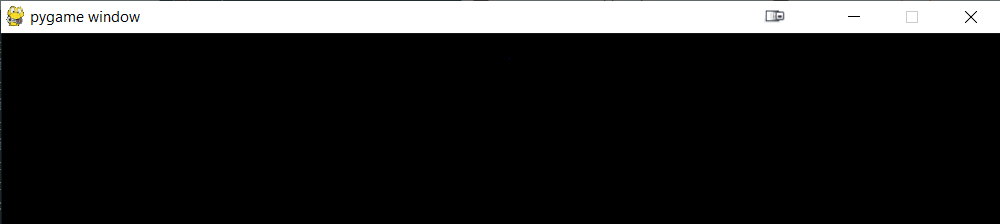
If we execute the snippet, a window with the size 800x600 will appear.
The function set_mode can have a second parameter "flag". Some of the most used flags are :
pygame.FULLSCREEN # to open the window in full screen mode pygame.RESIZABLE # to allow the user to change the size of the window pygame.NOFRAME # the window will have no border and no controls
pygame2 has additional flags like :
pygame.SCALED # the window will adapt to the desktop size pygame.SHOWN # the window will be visible (this is the default value) pygame.HIDDEN # the window will open but will not be visible.
Here is a simple example:
importpygameWINDOW_SIZE=[800,600]pygame.init()window=pygame.display.set_mode(WINDOW_SIZE,pygame.RESIZABLE)We can use multiple flags at the same time like this...
flags=pygame.SCALED|pygame.NOFRAME|pygame.HIDDENwindow=pygame.display.set_mode(WINDOW_SIZE,flags)Notice that after executing the previous code the window control bar says :"not responding" to fix that we need to add a loop and manage different events. "Managing QUIT event"
To capture the quit event, First we get the events and we compare each event in the event list with pygame.QUIT
Here is a simple example...
importpygamepygame.init()window=pygame.display.set_mode([800,600],pygame.RESIZABLE)game_running=Truewhilegame_running:foreventinpygame.event.get():ifevent.type==pygame.QUIT:print("closing the game")game_running=Falsebreakpygame.quit()exit()Now with the above fix, we would'nt have the "not responding" problem and now we can interact with the window.
We can add any event to close the application like pressing the ESCAPE button.
To do that, we check for event pygame.K_ESCAPE as shown below...
ifevent.type==pygame.KEYDOWN:ifevent.key==pygame.K_ESCAPE:game_running=FalsebreakIf you want to check all the available keys in Python, execute following help command. In the data section you will find all the keyboard keys starting with "K_"
importpygamehelp(pygame)We can set the background color & image as we want:
To set the color, we use the color RGB code...
importpygameimportosos.environ['SDL_AUDIODRIVER']='dsp'R=200G=200B=200grey=[R,G,B]pygame.init()window=pygame.display.set_mode([800,600])window.fill(grey)pygame.display.flip()# this is used to Save the changes to the windowrun=Truewhilerun:foreventinpygame.event.get():ifevent.type==pygame.QUIT:run=Falsebreakpygame.quit()exit()To set an Image as background, we need to make sure the resolution of the image is the same as our screen resolution.
First we load the image to a variable and then we add it to the window.
The function blit in the code below will display image starting at coordinates (0,0)
importpygamemyBackgroundImage=pygame.image.load("imgs/bg.png")pygame.init()window=pygame.display.set_mode([800,600])#In this case we want image to be displayed in full screen so the top left corner of the image will be at the position coordinates (0,0)window.blit(myBackgroundImage,(0,0))pygame.display.flip()# this is used to Save the changes to the windowrun=Truewhilerun:foreventinpygame.event.get():ifevent.type==pygame.QUIT:run=Falsebreakpygame.quit()exit()rate=60clock=pygame.time.Clock()# this is added before the while loop# instructions ... whileTrue:clock.tick(rate)# this is set inside the while loop# instructions ... "adding Rectangle to the window"importpygamepygame.init()window=pygame.display.set_mode([800,600])# X and Y represent the position where the rectangle will be displayedX=20Y=20# HEIGHT and WIDTH represent the size of the rectangleWIDTH=100HEIGHT=50myRectangle=pygame.Rect(X,Y,WIDTH,HEIGHT)# we can change the color of the rectangle before drawing pygame.draw.rect(window,[200,200,200],myRectangle)pygame.display.flip()run=Truewhilerun:foreventinpygame.event.get():ifevent.type==pygame.QUIT:run=Falsebreakpygame.quit()exit()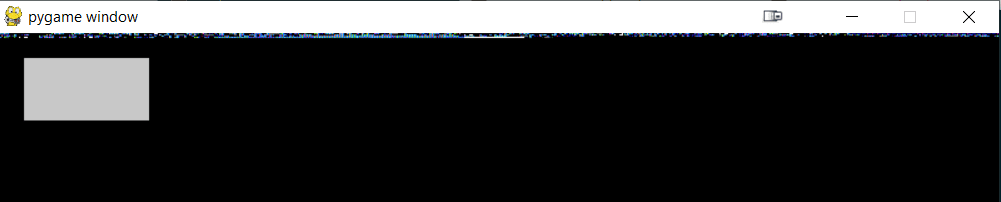
We can move the rectangle around by filling the window and drawing the rectangle again in another position.
importpygamerate=60clock=pygame.time.Clock()pygame.init()window=pygame.display.set_mode([800,600])# X and Y represent the position where the rectangle will be displayedX=20Y=20# HEIGHT and WIDTH represent the size of the rectangleWIDTH=100HEIGHT=50myRectangle=pygame.Rect(X,Y,WIDTH,HEIGHT)# we can change the color of the rectangle before drawing pygame.draw.rect(window,[200,200,200],myRectangle)pygame.display.flip()run=Truewhilerun:foreventinpygame.event.get():ifevent.type==pygame.QUIT:run=Falsebreakclock.tick(rate)# fill the window with the color black ( if you have an image you will blit it again here)window.fill([0,0,0])X+=10# here we change the position of the rectanglemyRectangle=pygame.Rect(X,Y,WIDTH,HEIGHT)pygame.draw.rect(window,[255,0,0],myRectangle)pygame.display.flip()pygame.quit()exit()
To add a circile to the window we follow the same steps for the rectangle.
position=(50,50)# position of the center of the circle.radius=20# radius desiredcolor=[50,255,255]#color of the circlepygame.draw.circle(window,color,position,radius)importpygamepygame.init()window=pygame.display.set_mode([800,600])# X and Y represent the position where the rectangle will be displayedposition=(0,0)radius=20color=[50,255,255]pygame.draw.circle(window,color,position,radius)pygame.display.flip()run=Truewhilerun:foreventinpygame.event.get():ifevent.type==pygame.QUIT:run=Falsebreakpygame.quit()exit()#Same style as the previous elements : color=[0,0,255]positions=[(0,0),(50,100),(100,0),(100,50)]pygame.draw.polygon(window,color,positions)importpygamepygame.init()window=pygame.display.set_mode([800,600])# X and Y represent the position where the rectangle will be displayedcolor=[0,0,255]positions=[(0,0),(25,50),(0,100),(100,50)]pygame.draw.polygon(window,color,positions)pygame.display.flip()run=Truewhilerun:foreventinpygame.event.get():ifevent.type==pygame.QUIT:run=Falsebreakpygame.quit()exit()
We can move the elements the same way we move the rectangle. If we want to move the circle we change the coordiantes of the center. If we want to change the positions of polygon we need tochange all its coordinates. Here is an example :
defmove_circle(delta_x,delta_y,position):center=[position[0]+delta_x,position[1]+delta_y]color=[50,255,60]pygame.draw.circle(window,color,center,radius)returncenterdefmove_rectangle(delta_x,delta_y,pos):moved=posmoved[0]+=delta_xmoved[1]+=delta_ymyRectangle=pygame.Rect(moved[0],moved[1],50,25)pygame.draw.rect(window,[250,65,65],myRectangle)returnmoveddefmove_polygon(delta_x,delta_y,positions):moved=positions[::]foreinmoved:e[0]+=delta_xe[1]+=delta_ypygame.draw.polygon(window,[0,0,255],moved)returnmovedimportpygameimporttimepygame.init()window=pygame.display.set_mode([800,600])# X and Y represent the position where the rectangle will be displayedcolor=[0,0,255]positions=[[0,0],[25,50],[0,100],[100,50]]pygame.draw.polygon(window,color,positions)position=(20,150)radius=20color=[50,255,60]pygame.draw.circle(window,color,position,radius)rect_coord=[0,200,50,25]myRectangle=pygame.Rect(rect_coord)# we can change the color of the rectangle before drawing pygame.draw.rect(window,[250,65,65],myRectangle)pygame.display.flip()run=Truewhilerun:foreventinpygame.event.get():ifevent.type==pygame.QUIT:run=Falsebreakwindow.fill([0,0,0])position=move_circle(1,0,position)# move the circle following the x direction (horizontally)positions=move_polygon(1,0,positions)# move the polygon following the x direction (horizontally)rect_coord=move_rectangle(1,0,rect_coord)# move the rectangle following the x direction (horizontally)pygame.display.flip()time.sleep(0.005)pygame.quit()exit()Of course you can change the direction and the coordinates. I have used (1,0) as the 2 first parameters of the move_rectangle and move_polygon functions. we can set positive or negative values to navigate with the item through the window.
To get the mouse positiion, it is very simple. we can use the function pygame.moust.get_pos()
importpygameimporttimepygame.init()window=pygame.display.set_mode([800,600])run=Truewhilerun:foreventinpygame.event.get():ifevent.type==pygame.QUIT:run=Falsebreakifevent.type==pygame.MOUSEBUTTONDOWN:mouse_btn_pressed=Trueprint("mouse",event.button,"has been pressed")position=pygame.mouse.get_pos()print("mouse position",position)time.sleep(0.5)pygame.quit()exit()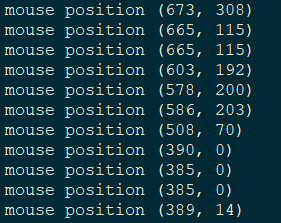
Let us make a little drag and drop game.
If the user clicks a button, the circle will follow the mouse and if the mouse button is clicked again the circle will stop following.
importpygamepygame.init()window=pygame.display.set_mode([800,600])drag_drop=Falserun=Trueposition=(400,300)radius=30color=[50,255,60]pygame.draw.circle(window,color,position,radius)pygame.display.flip()whilerun:foreventinpygame.event.get():ifevent.type==pygame.QUIT:run=Falsebreakifevent.type==pygame.MOUSEBUTTONDOWN:mouse_btn_pressed=Truedrag_drop=notdrag_dropif(drag_drop):position=pygame.mouse.get_pos()window.fill([0,0,0])pygame.draw.circle(window,color,position,radius)pygame.display.flip()pygame.quit()exit()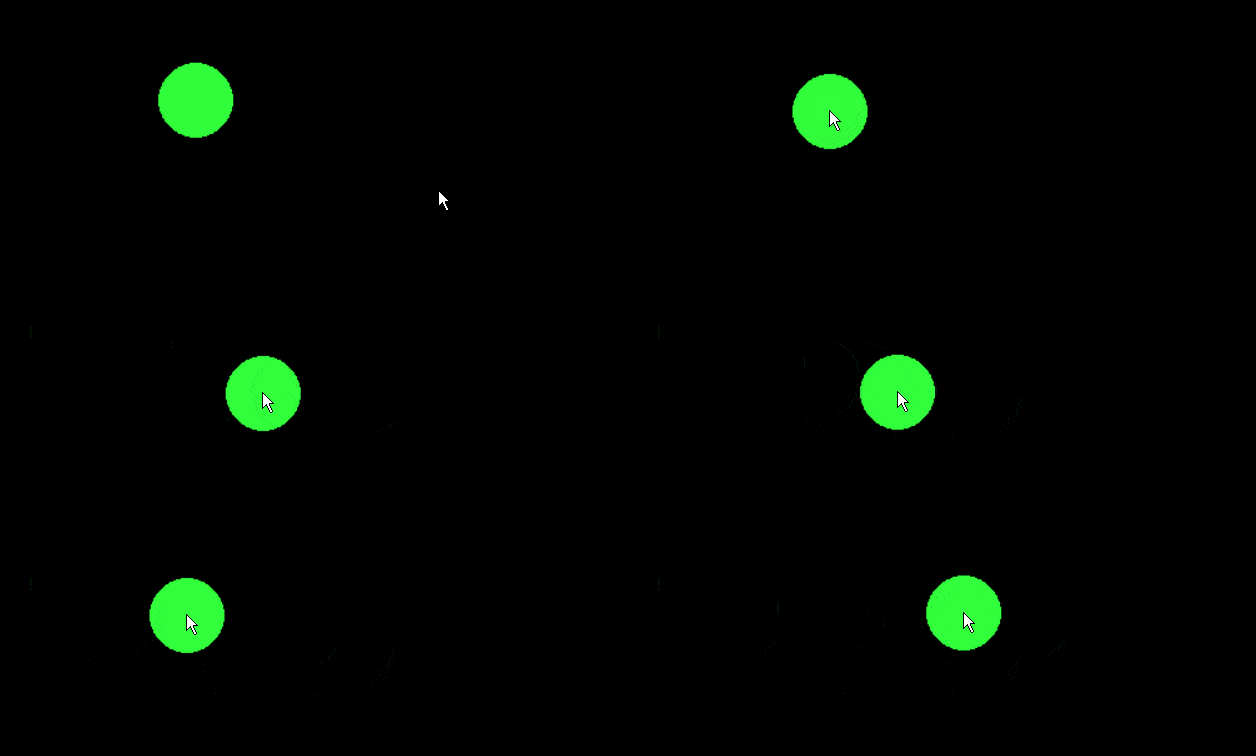
To display the text on the screen we need to follow these steps :
1 - set a font using :
font = pygame.font.Font(pygame.font.get_default_font(), 36)
2 - set the text using :
text = font.render('Hello World', True,255, 255, 255)
3 - display it on the screen using :
window.blit(text,dest=(50,50))
# here is a little example.importpygamepygame.init()window=pygame.display.set_mode([800,600])font=pygame.font.Font(pygame.font.get_default_font(),36)text=font.render('Hello World',True,(255,255,255))run=Truewindow.blit(text,dest=(50,50))pygame.display.flip()whilerun:foreventinpygame.event.get():ifevent.type==pygame.QUIT:run=Falsebreakpygame.quit()exit()We can change the text displayed on the screen by filling the screen with the background color and blit'ing another text.
We shouldn't forget to update the window using the function pygame.display.flip()