Wing Python IDE includes a boatload of features aimed at making it easier to navigate and understand the structure of Python code. Some of these allow for quick navigation between the definition and uses of a symbol. Others provide a convenient index into source code. And still others quickly find and open files or navigate to symbols matching a name fragment.
In the this and the next two Wing Tips, we'll take a look at each of these in turn.
Goto Definition
To get from any use of a symbol in Python code to its definition, use GotoSelectedSymbolDefn in the Source menu. This jumps to the def, class, or the point at which a variable or attribute was first defined.
Another way to do this is to right-click on the symbol in the editor and select GotoDefinition or GotoDefinitioninOtherSplit:
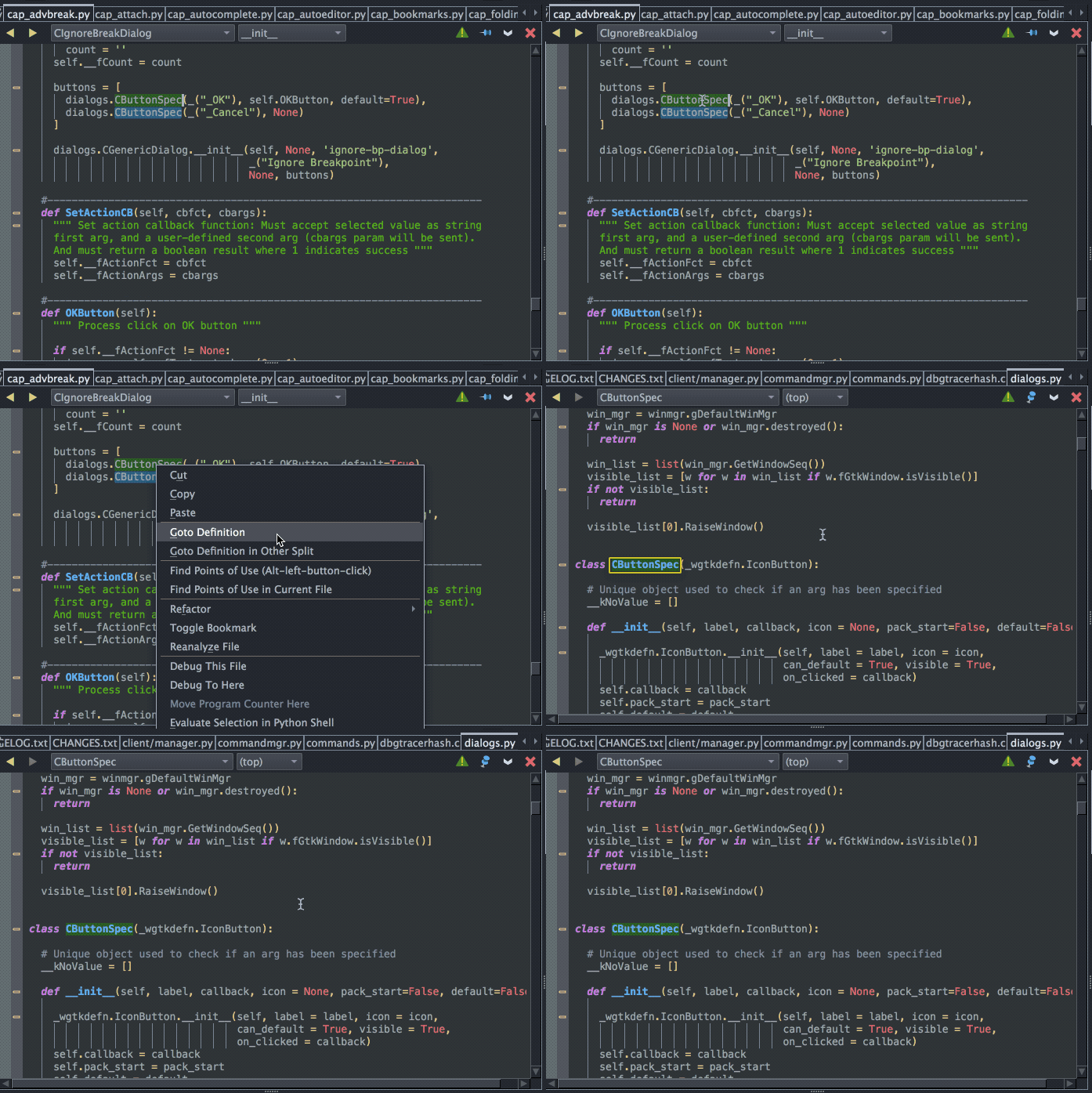
The menus also give the key bindings for the commands, or you can bind your own key to the command goto-selected-symbol-defn with the UserInterface>Keyboard>CustomKeyBindings preference.
In some cases, jumping to a definition successfully depends on resolving imported modules correctly using the Python Path configured by Python. In most cases you will not need to add to this configuration, but doing so is possible with ProjectProperties from Wing's Project menu.
Navigation History
For this and all the other code navigation options, the  button at the top left
of the editor may be used to return to the previous file or focus. Or move forward again
in your navigation history with the
button at the top left
of the editor may be used to return to the previous file or focus. Or move forward again
in your navigation history with the  button.
Find Uses
In Wing Pro only, FindPointsofUse in the Source menu or the editor's right-click context menu finds all points of use of a symbol in Python code:
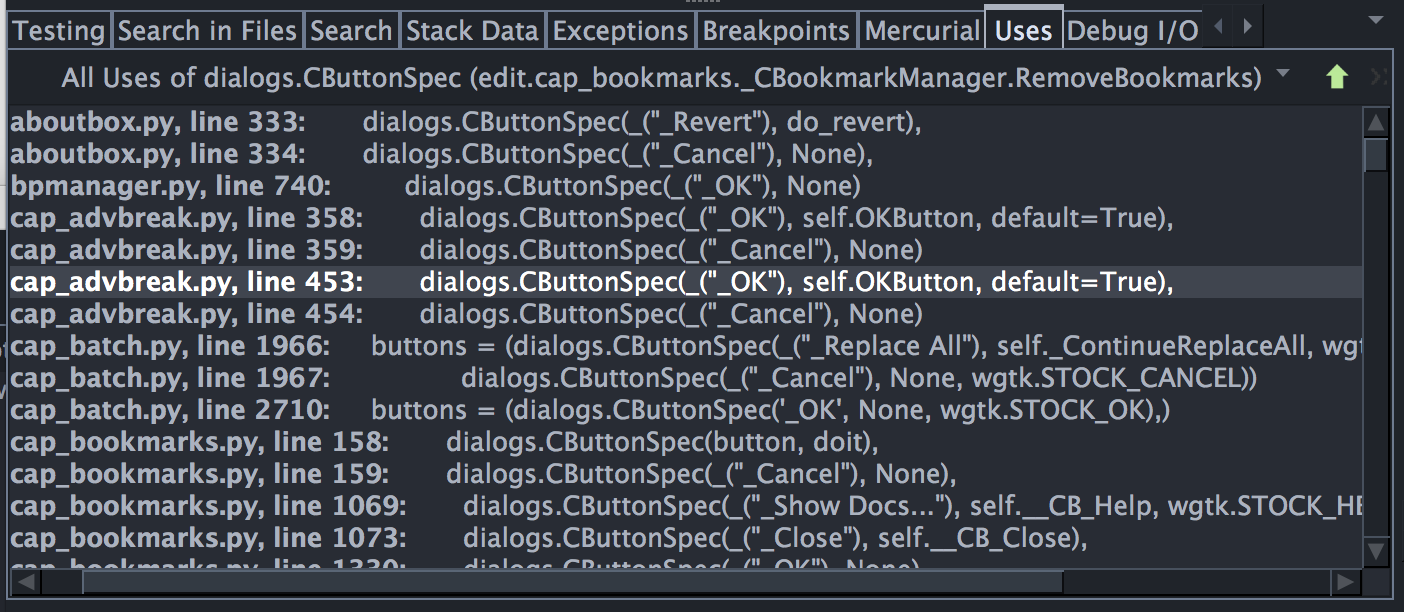
This search distinguishes between different but like-named symbols and will cover all project files and other files Wing finds on the configured Python Path. The tool's Options menu provides control over which files are searched and what types of matches are shown.
Search in Files
To find all occurrences of other strings in Python files or in project files of any type, use the SearchinFiles tool from the Tools menu with Lookin set to ProjectFiles and Filter set to the narrowest filter that includes the files that you wish to search:
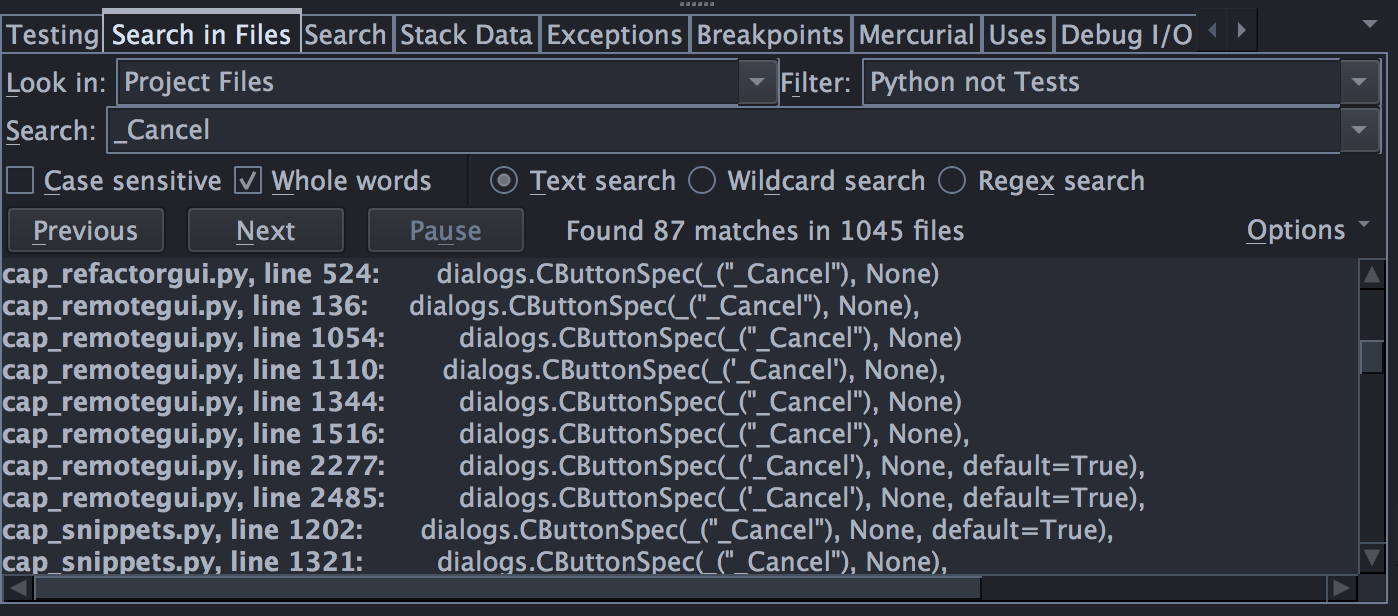
This tool supports text matching, wildcard, and regular expression searching and automatically updates the search results as files change.
Searching on ProjectFiles assumes that you have used AddExistingDirectory in the Project menu to add your source code to your project. Typically the project should contain the code you are actively working on. Packages that your code uses can be left out of the project, unless you anticipate often wanting to search them with SearchinFiles.
That's it for now! We'll be back next week to continue this Wing Tips mini-series on navigating Python code with Wing.
As always, please don't hesitate to email support@wingware.com if you run into problems or have any questions.